Under “Your account”, use “Manage API keys” to connect external services to exactly one workspace. You can restrict read/write access, set validity and revoke keys. See Workspace API for external services for complete setup instructions and reference.
Your sOU account connects the website, desktop login and your workspaces. The website under www.getsou.app shows your account status and offers download, login and password management. Teams, matches, organizations and HUDs are managed in the desktop app.
Create an account
Information about the processing of your account and usage data can be found in privacy policy. Legal notice, Privacy and “Cookie Settings” are accessible on all website pages in the foot area. Cookie information explains all cookies used.
On the first visit, a cookie notice opens. “Continue without saving”, the cross and the escape button close it for the current page without saving a setting. Only “Hide hint 180 days” remembers your wish for this duration. This is not consent in analysis or advertising. Via “Cookie Settings” you can open the note again; your form entries are retained. Legal texts can be opened directly from the notice and are not automatically concealed by it.
- Open Registration or select Create account in the login window of the app.
- Enter an email address whose mailbox you can access. You confirm the account and reset your password if necessary.
- Select a password and enter it in the password field.
- Send the registration and check the displayed feedback.
- Then open the confirmation mail and confirm the address as described in the next section.
The password requires at least 12 and at most 256 characters as well as upper case, lower case, one digit and one special character. The e-mail address must be at most 254 characters long. In the event of an error, you correct the relevant input; passwords are not displayed again after a failed form.
With the account, your personal workspace is created. It is your own data area and not shared. For collaboration, you’ll later create an organization with shared workspaces or have yourself added to an existing organization.
Confirm the e-mail address
- Open the confirmation mail sent by sOU.
- Follow the link contained therein.
- Select Confirm email on the open page. Opening the link alone does not replace this confirmation step.
- Read the feedback and proceed to the login or account status.
If no mail arrives, check spam folders and spelling of the address first. With Request confirmation mail again you can trigger a new confirmation. The feedback does not reveal whether an account already exists for a entered address.
Account mails contain a designed message and a plain text version. Use Confirm email or Reset password; below it is the same full copy link. The sOU logo is embedded in the message. You don’t have to allow external images for this. Do not share personal links with others.
An invalid or no longer usable link does not confirm the address. Then request a new mail and use their link. Do not enter your credentials into a foreign site just because it indicates an alleged account error.
Check your account status
After confirming your email address, you can sign in to sOU directly. No additional approval from the sOU team is required. This also applies to already confirmed accounts that have previously waited for an unlock. An existing account suspension remains effective. You can see the current status on your Account page.
| Status | Meaning | What you can do |
|---|---|---|
| Email unconfirmed | The address has not yet been successfully confirmed. | Open or request confirmation mail again and complete the confirmation. |
| Ready | The email address is confirmed and the account is not blocked. | Start the desktop login and use your workspaces. |
| Suspended | Account access has been restricted. | An existing website session may still show the status; new logins and password change are not available. |
Organization roles, workspace roles and access to shareable HUDs remain their own permissions. Sign-in with a confirmed e-mail address does not automatically grant these rights.
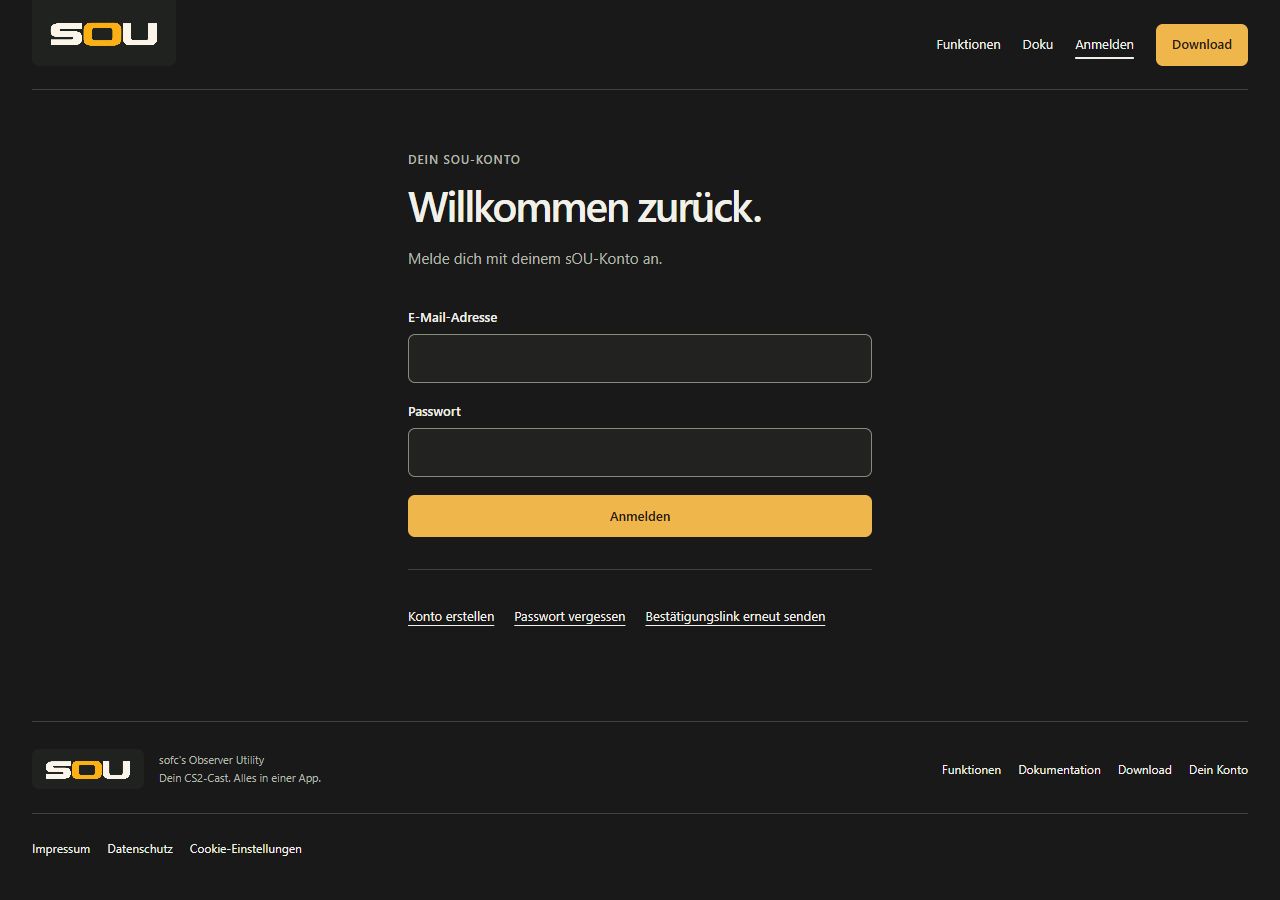
Sign in on the website
- Open Sign in.
- Enter email address and password.
- Send the form.
- Then check your account page with the current status.
The website uses a browser session. Cookies must be allowed for sign-in. Confirmed, unblocked accounts can use the website and desktop login.
If a sign-in form has been open for too long, the page can request a new entry. Use the newly displayed form and enter your password again. If the same message appears again and again, check cookie settings and whether you are working with an unchanged old browser page.
Sign in to the desktop app
In the start window Sign in to sOU you will find the registration and registration under Get started with your account. You can open help for the first start and saved offline login via First time here or currently offline?. Under Version & updates you can check your installed version before registering and load available app updates.
- Start sOU and select Sign in with browser.
- Keep the sOU window open while the browser opens.
- Sign up there. If there is already a suitable browser session, the process can use it.
- Wait for the return or the successful sign-in of the app.
- Check the open workspace in the header.
A normal website login and a login started by the desktop app have different goals. If you have only opened the website first, then start the desktop process in the app. The account page alone does not open a desktop workspace.
If you register, forget password or switch to a new confirmation link during the desktop login, the way back on these browser pages will be preserved. From their link Sign in you can get back to the original login process, as long as it is still valid. Confirmation and reset mails, on the other hand, open a separate process: After it is completed, you return to the desktop app and restart Sign in with browser.
During the browser login, the operation message Complete sign-in in your browser shows the ongoing attempt. With Cancel in this message you end it. The registration and registration buttons remain visible, but are blocked. After the cancellation or an error, you can start a new attempt. An already saved login will be checked at the next app launch; you do not have to enter your access data again every time you start.
Sign in after the website address changes
The login opens www.getsou.app; the app also connects to api.getsou.app. After switching to these addresses, you must log in to the updated app once online via Sign in with browser. A login or offline release stored for the previous address does not automatically apply to the new addresses. Use your existing account; re-registration is not required.
If an older installation still opens the previous website or cannot get any updates, load the current installer via www.getsou.app/get-sou and follow Update instructions. Check the new sign-in before your next cast.
What you will find on your account page
- Account status: E-mail confirmation, readiness and, if applicable, block status.
- Desktop Download: Access to the currently published installation file and download overview.
- Change the password: Change with your current password, if your account is available for it.
- Logging out in the browser: End your website session.
You will continue to edit the technical data of your casts in sOU. For teams, matches or shared organizational data, open the desktop app and the corresponding workspace.
Open your account area in the app
- Select My account in the header or open Management → Account & Workspaces → My Account.
- Under Your account, check the Email address, Sign-in and Current workspace fields. This way you can see which account and data area you are currently working with.
- For the comparison, open the Workspace tab; common data areas and member rights can be found under Organisations.
The Sign out section contains the Sign out and close sOU … action with reference to current output. Password change and password recovery will continue to occur on the website. The direct header call My account opens this tab even if you have previously viewed an organization. Already entered, not yet saved organization or workspace names are retained when switching between these areas.
With Tab You can reach the selected tab. ← and → change within the same tab line, Home and End to the first or last tab. The associated region opens immediately. With Tab Then go on to its content.
Change the password
- Sign up on the website and open Change password.
- Enter your current password.
- Enter the new password twice. The same requirements apply as for registration.
- Send the change.
- After a successful change, you will be logged out of the browser. Then log back in with the new password.
An incorrect current password, different new entries or an insufficiently strong password will not change your account. Note the error message displayed and fill in the password fields again.
The desktop app must renew its login at the next required online login. A cast that is currently running is not automatically terminated by the password change. Schedule a new application before the next deployment, instead of checking the re-sign-in immediately before the start of the broadcast.
Reset a forgotten password
- Open Forgot password.
- Enter the email address of your account and request the reset.
- Check your mailbox and the spam folder if necessary.
- Follow the reset link and enter the email address of your account as well as the new password.
- Complete the reset and log in with the new password.
A reset is offered for confirmed email addresses. The request page provides a general response to protect your account information, so you can’t tell if the address is registered. For an invalid or expired link, you request a new one.
The reset does not confirm a previously unconfirmed email address and does not lift an account suspension. If you know your password and just want to change it, use the logged-in password change instead.
Working offline with a saved login
After successful online authorization check, sOU allows a limited offline operation of up to 28 days. The validity of the stored proof at the start of the app is decisive. The first sign-in and renewal of an expired proof require the cloud.
During this period, you can use locally available cast data and already installed available HUDs. New match requests, new downloads and account or organization changes still require Internet. Locally stored changes are taken into account in the next possible comparison.
The expiration of the deadline during an already running session does not automatically end the cast. However, do not rely on an expired release for the next restart. Check your sign-in online in time. A confirmed revocation of an authorization is also something other than a temporarily unreachable cloud.
Log out and change account
On the account page, Sign out in browser ends the browser session. In the desktop app, under Management → Account & Workspaces → My Account, you will find the Sign out and close sOU … action. My account in the header also leads directly to this area. There, the app will be closed after logging out.
- Finish ongoing HUD outputs and your overlay.
- Save or discard open drafts consciously.
- Start signing out in the app and confirm the displayed dialog. If sOU asks for unstored editor drafts, save them beforehand or deliberately decide to discard them. With Back, your previous sign-in and local service will be preserved.
- Start sOU again and start logging in with the desired account.
Account and workspace data are kept separate. Changing the account does not automatically turn the private data of the previous account into the data set of the new account.
Help accessing your account
- Open your Account page and check if the email address is confirmed.
- If the confirmation is missing, request a new confirmation email and complete the confirmation via its link.
- If the address is confirmed, start the desktop login again. If an older app still shows a pending unlock, update sOU and log back online.
- For queries, use the contact option in Legal notice. Name your account email address and the status displayed. Do not send your password or confirmation or reset links.
Common account problems
| Observation | What you should check |
|---|---|
| Registration completed, app remains blocked. | E-mail actually confirmed via the confirmation button? Account status ready or suspended? Restarted desktop login after confirmation? |
| Website signed up, desktop not yet. | Start the login process in the app via Sign in with browser. |
| Password change leads to sign-out. | That is the intended conclusion. Re-sign in with the new password. |
| No reset mail received. | Check the address and spam folder; for the reset, the address must be confirmed. |
| After a longer offline time, the app no longer starts in the workspace. | Establish an Internet connection and have the authorization checked by re-sign-in. |
| A common workspace is missing. | Check organization, membership and account; see Workspaces and organizations. |
| Repeats an outdated sign-in form. | Use newly loaded form and check cookie settings for the website. |
| Too many account calls in a short time. | Wait for the displayed waiting time and then select Open again. The rejected input was not processed. For a desktop login, the process will then restart in the app. |
Choose German or English
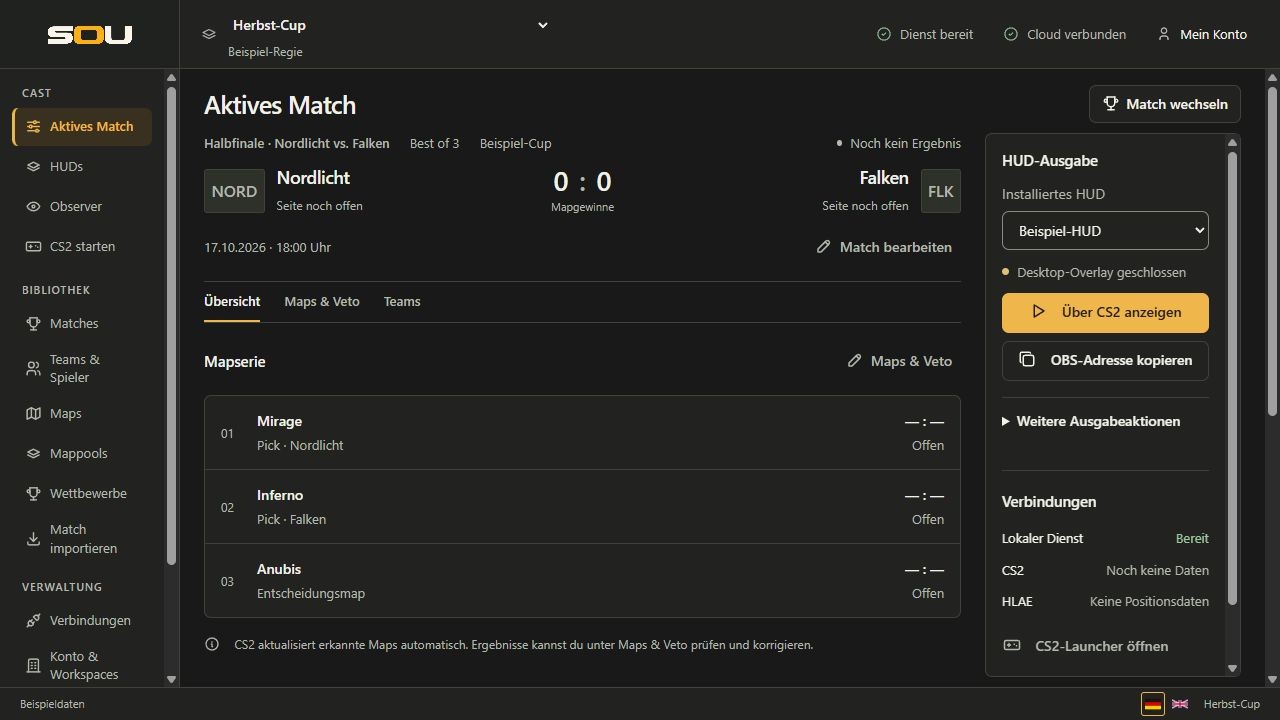
You can select the language of the user interface via the German flag (German) or the British flag (English) in the desktop footbar or even before registering. The current selection is marked. Logged in, sOU synchronizes the selection with your user account, regardless of the workspace. The selection also remains available offline on this computer. For two different changes on different computers, check the conflict under Account & Workspaces.
On the website you will also find the language choice. Logged in, it uses the same account setting. The complete manual is available in German and English; articles, table of contents and search follow the chosen language. HUD outputs, own names and text as well as captions from HUD packages remain in the original.