On request, Observer by yaibo takes over the automatic selection of the observed player and suitable camera paths. You control it directly in sOU under Cast → Observer. You can take over manually at any time and continue later. Automatic control never starts on its own when you open the page or restart sOU.
At Stream Deck you also operate the automatics and camera categories. Starting with plugin 0.2.0, the visible name yaibo and its discreet original logo mark these buttons, including the standby status. The current status remains significant; a successful action does not show an additional green confirmation tick.
Yaibo is optional. An ongoing local HUD output and manual camera operation do not require a started yaibo Observer. For yaibo yourself, however, you need your own successful account sign-in, a valid authorization and an Internet connection.
Before the first start
- You are registered in sOU with a confirmed e-mail address.
- You have access to a yaibo account with the required permission. The sign-in with sOU does not replace this sign-in.
- CS2 runs with HLAE and the connection set up by sOU. For this, use Launch CS2.
- A demo or observer session provides up-to-date game data. In the main menu these prerequisites are often still missing.
- The Internet connection is available for account verification and, if necessary, the download of the required model data.
- You have a suitable opportunity to check automatic player change and manual takeover before the actual cast.
The Observer page does not start CS2 and HLAE itself. It indicates which prerequisite is missing. Switch to Launch CS2 for the game setup and then return to Observers.
Connect Yaibo account
- Open Observers. sOU prepares the local connection and checks an already saved yaibo login.
- If an account is not yet connected, click Sign in to yaibo.
- Confirm the sign-in in the opened browser. If a release code is required, use the code displayed in sOU. Copy code copies it to the clipboard.
- If the browser does not open, use Open browser. Under Browser not opening?, you will find the address for manual opening.
- Return to sOU after release. The application is automatically processed there.
- Check if Yaibo account is now Signed in.
A release code belongs to the current login process. Do not use old code from a previous session. If the process has expired or was cancelled, start a new login. Do not share sharing codes or files with stored login data in error reports.
In the foldable area Yaibo account, Check connection and Sign out are later available. While the Observer is active, log-out is locked; terminate it first with Stop.
Check the three readiness indicators
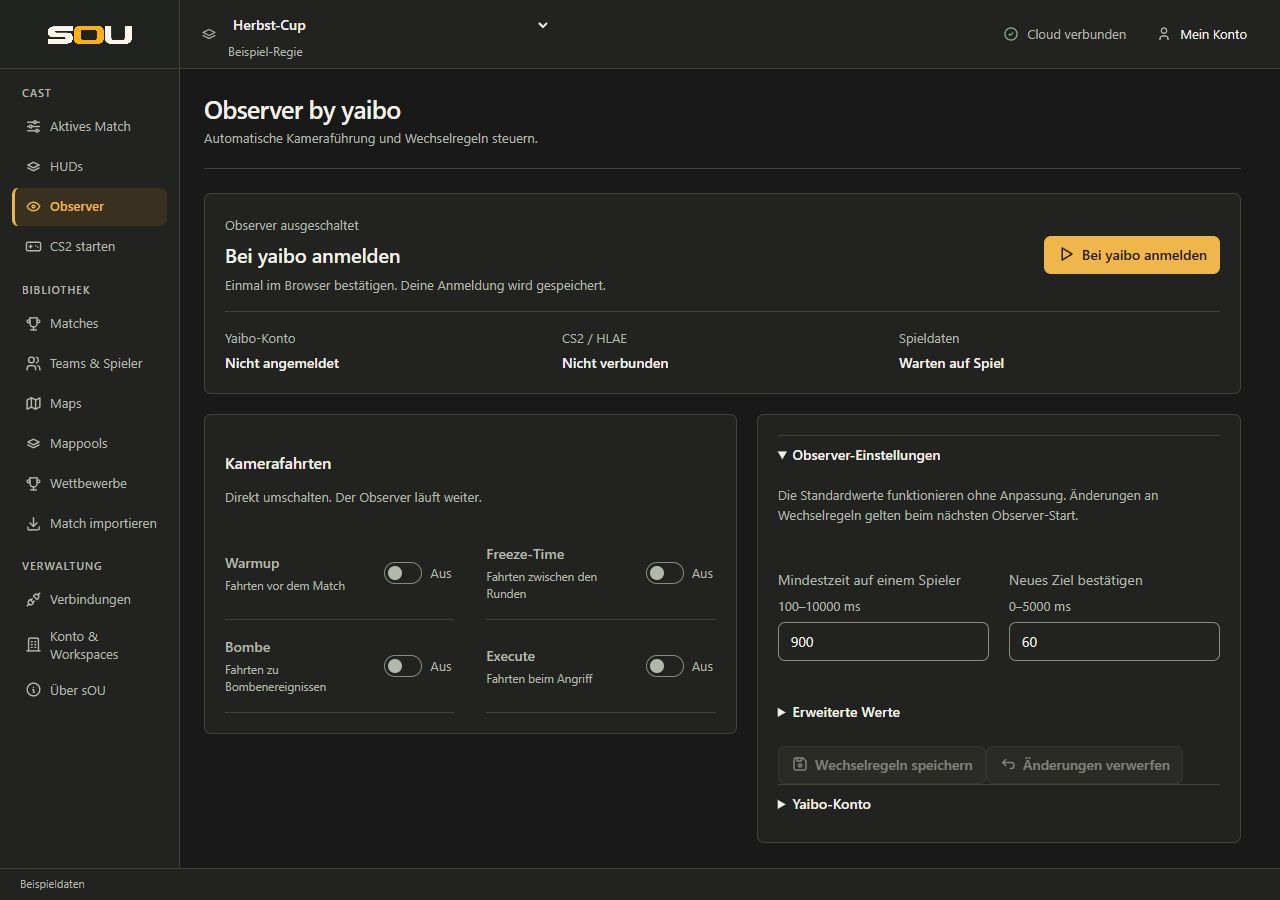
At the top of the page are the current Observer status, the main action and the three readiness indicators. Among them you will find Camera paths and Observer settings. In narrow windows, these areas follow each other. Yaibo account and, if necessary, Diagnostics can be opened below the settings.
| Display | Ready | If it is missing |
|---|---|---|
| Yaibo account | Signed in | Confirm sign-in or check the connection via Yaibo account. |
| CS2 / HLAE | Connected | Start CS2 from the sOU homepage with HLAE. The control link must be distinguished from a mere GSI link. |
| Game data | Live | Open a demo or observer session and check the current GSI reception under Connections. |
Without HLAE control connection, the main action remains with Waiting for CS2 / HLAE. If there is no current game data, it shows Waiting for game data. Only when the prerequisites are met, Start observer appears.
Start observer
- Check account, CS2/HLAE and game dates.
- Click on Start observer.
- Wait for the preparation. At the first start or with changed resources, model data can be loaded and prepared. The progress message describes the current step.
- If you do not want to continue the preparation, use Cancel. Wait for the termination to be completed before you start a new attempt.
- Check the camera in CS2. In the active state, sOU shows the name of the observed player and the control for manual takeover and stop, if possible.
A successful start is not a promise that every decision corresponds to the desired image direction. Check the behavior with your game or demo environment and keep the manual takeover attainable. Do not simultaneously start another automatic camera control to operate the same camera.
Player selection and combat
The updated yaibo logic from version 0.2.10 takes into account both the current situation and the lead of a new candidate when changing players. A holding decision of the automatic can retain the previous player. The confirmation of a new goal can already run during the minimum holding time; for an urgent change, a suitable actual state of play must also be present.
Active combat takes precedence over bomb and execute camera paths. It ends a running ride and leads back to a still living watched player, even if the automatic had already selected that player. A bomb status change during the current round alone does not start a trip to the end of the lap.
Manually take over, continue and stop
- Take manual control
- Locks automatic camera output: yaibo does not change players and does not start camera paths. Its calculation continues, so that the automatic system can react on release without restarting the model. sOU shows Manual control and You control the camera. You can now guide the camera yourself.
- Resume
- Releases the camera output again to the continuing automatic system. The current valid decision can take effect again; blocked previous trips and player changes will not be played subsequently. Do not use the action until you want automatic camera operation again.
- Stop
- Ends the active Observer session. For a later automatic operation you use Start observer again.
Switching to another sOU page does not stop the Observer. You can edit match data or HUD settings during operation and then return. When sOU is terminated on a regular basis, the Observer is terminated. After an app restart, you have to consciously restart it.
A manual player change via the Stream Deck activates the same lock of the camera output. You can use slot buttons from 0 to 9 or fixed players; names, available portraits and the actual player being watched are updated from sOU. With a resume button you release the output again. An additional status button can show readiness and manual state.
Enable selected camera paths
The four switches in the Camera paths range are initially switched off. You decide which types of rides yaibo can use in addition to player selection.
| Switches | Purpose |
|---|---|
| Warmup | Driving before the match. |
| Freeze-time | rides between rounds. |
| Bomb | Journeys to bombing events. |
| Execute | Driving while attacking. |
These switches are stored directly and taken over in the running Observer. You do not have to save the change rules or reload the model. A currently running camera trip is terminated at the change. An already activated manual lock of the camera output remains: Switching on a category does not return to the automatic system without asking. You can set or switch the same categories on the Stream Deck.
The switches release categories; they do not immediately trigger a specific ride when clicked. Whether a ride is available and suitable depends on the situation and the data provided. Unstored inputs in the Observer settings are not stored by a camera switch.
Setting up alternating rules
Observer settings is first opened. If you have closed the area, open it over its headline to adjust the change behavior. Start with the default values and, if possible, only change one value at a time so that you can judge the effect. Time values are given in milliseconds: 1000 ms corresponds to one second.
| Recruitment | Standard | Section | Meaning |
|---|---|---|---|
| Minimum time on a player | 900 ms | 100–10000 ms | Basis of the minimum holding time before a change to another living player can be made. Situation-dependent holding factors have an additional effect. |
| Confirm new target | 60 ms | 0–5000 ms | How long a new candidate must be confirmed before the change decision takes effect. A higher value can dampen short candidate changes. |
Advanced values
Under Advanced values there are additional limits and factors. They are not commands to game speed and are not a framerate setting for OBS.
| Recruitment | Standard | Section | Meaning |
|---|---|---|---|
| Switch after death (ms) | 120 | 0–5000 | Stop time limit for the change if the currently observed player is no longer alive. |
| Hold multiplier during setup | 1,5 | 0,1–10 | Multiplier of the minimum holding time for corresponding installation situations. |
| Hold multiplier during combat | 0,65 | 0,1–10 | Multiplier of the minimum holding time for combat and other correspondingly assessed phases of action. |
| Decision interval (ms) | 60 | 30–1000 | Time interval of decision processing. |
| Command cooldown (ms) | 100 | 0–5000 | Limits the time sequence of control commands. |
| Maximum data age (ms) | 2000 | 100–5000 | Limit for the use of a game state. Older data should not carry ongoing automatic control. |
The fields are initially a draft. Save switching rules saves it, but does not terminate a running Observer. If a restart is necessary, sOU: New switching rules saved. Stop and restart the observer to apply them. will then deliberately use Stop and Start observer. Discard changes restores the previously stored status of the fields.
The in and unfolding of the settings gets your inputs. With Tab reach the headings, switches and fields; Entry or the Spacecraft Opens a focused area header. Esc within an unfolded area closes it and focuses on its headline. The Observer continues to run unchanged. For storing the change rules, use expressly Save switching rules.
Internet, authorization and disconnection
The yaibo authorization is regularly checked online during operation. It does not have a multi-week offline release equivalent to sOU offline usage. In the event of network or authorization errors, the automatic system can pause. Report the Yaibo authorisation expired page, check the Internet connection and account and then restart the Observer.
The local HUD output remains independent of this. An error in yaibo does not automatically mean that GSI, match data or OBS have failed. Check these connections separately and take over the camera manually if necessary.
If the HLAE connection is interrupted or the game data is outdated, the Observer page shows the corresponding waiting state. A running yaibo camera run ends when the control connection is lost. After reconnection, failed camera changes are not made up. Check the connection status and the current camera before reusing the automatic.
If CS2 continues, the HLAE connection can reconnect to the same local profile and port after a sOU restart. The Observer will still remain turned off until you start it. After a profile or port change, this reconnection is not required; set up the game start again via sOU.
Saved settings and account data
The local yaibo profile is under %USERPROFILE%\.sou\local\yaibo. It contains your settings, downloaded model data and protected login data. The login is tied to your Windows user; log in to yaibo again on another computer.
Saved personal control options can be synchronized via your sOU account. This does not transmit a running camera session and does not replace the game setup or a required yaibo login on another computer. Information on the safe handling of the profile is available under Backups.
Common problems
- I am registered with sOU, but yaibo requires sign-in.
- The account details are separated. Sign in to yaibo and confirm the current process in the browser.
- GSI is current, but CS2 / HLAE remains unconnected.
- GSI alone is not enough for camera control. Check the full HLAE start via sOU and the appropriate control connection of the current profile.
- The camera changes unchanged despite stored rules.
- New change rules apply at the next Observer start. Stop and start the Observer. Direct camera switches, on the other hand, act immediately.
- After taking over manually there are no more trips.
- The camera output is intentionally blocked while the calculation continues. With Continue, you return the control; a new model start is not necessary for this.
- Logging out is not available.
- First, stop the active Observer and wait until the process is complete.
- Preparation or model download fails.
- Make a note of the specific message, check Internet, account authorization and free storage. Repeat the action only after the end of the previous process. Do not delete the entire profile.
Under Diagnostics you will find the technical condition and the reported reason. For an error report, the relevant information is sufficient, along with the time and your last steps; remove personal identifiers, codes and private connection data. Further steps are available under Limit Yaibo errors.