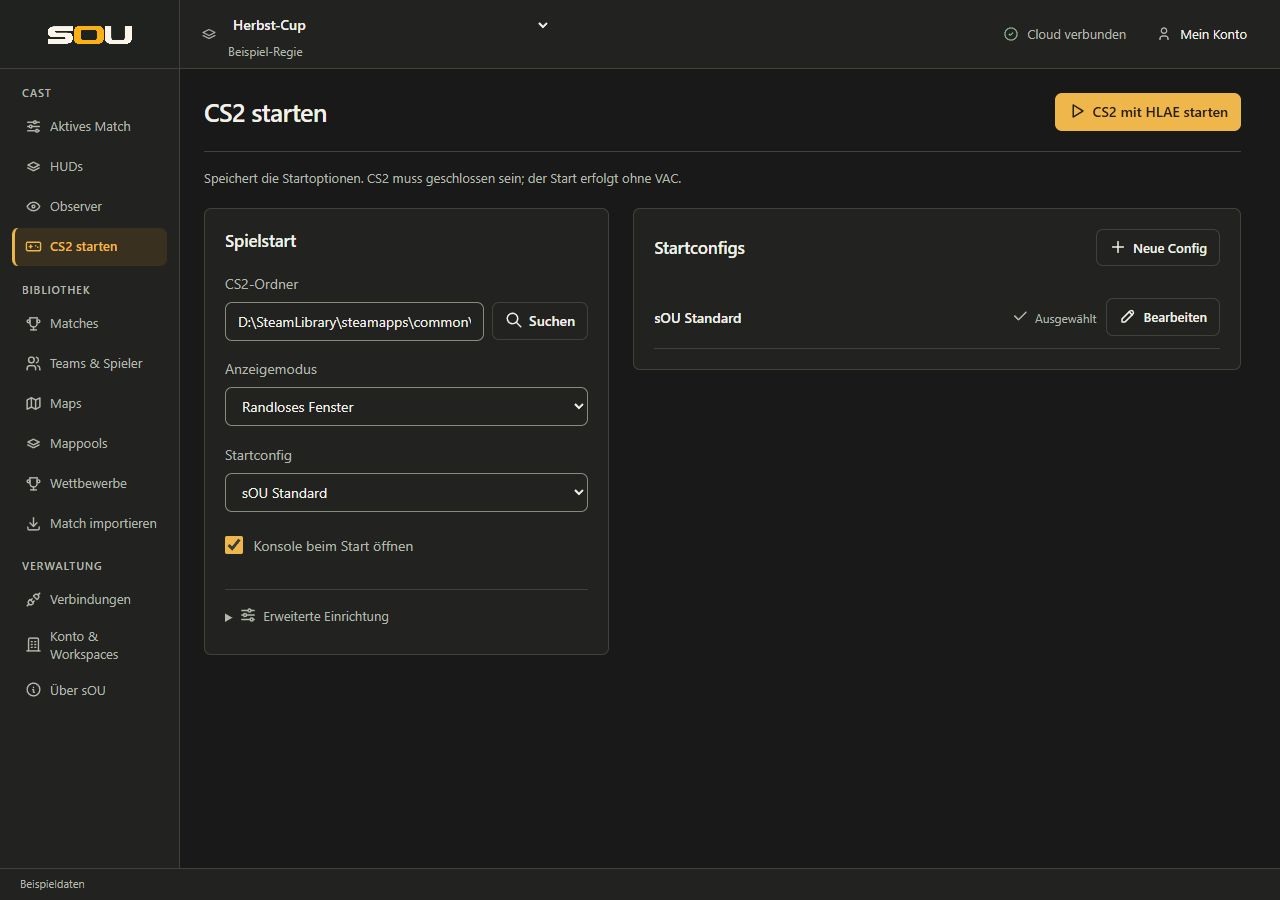
Through Launch CS2 you prepare the game connection and start Counter-Strike 2 with HLAE. sOU sets up the reception of the game data, loads the selected start config and connects HLAE with radar, killfeed and camera control. The game starts only when you select Launch CS2 with HLAE.
Prerequisites
- sOU is installed, you are logged in and have opened a workspace. The sign-in and temporarily offline use describes Account and sign-in.
- CS2 is installed via Steam. Use the game’s installation folder, not the Steam main folder, and not a link to the EXE.
- Internet is required for the first HLAE facility. Later, an existing, usable installation can be reused in the event of a failed update.
- Complete an already running CS2 regularly before using the sOU starting path. sOU does not end the game for you.
This starting path is intended for demo and observer sessions. CS2 starts with HLAE without VAC, among other things with -insecure. For normal play on VAC-protected servers, use the normal game start without this HLAE starting path.
Start CS2 for the first time via sOU
- Open in the navigation Cast → CS2 start. Management → Connections → Start CS2 and Active Match → HUD Output → Open CS2 Launcher also lead there.
- Click next to CS2 folder on Search. For several found installations, Detected installations appears. Choose the installation actually used.
- If the search does not find your folder, enter it in CS2 folder. A typical folder ends on
steamapps/common/Counter-Strike Global Offensive. The name of the installation folder can still refer to Global Offensive. - Select the Display mode. For a HUD directly above the game, Borderless window is the appropriate starting point.
- Under Startup config, select a saved config or No additional config. Leave Open console on launch on if you want to see console messages when you set up.
- If necessary, supplement Custom launch options, for example
-w 1920 -h 1080. The field is optional and syncs with your account. - Save or discard still open changes in the Config editing. As long as there are unstored changes, the game start remains blocked. An unchanged config open only for viewing does not block it.
- Click on Launch CS2 with HLAE in the page header. sOU saves the valid startup options, checks HLAE, prepares the local connection, installs the GSI configuration and loads the HLAE connection.
- Wait for the final report. After that, open a demo or an observer session in CS2. An open main menu alone does not provide a full match state.
- Open in sOU Connections. Check the current CS2 reception and the HLAE position data. The status indicators are explained in Live data and connection status.
A successful start message means that HLAE has accepted the start. It does not yet confirm that a demo is running, players are being received or the HUD is already visible. You then check these steps in the game and in the output.
Launch options and what they do
| Option | Effects | When to use? |
|---|---|---|
| Keep game setting | sOU does not enforce any other display mode. | If CS2 is already suitably set up. |
| Borderless window | Start with the appropriate window options. | For the desktop overlay over CS2. |
| Windowed | Start CS2 in window mode. | For establishment or a deliberately smaller playing area. |
| Fullscreen | Starts with the full screen option. | Only if you need this mode; the function of the desktop overlay in the exclusive full screen is not promised. |
| Open console on launch | Opens the game console at start. | Helpful for demo commands and checking the HLAE connection. |
| Startup config | Runs the selected stored sOU config before the sOU HLAE connection. | For recurring Observer settings and key assignments. |
| Custom launch options | Complements optional CS2 parameters, such as -w 1920 -h 1080; maximum 4.096 characters. | For additional personal game launch options on your computers. |
For changed startup options, Save and Discard appear. Save does not start the game. The start button also saves the validated options. A change to another sOU page gets the draft; when you quit, unsaved changes can trigger a query.
Custom launch arguments and account sync
Separate parameters with spaces. Values with spaces are set in double quotes, for example +echo "Observer bereit". Line breaks, control characters and semicolons are not allowed; incomplete quotes are reported when saving. Whether an additional CS2 parameter is supported in your game version determines CS2.
For the display mode, the Start console and the Startconfig you use the existing fields. Corresponding duplicate parameters are rejected. The options required for the Observer start, the start without VAC, the GSI connection and the HLAE script bridge cannot be replaced by the additional field. Further config commands belong in the selected Startup config.
Custom launch options, along with your personal starting preferences, will be synchronized account-wide, even if you use an organization workspace. The information is not shared with other members of this workspace. The CS2 installation path remains on the respective computer. Do not enter passwords, tokens or other access data here. For different changes on two computers, select the desired status in Workspace synchronization. Already open, unchanged start options take over stored updates. A private unstored draft, an ongoing start preparation or already running CS2 will not be converted.
Create and edit startup configs
Under Startup configs, you manage the configs that are available in the selection field. The list shows sOU configs, not a complete listing of all CFG files in your game folder.
- Select New config.
- Assign a unique Name of name and enter the desired CS2 commands in CFG contents.
- Select Save config. You can open a saved config later with Edit.
- Select Select in the list or use the Startup config selection field for the start options.
- Start CS2 again via sOU so that the stored commands are executed at startup.
sOU Standard is an editable starting conference. Your saved version will not be replaced by the original template at the next app launch. The actual support of individual CS2 commands depends on the installed game version.
When creating or opening a config, the keyboard focus is in the field Name of name. Underneath it you edit it. CFG contents; the display Unsaved changes and Save config are above the content. As long as the focus is in this Config edit, store Ctrl + S Also the config. The keyboard shortcut does not start CS2 and does not store any additional changed start options. After successful saving or closing, you return to the list; the focus is on Startup configs.
Config names may not exceed 100 characters in length; the content may not exceed 256 KiB. An empty name cannot be stored. Before switching to another config, open changes must be saved or discarded. Back to list, Cancel and Close do not replace the storage. In the case of unstored changes, you expressly decide between Keep editing and Discard changes. If the save fails, your draft remains open; check the message before you discard the input.
At the start of the game, sOU writes the selected saved config to its own file in the CS2 CFG directory. Your existing autoexec.cfg will be preserved. Changes to sOU-Config do not automatically affect an already running game. Readers of a workspace can use and view existing configs; write privileges are required to modify them.
Set up GSI and HLAE individually
Open Advanced setup if you want to do the steps separately.
- Setting up GSIs: installs the sOU configuration in the selected CS2 installation. If this file has been recreated or changed during the running game, then restart CS2.
- Update HLAE: loads and checks the HLAE installation. The action does not start CS2.
- Connections → Starting the service: starts the local reception. This means that neither a new game nor an Observer is automatically started.
Before each sOU game start, the HLAE version is checked. If the same version already exists, it will not be downloaded again. If the check or update fails, sOU can use an existing full installation and indicates this relapse in the message. Without usable installation, a successful initial installation is required.
Player names from the active match
When the HLAE connection is connected, sOU can set the player names maintained in the library for the associated Steam IDs in the game. The squads of the two teams of the active match are used. Other teams and ambiguous assignments are not included unasked. This does not change the player’s Steam profile.
- Maintain the actual Steam IDs and desired names under Teams & Players.
- Activate the match with these two teams.
- Start CS2 via sOU with HLAE and check the names in your Observer session.
- If the display reacts delayed, change the Observer perspective once and check again.
For the name display in the game, each player needs a unique Steam ID and a filled-in name. Quote marks, backslash, semicolon and control marks in the name are not supported by this function. Affected names remain unchanged in the game. The yaibo Observer does not have to be started for the name display.
HLAE colors matching the desktop HUD
If a HUD contains a suitable side palette, sOU can use its colors for the CT/T outlines, X-ray labels, utility trails and a derived smoke color. The decisive factor is the desktop HUD actually opened via Show over CS2. A pure browser or OBS output and a mere installed package do not select this in-game palette.
- Open a HUD that supports the required live data as a desktop overlay.
- Check the presentation in CS2. If the update is delayed, an Observer/Perspective change may be necessary.
- When switching to another overlay, the palette of the previous HUD remains active. The new pallet is only valid after successful Loading preparation and visible handover. If the change fails, the previous output remains relevant. A package without a pallet does not claim its own colors.
- Trail and smoke colors have an effect on newly emerging effects. Existing trails or clouds of smoke are not retroactively completely re-colored.
- When the overlay is closed or changed, the color values set by sOU are reset accordingly. The native CS2 killfeed is not redesigned.
The color of a HUD panel field is not automatically the HLAE palette stored in the package. Manually parallel HLAE colors can overlap with the sOU values; previous own console values are not restored as a personal profile when reset. Check the combination before the cast.
Cancel preparation
During an ongoing preparation, you will find Cancel in the process message. Then wait for the end of the process. An incomplete download is not used as a finished installation. A change of sides does not automatically stop the preparation.
If HLAE has already taken over the game start, a later termination does not end the started CS2. Close it regularly if necessary. Repeatedly clicking on the start button does not replace checking whether the game is already running.
Start CS2 from another program
The local reception does not require a start by sOU. For an external start, first set up GSI for exactly this CS2 installation and start the sOU service. For radar, killfeed and yaibo, HLAE must also be loaded in the game and the script file matching the current sOU profile must be activated.
The file is after a sOU game start under %USERPROFILE%/.sou/local/sou-radar.js. If HLAE is already loaded, you can load it in the CS2 console with an absolute path:
mirv_script_load "C:/Users/DEIN-WINDOWS-NAME/.sou/local/sou-radar.js"Replace the placeholder with your actual Windows profile path. The game console does not automatically expand %USERPROFILE% like the Windows Explorer. Do not publish the generated file and do not replace it with an unconfigured template.
The script file is currently generated at the sOU game launch. Set up GSI, Update HLAE and a pure service start do not generate them as a separate export. If it is missing, use the full sOU starting path first. sOU start configs and display options are not automatically applied during an external start; multiple simultaneously active camera controls can affect each other.
Common launch problems
| Symptom | Test and remedy |
|---|---|
| CS2 is already running | Complete the existing game regularly. sOU prevents a second start and does not end an ongoing session. |
| Invalid CS2 installation | Choose the full game folder via Search; check the correct installation for multiple Steam libraries. |
| Start button remains locked | Save or discard open config changes and wait for ongoing preparation. |
| HLAE cannot be loaded | Check Internet and free storage space. If the installation is present, note the fallback message; try again at the first setup. |
| Game is running, but no data | Open a demo or observer session and follow GSI diagnosis. |
| GSI is current, HLAE is missing | Check the HLAE start and the profile script. Details at HLAE compound. |
Next up: Installing HUD, Open output in OBS or via CS2 or Observer by yaibo.