A match connects two teams, a BO format, a mappool and optionally a start time and a competition assignment. You can prepare multiple matches and activate exactly the one for your local cast whose data you want the HUDs to use.
With the sOU plugin from version 0.2.2 and desktop from 0.3.15, you can operate a prepared match via Active Match Control on the Stream Deck. Getting started offers Pick & Ban, Team Sides, Results, Map Order and Manage Match. At Pick & Ban, you first open the map and then select the team decision; proven maps remain visible for corrections. The pick-up button remains reachable even with a running map: Without recorded round points, the pick-up is directly possible, existing points and completed results are still protected. Under Manage Match you will find Match Change, BO format and map pool. The undersides adapt to supported deck sizes and show page buttons only for multi-page lists. You can still create new match master data here in sOU.
Before creating a match
- Choose the right workspace. For new or changed match data, you need at least editing rights.
- Create two different teams. Squads are not mandatory for the mere match system, but important for automatic team assignment and results.
- Create a map pool with the maps available for this match.
- If you want to classify the match, prepare the competition and, if necessary, season and area.
The instructions Teams and players, Map pools and Competitions explain this preliminary work. For an external match, you can alternatively use the Match import.
Use the Match List
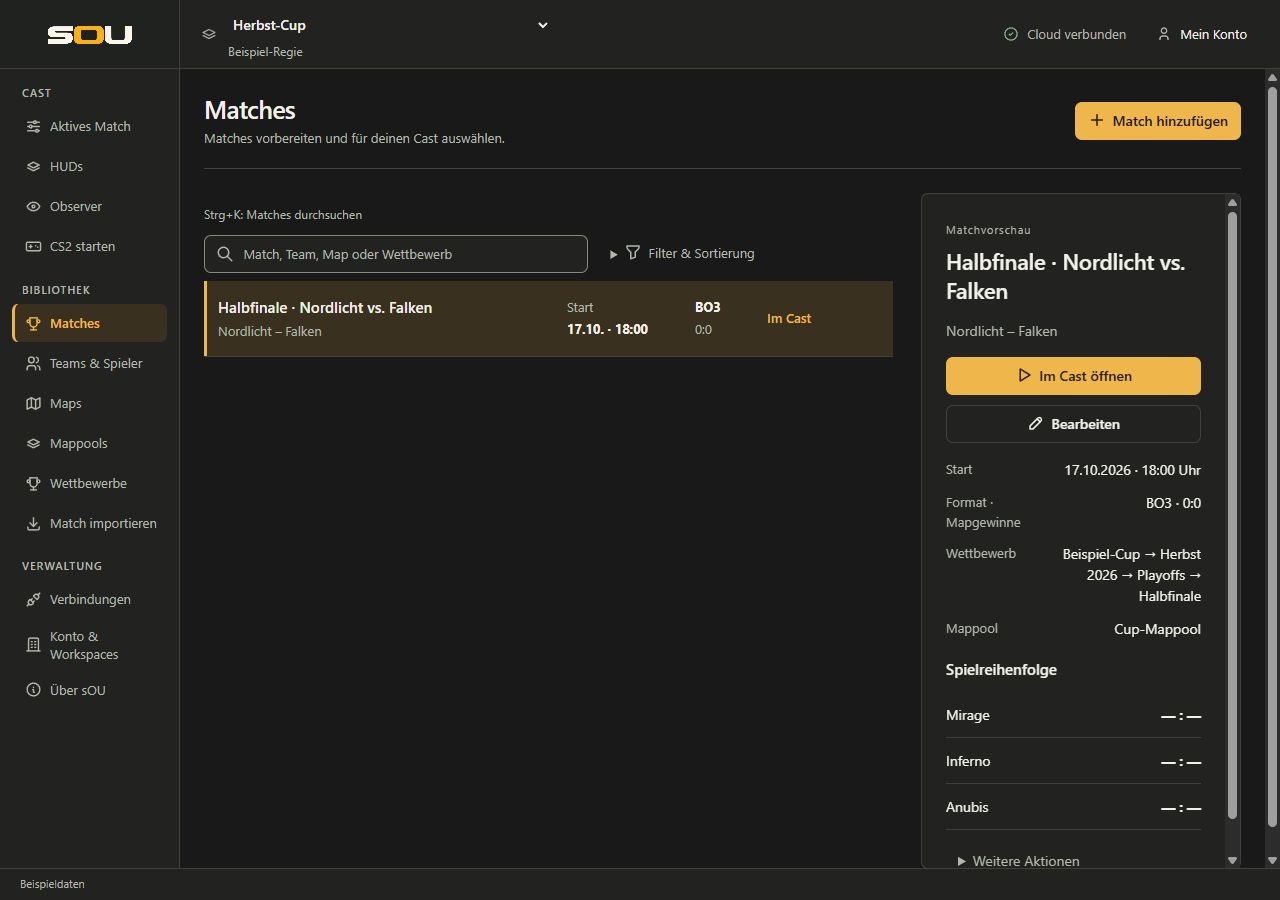
Open Library of Matches. Each list entry shows title, opponent, start date, format and map wins. The note In cast identifies the active match; Inactive identifies the remaining matches. The marked entry is the selection for the preview and does not have to be the active match.
Choose a match line to open the Match preview next to it. It shows opponents, start, Format · map wins, competition assignment, mappool and game order with saved round points. Missing dates, assignments and results remain explicitly open. The selection does not save anything and does not change your active match. In narrow windows, the preview is below the list; Go to match preview on the marked line leads directly there.
The search takes into account matchname, opponent, format, mapname and competition assignment. You can filter by active or inactive matches and by BO1, BO3, BO5 or BO7. Further filters limit competitions, seasons, areas and existing or missing assignments. Sorting and pagination only change the list, not your matches.
The search field Match, team, map or competition It stands above a filled list. With Ctrl + K switch from the sOU main window to this search. The abbreviation does not apply while you are working in an input field, selection field or editable text. Filter and search work together: If an expected entry remains invisible, check both. The preview can still display a previously selected match, even if it is not in the list due to the current search or a page change; control the name above the preview before an action.
For reading rights, selection, preview, View and Open for cast remain available. The joint processing and deletion actions, on the other hand, are blocked.
Create a match manually
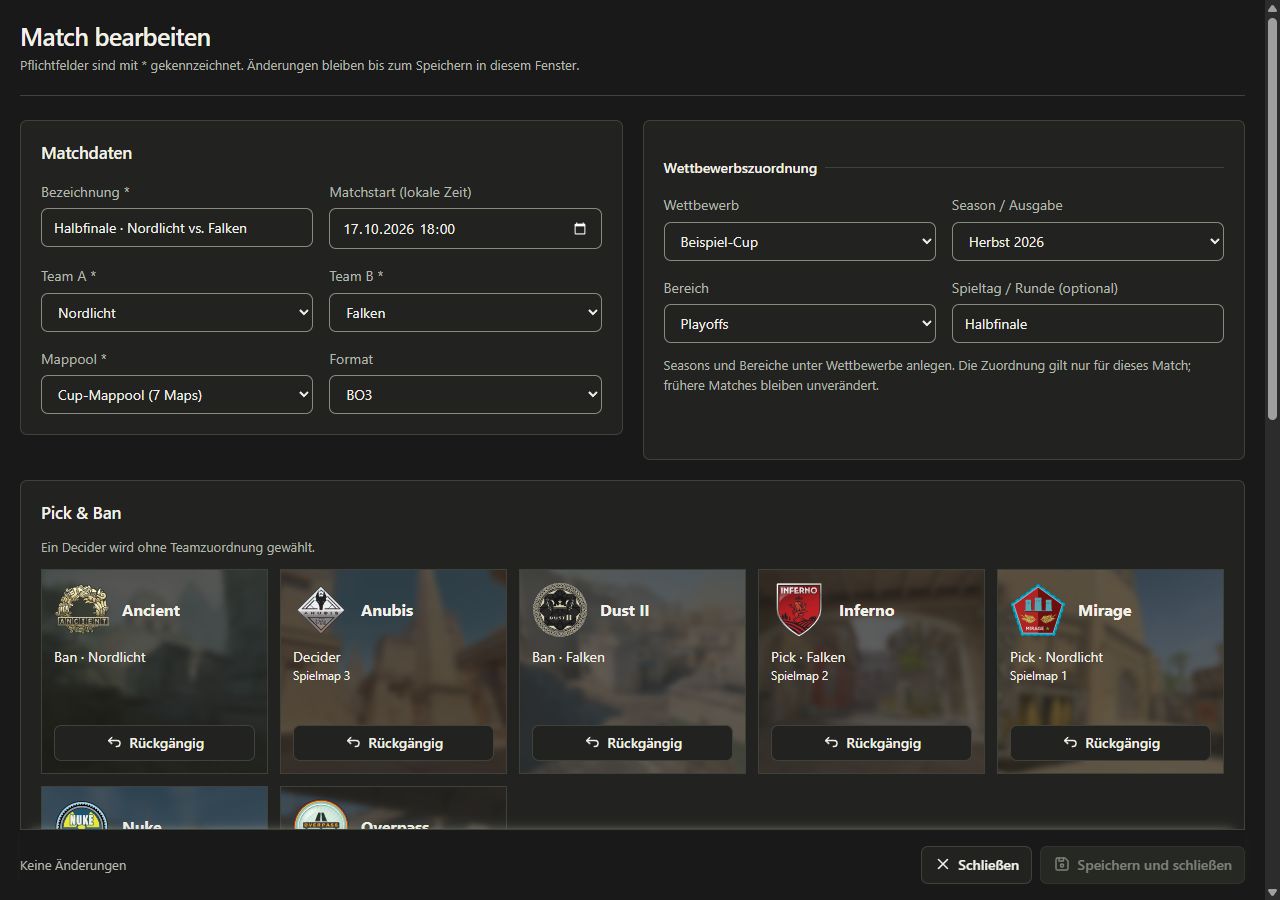
- Select Adding Matches to Match.
- Enter a designation.
- Choose Team A and Team B. The same opponent cannot take both places.
- Select a mappool explicitly.
- Select the format BO1, BO3, BO5 or BO7.
- Complete a scheduled match start if you know him.
- Complete the optional competition assignment.
- If necessary, already set veto, game maps and map results.
- Select Save and close.
| Field | Utilisation |
|---|---|
| Name | Name of the match; in the editor up to 100 characters. It is used, among other things, to find it in the list. |
| Match start | Optional scheduled time in your local Windows time zone. No automatically determined actual start of the game. |
| Team A / Team B | Two fixed, different opponents from the team management. These designations do not stand for CT/T or left/right in HUD. |
| Map pool | Determines the maps from which you can choose for the match and capture veto decisions. |
| Format | Best of 1, 3, 5 or 7; limits the number of game maps and determines the map wins needed to win the series. |
| Competition assignment | Optional competition with optional season, area and match day/round. |
You do not have to know all the game maps at the plant. A match can be saved with a selected mappool and its veto can be added later. A free order of poolmaps is not automatically interpreted as an actual order of play.
Setting the planned match start
The Match start (local time) field uses the time zone of your Windows machine. sOU takes into account the time changeover applicable to the selected date. A time that does not exist or is ambiguous at the summer/winter time limit is rejected with a field reference.
Empty the field if the appointment is not known or should be removed. Without an appointment, no saved match start is available for a HUD countdown. Whether and where a countdown appears depends on the installed HUD and its settings.
For imported matches, an actually delivered planned FACEIT date can be taken over. A new import or a suitable map update can also update a delivered date. If the appointment is missing in the new response, an already saved appointment is retained.
Working in the match window
Edit opens its own window with a private draft. Match details includes designation, start, opponent, pool and format. The Competition assignment complements competition, season, area and round. This is followed by Veto and Map results; if there is enough window width, they are next to each other, if the windows are narrower, they are below each other. You can edit all the information together. The storage only takes place with Save and close.
With read rights, View opens the same match window with locked inputs. You can check the stored information, decisions and results. Opening the window does not activate the match.
Ctrl + S also solves in the match window Save and close Off. The entire match is checked together and saved if successful; then the editor closes. If the storage action is blocked, nothing is taken over. The abbreviation is not an instant storage of individual fields.
For unstored changes, the end line shows the draft status. Cancel or closing the window asks before discarding. An invalid draft is not partially adopted: check the displayed hints and correct it.
If the same match has been changed in the meantime, the storage can be rejected because of a conflict. New automatically recorded results will be considered in the open form as long as you have not changed these results yourself in the draft. For simultaneously manually edited results, you must not assume that an older form status replaces newer data.
Activate or deactivate a match
- Open Library of Matches, find the desired entry and select its line.
- Check matchname and opponents in Match preview.
- Select Open for cast. sOU activates the match and opens Active match. Control opponents and map series there.
The activation applies to your computer or local cast. She selects the match metadata for the output, but does not start CS2 or a HUD and does not automatically switch the active cast of a colleague. Readers can also activate an existing match.
If the selected match is already active, Open for cast opens the cast view without changing the selection again. With Further actions → Deactivate for the cast in the preview of the active match, you remove the local active selection. The match itself remains stored. If you activate another match, it replaces the previous active selection.
The Active match view
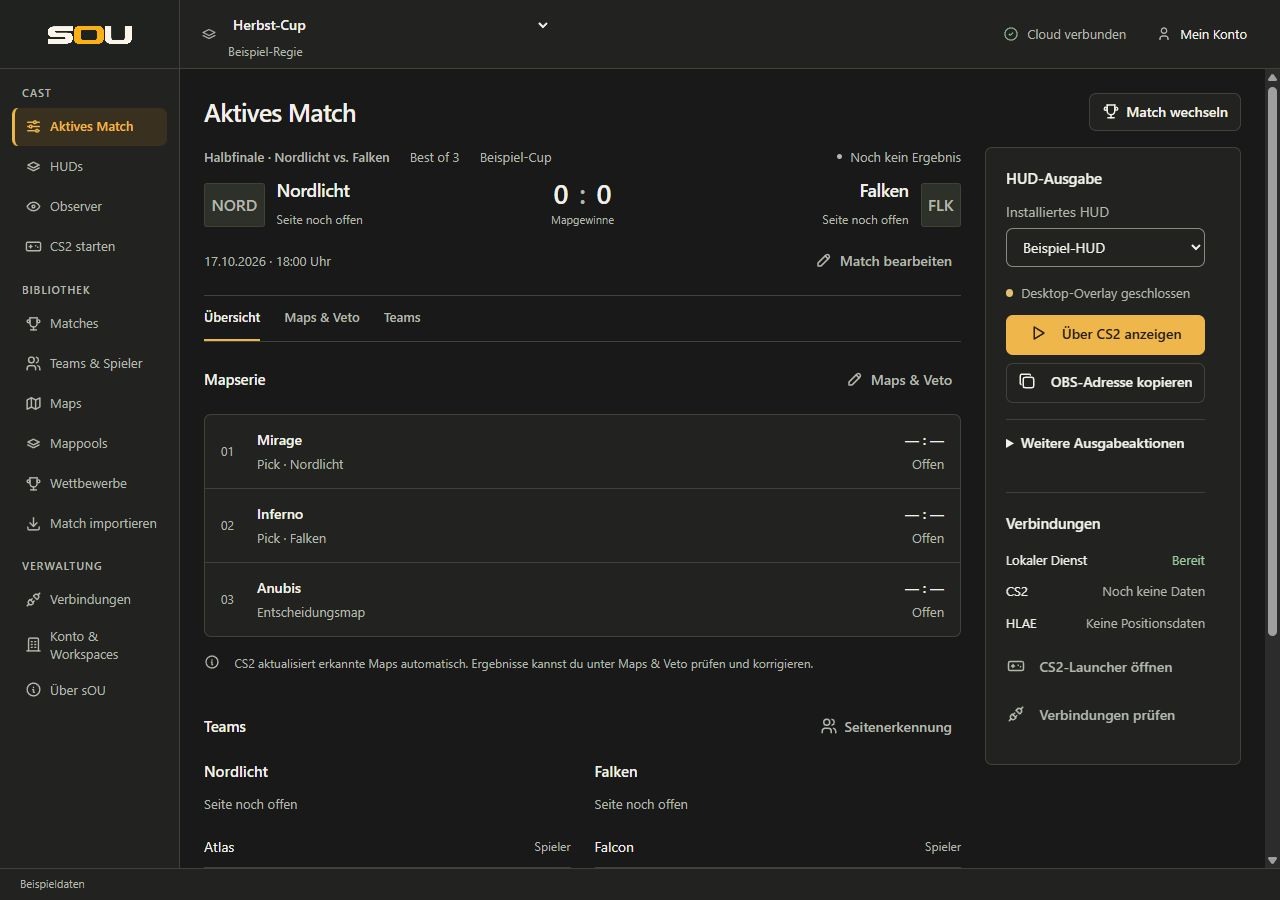
In the head are matchname, format, if necessary competition, opponent, series status and date. The series status counts map wins, not the round points of the currently running map. The Map live or Series decided display results from the saved results; it does not replace checking the actuality of the game connection.
Switch match Go back to the match library. With the tabs Overview, Maps & Veto and Teams Change within the active match. During keyboard operation, you can reach the active tab with Tab; ← and → change directly to the neighboring tab, Home the first, and End to the last one. With Tab You will then move on to the work area.
Overview
The map series shows the game order, existing pick/decider details, round points and result status. An empty point field means that no value has yet been captured. For older matches, a hint shows if there is only one series status without individual map results.
In addition or under both teams with their stored squads, coach labels and current page assignment. An empty roster is displayed as such. With Side recognition you open the Teams tab to check the assignment more precisely or to set an available manual assignment.
Edit match details directly includes designation, start time, format, mappool and competition allocation. Valid changes there will be stored immediately. There is no final save button. Choose Edit match if you want to collect several changes in a private draft first.
Maps & Veto
Here you capture direct picks/bans, adjust game and veto order and control results. These actions are also taken immediately in the active match, as long as they are valid. Result deletions have an explicit confirmation. An existing FACEIT link enables quick map list updates.
The rules for pools, decisions, results and corrections are collected under Maps, veto and results.
Teams
The team view shows both squads including coach markings. Via Edit or View, you open the team windows. Under Team sides, you control CT/T and can use a manual assignment in the absence of roster recognition. Details: Side recognition.
HUD output
In the HUD output area, select an available installed HUD and, if necessary, a view. Show over CS2, the right action for an already running overlay and Copy OBS URL are directly at the selection. Under More output actions you will find Open in browser, for packages with panel Configure HUD, Manage HUDs and the version specification. The Connections section shows the local service as well as CS2 and HLAE. With a narrow window, the output is below the match content; Go to HUD output leads directly there.
An active match does not necessarily already need a running HUD. Conversely, an open HUD page does not prove a successful OBS scene. The specific output paths are described by HUD output.
Changes affecting existing data
- Change opponents: If there are results, you must first explicitly reset and save them. Existing round points must not be subsequently attributed to other opponents.
- Reduce format: Existing game maps and results have yet to fit the new BO format. An invalid shortening is rejected.
- Changing map pool: Already selected game maps and bans must also be included in the new pool. sOU does not silently remove them.
- Change of competition: The season, range and round specifications dependent on this are reset. Choose them again in the new context.
- Changing season: The previous range selection is emptied so that no area of the old season remains on the match.
Older matches can be without a mappool or without individual map results. No missing assignment is invented. For new veto selections or a conversion to individual results, you must explicitly supplement the required information.
Update a linked match
In the match list, select a match with FACEIT identifier. With write privileges, the action Refresh appears in his Match preview. After retrieval, you check the delivered game order and decide between Apply play order and Discard. Choosing another match doesn’t discard this loaded preview; when you return, you can check it again.
Under Active Match → Maps & Veto → Take over map list of FACEIT, on the other hand, Refresh map list works as an immediate action: a valid supplied list is stored directly after checking. Both paths receive existing results and explicit decisions; contradictory changes are rejected. They don't update the entire squad. For this purpose, a new import with preview serves.
Removing a Match
Select the match in the list and open the Remove Other Actions → Match area in his Match preview. Check the mentioned match name and confirm with Confirm removal only if you no longer need this entry. Cancel or the selection of another match closes the confirmation without deletion. Removal over the surface cannot be reversed.
If the active match is deleted, its active selection will also be removed. The team and map master data are not also deleted. An interim change to the match can block the deletion; then check the current entry again.
Frequent Match Problems
| Problem | Next step |
|---|---|
| A new match cannot be saved. | Designation, check two different opponents, explicitly selected mappool and valid format. |
| Active match shows an empty state. | Under Library of Matches select the desired entry and select Open for cast in its preview. |
| The start time is not accepted. | Check valid date and unambiguous local time, especially during a time change. |
| The map series shows no round points. | Results may be lacking. Check game connection and recognition or record valid results manually. |
| Changes from an editor are missing. | Check whether Save and close has been successfully completed or the draft is still open. |
| Another computer does not see the change. | Check workspace, match status, waiting takeover and conflicts under Account & Workspaces. |