sOU helps you prepare and accompany a CS2 cast: You manage teams and matches, assign maps and results and output an installed HUD in the browser, in OBS or directly via CS2. This guide takes you from creating your first account to checking your first HUD output. The individual steps refer to the detailed instructions.
The screenshots in the manual show the respective views with sample data or their described empty state. Names, scores and available packages may look different to you. Open an image to read original-sized labels and controls.
What You Need Before the First Cast
- A Windows PC on which sOU and for the game edition CS2 can run. The system requirements and the setup are under Installation and updates.
- A sOU account with a confirmed email address. For the first sign-in you need an Internet connection.
- A workspace with the desired match data. Your personal workspace is available to you after registration; for shared data, you need access to an organization.
- An available HUD package that you explicitly install. The desktop installation alone does not set up a HUD.
- For a transmission in OBS a suitable scene and recording source. Starting a sOU output does not start a OBS recording and stream.
To create or change joint teams and matches, you need at least the Workspace role of Editing. With reading rights, you can view existing data and select an existing match for your own cast.
1. Set up your account and desktop app
- Open Create account. Register with a reachable email address and a password that meets the requirements displayed.
- Open the confirmation mail. Follow the link and explicitly confirm your address on the opened page with Confirm email.
- Check your Account status. Once your email address is confirmed, you can log in to the desktop app directly.
- Charge the installer via Download sOU. Start the setup and confirm the Windows query for installation.
- Open sOU. Select Sign in with browser and leave the app window open. Log in to the open browser; the desktop login process then leads back to the app.
A sign-in on the website alone does not yet log in to the desktop app. Therefore, start the desktop login process in sOU. For problems, Sign in to the app and Solving Account Problems help.
Open pages using the navigation
Underneath Management → About sOU → Working with the keyboard You can find the keyboard shortcuts. Ctrl + S Triggers its storage action in the editor; changes are applied to the HUD panel, library editors are saved and the window is closed. Blocked actions and necessary conflict corrections remain effective.
The sidebar shows all 13 targets together under the headings Cast, Library and Management. Click directly on the desired page. The headlines will help you find the goals.
- Start Cast: Active Match, HUDs, Observer and CS2.
- Library: Matches, Teams & Players, Maps, map pools, Competitions and Import Match.
- Administration: Connections, Account & Workspaces and About sOU.
In narrow windows you hide the navigation via Menu with the name of the current page on or off. In the open menu, all destinations are also available. Select the desired page directly; then the menu closes. Switching a page does not activate another match and does not save open editor drafts.
Below the navigation destinations, two banners rotate every 10 seconds with a soft fade. Use the dots to select Stream Deck → Control with keys or Discord → Your sOU community directly. The first banner opens the Stream Deck guide in your default browser. The second leads through getsou.app/discord to the sOU community. Automatic rotation pauses while the pointer is over the banner or it has keyboard focus; use the pause button to stop it until you choose to resume.
With Ctrl + K Open the match search. The abbreviation is valid in the sOU main window as long as the focus is not in an input field or selection field. The search and all pages also remain accessible via navigation.
Navigate quickly through sOU
The following abbreviations apply in the sOU main window as long as the focus is outside of text, selection and editable fields. They work within sOU; while CS2 or another application is in the foreground, they do not trigger any action. A kept abbreviation does not create repeated entries. All actions are also accessible via the visible controls.
| Abbreviation | Action |
|---|---|
| Alt + 1 / 2 / 3 / 4 | Start active match / HUDs / Observer / CS2 |
| Alt + 5 / 6 / 7 / 8 / 9 | Matches / Teams & Players / Maps / map pools / Competitions |
| Alt + 0 | Connections |
| Alt + I / K / U | Import Match / Account & Workspaces / About sOU |
| Ctrl + K | Open and Focus Match Search |
| Ctrl + F | Focus search in the first visible library list, if necessary unfold beforehand |
| Ctrl + N | Add Match, Team, Map, map pool or Competition in the respective library overview |
| F1 | Open about sOU with the overview “Working with the keyboard” |
| Ctrl + S | Perform the existing storage action in the separate editor window |
The navigation buttons also show their abbreviation as a hint when driving over. Ctrl + N uses the existing creation action of the respective overview; nothing is created in a competition bottom page, on a page without such action or in the absence of writing rights. Ctrl + F only applies if a suitable visible list is available. Unstored inputs, mandatory fields and conflict checks remain effective for all abbreviations.
After logging in and selecting the workspace, the local service starts automatically. Service ready in the header opens Connections; in Check service you will find the restart there. In addition, check the actual CS2 and HLAE reception. More at Check connections before the cast.
2. Choose the right workspace
Check in the header which workspace you work in. Under his name is Personal workspace or the associated organization. For several available workspaces, open the selection by name. With the match status you reach the synchronization; My account opens your account area. Teams, matches, images and other library data belong to this selected data range. Similar teams in another workspace do not automatically appear here.
- Select the personal or shared workspace in the header.
- If necessary, open Management → Account & Workspaces → Workspace and check the match status.
- Use Sync now if you want to retrieve the current shared stand before the cast.
- Clarify conflicts displayed before you edit the relevant data. In the case of an already running output, changes can wait for an explicit takeover.
A workspace change during a connected HUD output is locked. First close the overlay and connected browser sources as well as open editing windows. A browser source hidden only in OBS can still be connected. Details: Switch workspace.
3. Prepare a match
Create teams and a match manually
- Open Teams & Players and hit the two opponents with Add team.
- Complete the players in each team window under Roster. The correct 17 digit Steam ID64 is important for automatic team assignment. Mark actual coaches as coaches.
- Under Maps, check the required maps and their CS2 identifiers. Complete missing maps.
- Create a pool under Map pools with the available maps.
- Open Adding Matches to Match. Enter label, both teams, map pool and BO format. You can add a planned start time and a competition assignment.
- Save with Save and close. You can also prepare the match without predefined game maps and carry out the veto later.
The detailed field descriptions can be found under Teams and players, Matches and Maps, veto and results.
Import an existing match
If the match is present at FACEIT or DACHCS, open Import match. Select the source, load the match data, and then check map pool, format, squad, and preview. Only Import match and rosters stores the data. A retrieval or preview does not activate a match and does not yet change an existing library.
Take delivered maps only if you have checked them. Missing pick teams, bans or results are not added out of order. The complete instructions, including re-import, are available under Match import.
4. Activate the match for your cast
- Find the prepared match under Library of Matches and select its entry.
- Check the Match preview. With a narrow window, Go to match preview leads from the marked line directly there. The preview alone does not change the active cast.
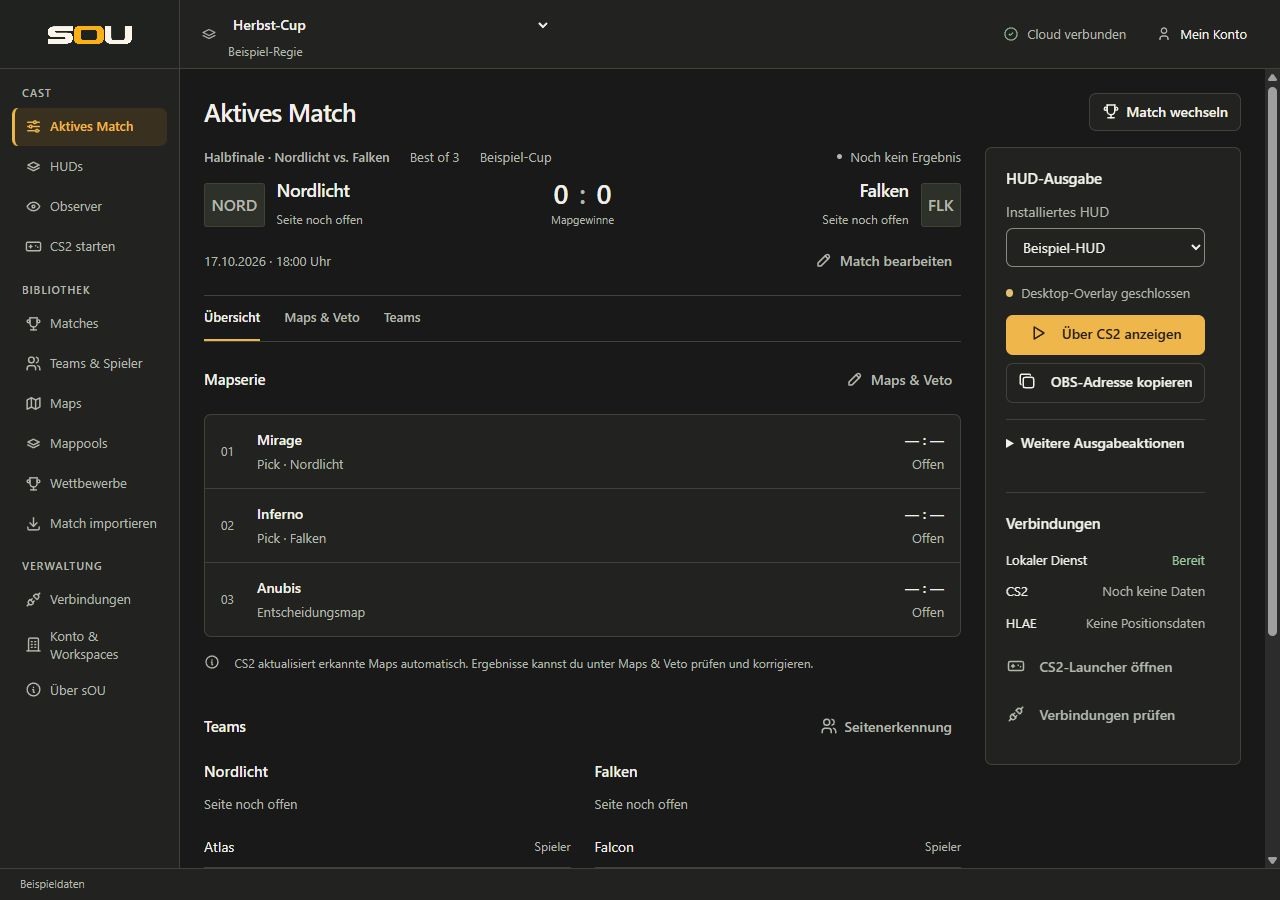
- Select Open for cast in the preview. The match is activated and Active match opens. Check opponents, BO format, date and saved series status there.
- Under Maps & Veto, determine the actual decisions and the order of play. Under Teams, you can check the squads and the current page allocation.
The selection of the active match applies to your local cast. It does not start CS2 or a HUD. Match details are already available to support HUDs before the first game data arrives. Real lap stands and game states, on the other hand, require suitable data from CS2.
5. Prepare the game connection and HUD output
- Set up the required game environment under Launch CS2. The steps are under CS2 and HLAE. Under Connections, check whether the local services are running and whether CS2 provides data.
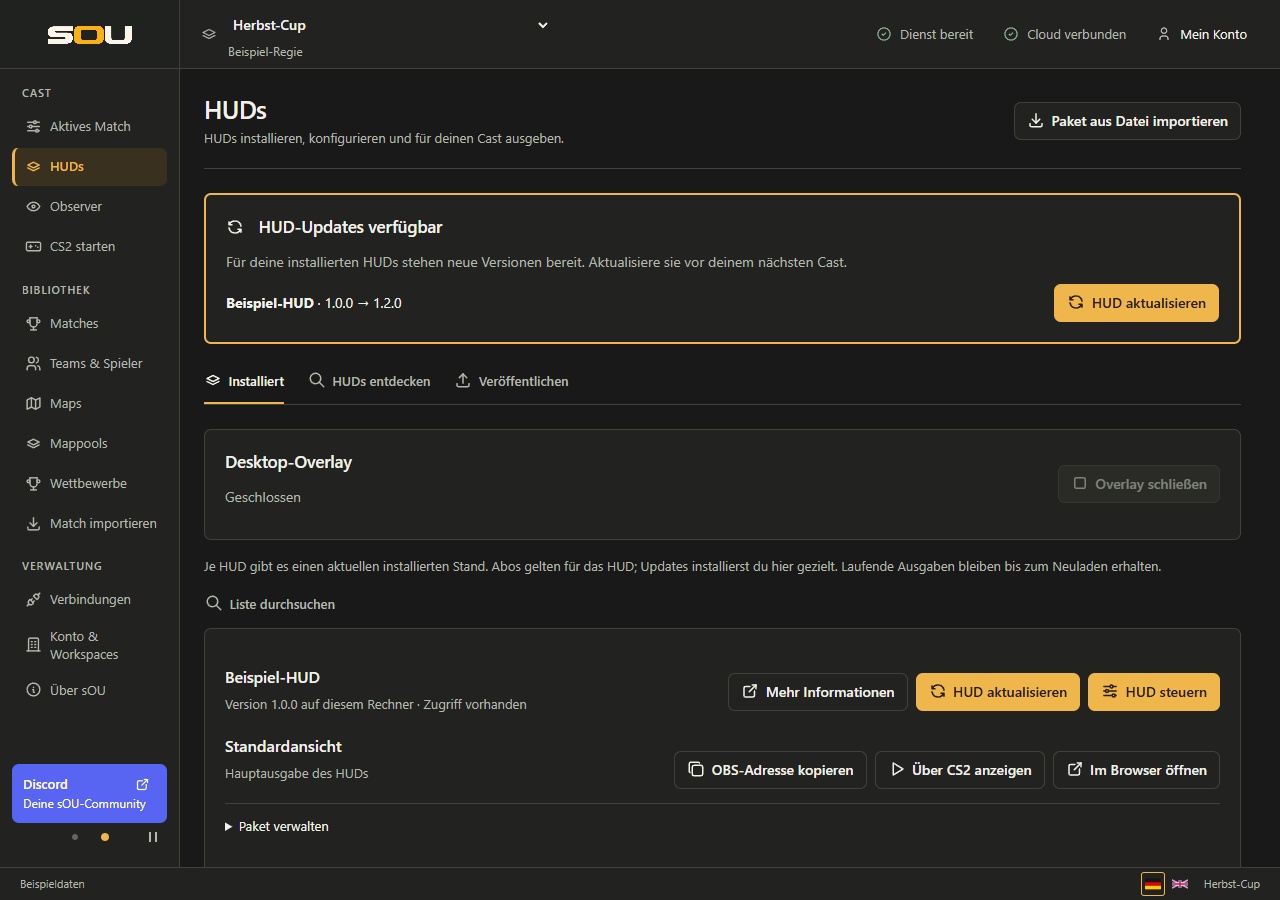
- Under HUDs, install the desired available package. Use the version provided for your workspace; see Installing HUDs.
- Go to Cast → Active Match and the HUD output area. With a narrow window, Go to HUD output leads directly there.
- Prepare the output if the local service is not yet running. Select an installed, available HUD and, if applicable, an offered view.
- If necessary, open Further spending actions → Stop HUD. Which fields and actions are present there, determines the respective package.
- Select Copy OBS URL or Show over CS2. Open in browser can be found under More output actions.
For OBS, you insert the copied address into a browser source. Hide the source and control HUD, size and transparency in the OBS preview. In the desktop overlay, an already running output can be reloaded or replaced by the selected HUD. The previous HUD remains visible until the new view is invisibly prepared. In the event of a charging error or after at most 30 seconds without being ready for charging, the previous output is retained. Check the change before your show. The complete setup and limits of Loading preparation can be found under HUD output; the packet control under HUD panels.
6. Check before going live
- Identity: Voices Workspace, active match and opponents?
- Roster: Are the recognized Steam IDs among the right teams? Are Coaches Appropriately Labelled?
- Maps: Voices map pool, Picks/Bans and Actual Game Order?
- Results: Are old or accidentally completed results corrected? A saved result is not automatically reset by a demo rebound.
- Connection: Does real current CS2 data arrive? Activating the match alone is not proof of a game connection.
- Output: Is the correct HUD visible in the desired view? Check the finished OBS scene or overlay on the actual game.
- Cooperation: Is the intended computer chosen as the source of automatic results for several computers?
During and after the cast
Under Active match, valid direct changes are stored immediately. In the separate editing windows, however, changes remain in the draft until Save and close. This distinction is particularly important in terms of veto, results and competition attribution.
CS2 can automatically update results if the map is part of the active match and the teams are clearly assigned. Check the completion of each map. Missing end data will not be replaced by the next map change alone. Correct incomplete results when required under Maps & Veto.
Then finish the required HUD outputs, close the overlay and secure open drafts. An update is not automatically installed. For an update or change of account, end sOU yourself as soon as your cast is complete.
If you get stuck
| Observation | Next meaningful step |
|---|---|
| The sign-in does not open a workspace yet. | Check account status and email confirmation under Account. |
| The library is empty or writing actions are missing. | Check selected workspace and role under Workspaces. |
| Maps are missing in the active match. | Check mappool and actual game selection under Use of the veto. |
| Teams remain open on the CT/T side. | Check active match and Steam IDs under Automatic Team Assignment. |
| Results do not change as expected. | Check map identifier, game status, assignment and result source under Automatic results. |