A HUD panel contains the settings that the respective HUD provides. This includes, for example, tournament texts, colors, sponsor images or the marking of a timeout. You open the panel in sOU and apply your changes with Save and apply. The output in OBS or via CS2 does not have to be restarted for this.
The installed package determines its fields and views. Check the displayed version and the information provided by its creator; this guide explains the shared sOU controls.
Open Panel and Apply Changes
- Install the desired HUD and check its current local status. The steps are under Installing HUDs.
- Under Cast → Active Match, open the HUD output range and select the HUD. Unfold More output actions and select Configure HUD to open its panel. Under Cast → HUDs → Installed, the corresponding action is Control HUD if the package contains a panel.
- Check HUD name and version in the header of the separate window. An output opened before an update remains with its previous field definition until reloading; the current panel does not change its old status.
- Select one of the offered panel sections and change the desired fields. Switching between the sections gets your draft.
- Click on Save and apply. sOU saves the status and transfers it to the associated outputs of this HUD version.
- Control the actual display in OBS or via CS2. The successful storage confirms the acceptance of the values; whether a field is visible in the current game phase depends on the HUD.
In a wide panel window, the Panel sections to the left of the fields. With Tab reach the active section; ↑ and ↓ Move to the previous or next section. Home and End Open the first or last section. With Tab Then switch to the fields. For a narrow window, use the selection field instead. Section above the fields. Both paths receive all unstored inputs.
If the focus is in the panel window, then Ctrl + S the same action as Save and apply Off. This saves the changes of all sections together and transfers them to the associated outputs of this HUD version. It does not store a workspace template and does not trigger immediate field actions. Without changes or during an image import, the application is locked; the keyboard shortcut does not bypass this lock.
Closing the panel window does not end the HUD output. Before closing, watch the Unsaved changes display. Changes in the draft are not yet saved cast settings.
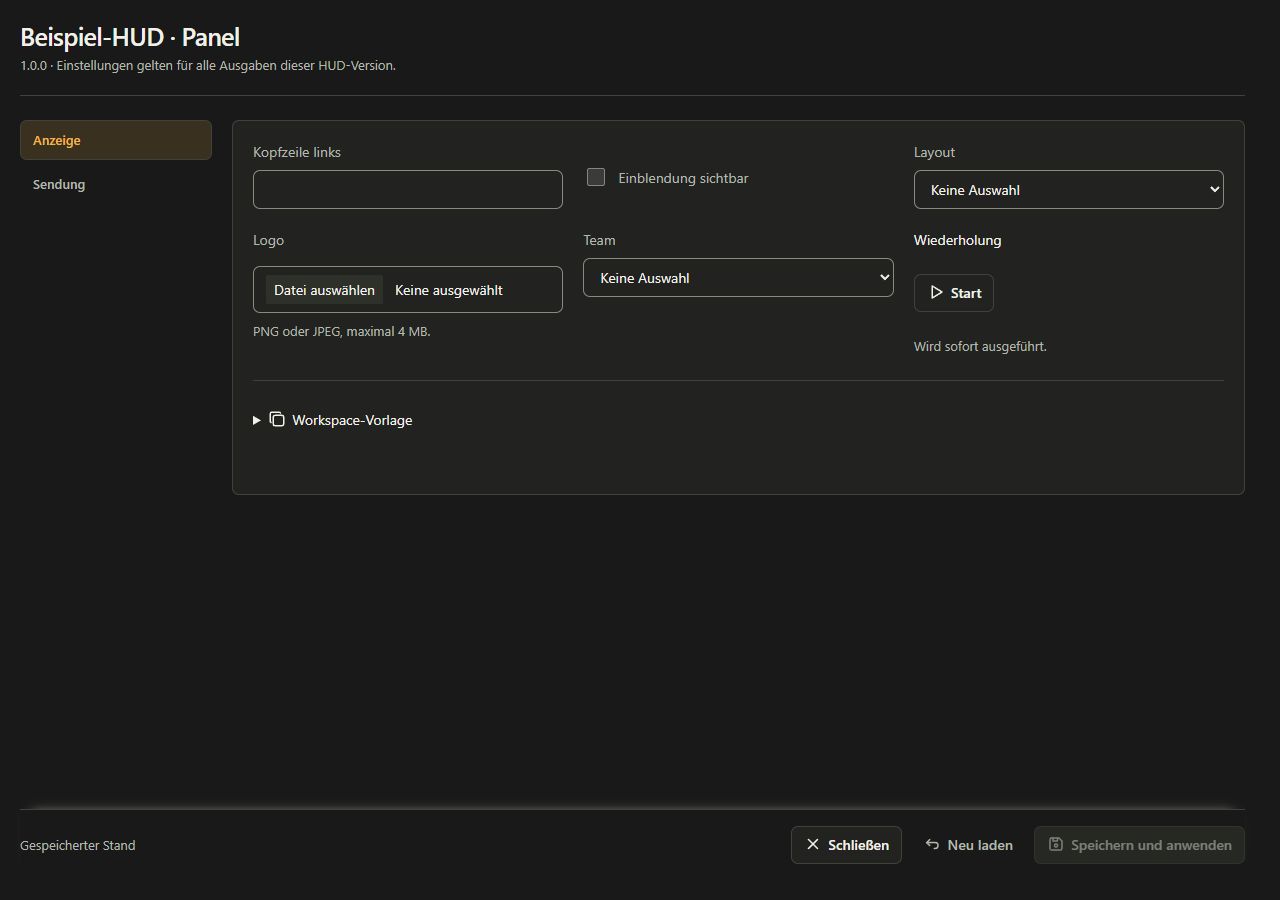
For which output do the values apply?
The settings apply to the selected HUD and its version in the current workspace. All connected views in this version use the same state: the main view, additional views, and other browser or overlay outputs. A shared text can therefore appear in several views at the same time, if the HUD uses it there.
- Two OBS sources of the same HUD version do not have separate panel profiles.
- Another version of the same HUD has its own stored status.
- Another HUD does not automatically adopt these values.
- Another workspace has its own cast values. When changing, observe the rules for current outputs under Switch workspace.
- The local cast values are not replaced by a workspace template without asking.
A versionless OBS address selects its package version when loading. An already open source will remain with this version until it is reloaded. For different results, therefore, open the version details of the affected outputs and the panel first.
Fields, images and immediate actions
| Field | Operation | Effects |
|---|---|---|
| Text text | Enter text directly; maximum 4096 characters per field. | It is only taken over with storage and application. An empty field can remove the display or use a HUD's own fallback value. |
| Switches | Activate or deactivate checkboxes. | The meaning is derived from the field name. This change must also be stored. |
| Selection | Choose an offered entry or no selection. | Only the values offered by the package are allowed. |
| Team, Player or Match | Select from the data of the current workspace. | A no longer existing assignment is displayed as no longer available. Choose a valid substitute consciously. |
| Image | Select PNG or JPEG with a maximum of 4 MB. | The image is read in locally and assigned to the draft. Remove the assignment from the draft. |
| Several pictures | Complete images individually; maximum 16 per corresponding field. | Order and use depend on the HUD. Not every package offers such a field. |
| Action | Click the action button. | It will be sent immediately. The display is executed immediately, distinguishing it from saved settings. |
During an image import, the inputs, section change and application are temporarily blocked. Wait for the conclusion before you save or close the window. The image limit of the panel upload also applies if other media areas of sOU offer further formats.
Immediate actions reach the currently associated outputs of the selected HUD and its version. Without connection, No HUD output connected. The action will not be replayed. appears A later connection or reload does not trigger the action retroactively. The success message indicates the number of associated outputs; check there the visible effect. Other, unstored fields are not stored by an action button.
Change Panel Values from Stream Deck
With the sOU stream deck plugin, you can set the offered panel values directly and trigger panel actions. Checkboxes can be set or switched, texts and selection values can be prepared, player, team and match references can be assigned and pictures or picture lists can be taken over. A player field can also take over the actually observed player if it is clearly assigned to a player in the workspace. A value preset modifies several prepared fields together; other fields retain their status.
Stream Deck automatically uses the current locally installed status of the selected HUD ID for all HUD field commands, presets and instant actions. The regular panel editor and new outputs also open this stand; there is no longer a choice of version. After a package update, check the fields and values of the new definition. Still associated older outputs do not receive instant actions or field values for another version scheme. Already open editor drafts are preserved and do not switch to a new schema during your input.
These keystrokes are immediately stored and applied. An additional Save and apply in the editor is not necessary for this. If an older panel draft is open in parallel, its memory conflict protection remains active: Check the message and consciously load the current status before you save again. A button does not take over any other unstored editor fields. Establishment, full field operation and boundaries are under Stream Deck: HUD panels.
Share workspace templates
Templates are suitable for recurring tournament texts, colors, or image mappings that multiple members of the same workspace should use. They are separated from the local values of a current output.
Provide a template
- Open the panel of the desired HUD version.
- Put together the desired status in the draft.
- Open Workspace template.
- Click on Save as template. For this, you need writing rights in the workspace.
- If the values should also apply to your current output, click Save and apply.
Saving the template alone does not change the current output. The template is synchronized with the workspace data; the respective local cast values remain separate.
Add a template to your cast
- Open Workspace template in the appropriate panel.
- Click on Load template.
- For unstored inputs, decide whether you want Keep editing or replace the draft with the template with Discard changes.
- Check the fields taken over, especially images and assignments.
- Click Save and apply to use this stand for your cast.
Workspace readers may use an existing template, but not modify it. The template belongs to the HUD. During an update, sOU only accepts compatible fields; new fields receive their valid specifications and removed fields are eliminated. Older version-bound templates remain usable if their schema is known. If there is no suitable template yet, sOU expressly reports this.
Views and match data
A HUD can offer several views and its own panel fields. Choose from the views actually listed under View. The package documentation explains when each view is visible and which settings it uses. A transparent view may be empty outside its intended game phase.
Prepare teams, players, map series and pick/ban decisions in the active match. Manage competition names, logos and sponsors under Competitions. Whether a HUD displays these values automatically or offers additional panel fields depends on that HUD. Changing a label does not trigger an in-game timeout or create missing match data.
Custom map images
If the HUD offers an image override, follow its requirements for dimensions and calibration. A different image is not automatically aligned with player coordinates. Check the actual map, floor levels and marker positions before the cast. A missing map or unavailable positions must not be replaced with invented values.
Settings for a new package version
When the updated HUD panel is opened for the first time, sOU can adopt appropriate saved settings from an older state. For this purpose, sOU only retains its field definitions and the stored values; the old package files do not have to remain additionally installed. For the current status, no own panel stand may yet be stored.
- Values are only applied to fields that continue the new package unchanged. An equally displayed field name alone does not guarantee a takeover.
- Selection values must still be allowed in the new package; assigned local images must be present.
- New or incompatible fields retain the specifications of the new version.
- An already saved status of the target version is not overwritten again, even if it is empty.
- Immediate actions are not transferred or executed.
- Importing an older package does not replace an already newer installation.
Before the cast, fully check the new panel and control all output views. An automatic transfer does not replace control of changed field meanings or a changed presentation. An even more open older editor sticks to its draft; its later storage does not overwrite the already adopted current settings. For new settings, open Control HUD from the current HUD overview.
If changes do not arrive
- Check if you really used Save and apply. Save as template and accept template alone does not change the output.
- Compare HUD, version and workspace of the output with the panel.
- Check if the field is visible in the current phase or is replaced by existing competition data.
- For images, check format, size, and local preview. If the team/player assignment is missing, select a valid entry.
- If the settings have been changed elsewhere during your editing, record your still needed inputs. With Reload or Discard, open the current saved status and re-enter your changes.
- For damaged or unreadable configurations, secure the profile folder first. Do not delete all panel files to eliminate an error message.
Further diagnostic methods can be found under Panel problems. Developers read Panel reference to specifically connect the supported field types and data transmission.