With the sOU plugin for Elgato Stream Deck, you operate HUD panels, switch to players, return the camera to yaibo and control the active match including Pick & Ban. The keys receive their captions, pictures and states from the running sOU app. You prepare the occupancy in the stream deck software and check the actual effect before the cast.
In sOU, you open this guide on the Stream Deck → Control with keys tile below the page targets in the left navigation. It opens in your default browser. In narrow windows you can reach the tile via Menu.
Requirements and local connection
- For the match control described here and its corrections, you need sOU Desktop from 0.3.15 and sOU plugin from 0.2.2 on the same Windows machine. Update both components so that you can also reliably pick up a decider without recorded round points.
- The Elgato stream deck software from version 6.9 and sOU runs under the same Windows user. The plugin finds the local sOU connection automatically. An additional Node.js installation is not required for use.
- In sOU, the desired workspace is open and the local service is ready via Prepare output. The matching HUD is installed locally and accessible. All HUD actions on the Stream Deck automatically use its latest locally installed version.
- For player changes, CS2 runs in a suitable observation or demo session with the HLAE control connection set up by sOU and current game data. GSI alone does not control the camera.
- For yaibo, its Account, eligibility and connection requirements also applies. Panel control and manual player changes do not require a started yaibo Observer.
The plugin connection remains local and does not require an additional cloud service and account. It is intended for the current Windows user. Do not pass on the local connection and its access data and do not open a router port. The plugin does not automatically set up CS2, HLAE or a OBS source.
The match bottoms and the labeling of HUD and yaibo keys were introduced with Plugin 0.2.0. Plugin 0.2.1 guides Pick & Ban via a common map overview: first choose the map, then the decision. The bottoms are provided for Stream Deck Mini, Stream Deck with 15 buttons, XL, + and Neo. The appropriate key layout is selected automatically. Stream Deck Mobile and other devices without a suitable supported layout cannot currently open these subpages.
Install plugin and set up buttons
Download sOU plugin 0.2.10 for Windows (3.7 MB; 3,665,814 bytes). The SHA-256 checksum is available for optional verification. SHA-256: 54f20a649d25ccddb9526c5226588e9184e955c2a480c089d606e0da7d91ce44. The download is available without signing in. The new game status and player statistics require sOU 0.3.24 or later.
- Install the Current sOU desktop version to resolve the described desktop downtime sOU 0.3.18 or later. Open sOU regularly, select the workspace and check the active match.
- Download the plugin via the link above. Open the full file ending
.streamDeckPluginand confirm the installation in the stream deck software. - Drag an action from the sOU category onto a button.
- In the settings of the button, select the desired function and the offered goals. The selection comes from the current workspace or the selected HUD.
- Check the label, condition and, if applicable, player image of the key. Trigger the action in a suitable test situation and control the result in the actual HUD output or in the game.
- Repeat the check after a HUD, workspace or version change. A distant field or an unavailable target is not replaced by a similarly named target.
The operation on the deck only takes over the configured action. A successful transmission does not yet confirm that the HUD element in question is visible in the current scene or that OBS is sending the source.
You choose the HUD in the plugin, not a package version. Stream Deck will automatically use the current locally installed status of this HUD every time you press the button, even if the button used to be set up with an older version. This selection also applies to new regular outputs and panel openings; earlier Workspace version bindings are no longer used. A new online version is not automatically installed: Use HUDs → Installed → Update HUD. Then check the fields, values and views offered: Removed targets are rejected. Output already open will keep their loaded files until reloaded.
| Action in the Stream Deck Software | Task |
|---|---|
| Control HUD panel | Set a field or trigger an offered immediate action. |
| Panel preset | Adopt several prepared field values together. |
| Observe player | Choose an Observer slot or fixed player. |
| Control yaibo | Automatic start, manually take over, continue or stop. |
| Enable camera paths | Set or switch a camera driving category. |
| Choose HUD view | Open the selected HUD including view via CS2 or replace the previous overlay and switch suitable connected outputs. |
| Connection status | Show overall status or a specific connection. |
| Control active match | Open flexible match subpages for picks, bans, team sides, orders, format, mappool, results and match changes. |
Labels and status on buttons
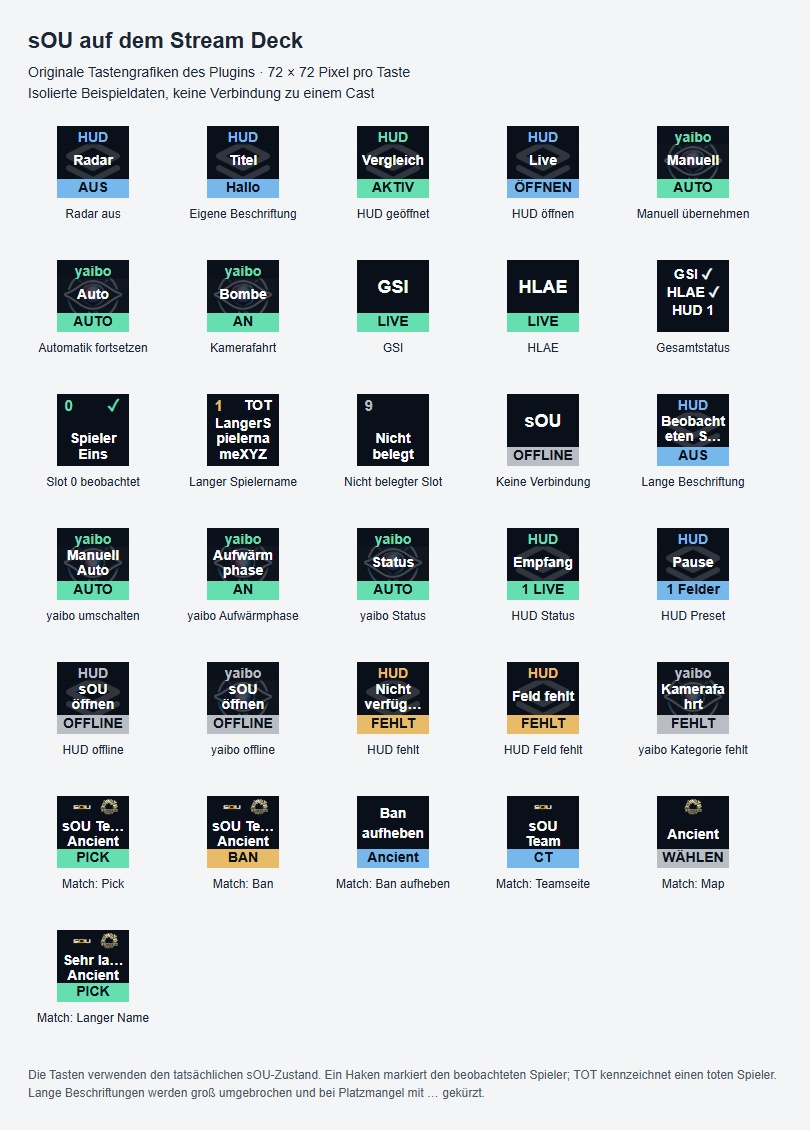
The automatically generated keyboard images show a large label and the current state, for example ON, OFF, LIVE or OFFLINE. A HUD view offers OPEN and shows ACTIVE when sOU reports it as an open desktop overlay. A tick on an Observer button marks the actual player being watched; DEAD marks a known death. Slot number and state of life do not replace a missing player name or a missing portrait.
The keyboard images are borderless. The lower state and name bars extend over the full width to the lower edge. Thus, even in the case of a slightly offset display of a deck key, no unevenly cut-off outer frame is produced.
HUD panel, preset, view and HUD status keys are visible with HUD and the familiar HUD icon as a discreet background image. yaibo control, camera categories and yaibo status visibly carry yaibo with its original logo in the background. This marking is retained in the case of OFFLINE or a missing target. On match decisions, existing team and map logos are displayed via separate name lines; the lower bar shows the action or decision such as PICK or BAN. Correction keys are explicitly labeled as Undo ban, Undo pick or Undo decider. The map in question remains recognizable on the Back key; it only leaves the current subpage. Missing images are not replaced by invented logos.
After a successful action, no additional green confirmation hook of the stream deck software appears. The decisive factor remains the state of the key which is subsequently loaded from sOU. Errors are still displayed. The hook on an Observer button has another meaning: it permanently marks the actual player being watched.
Own labels are distributed largely over several lines. Very long texts are shortened in the available space with …. Therefore, choose short unique key names. The detailed names and settings remain available in the key editor. Check the readability on your deck and remove additional stream deck titles or your own images if they mask the automatically generated feedback.
Control the active match from the Deck
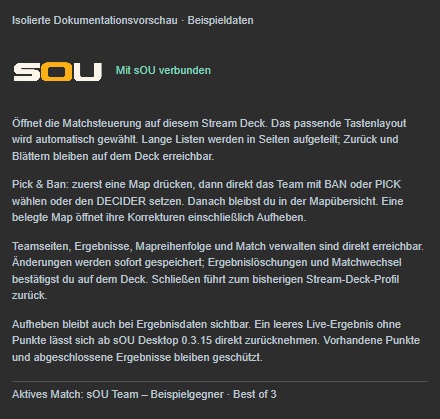
With Control active match you open your own button interface for the currently active match in sOU. You do not have to put the many possible maps, teams and actions individually on your profile. The subpages adapt to the number of keys; long lists are distributed over several sides. The remaining stream-deck profile remains accessible via the output of the match control.
- In the stream deck software Control active match from the category sOU, drag on a button of your previous profile. In the button settings you can see the current match.
- Press this button on the deck. When opened for the first time, the stream deck software can confirm the installation of the included match profile. Confirm the appropriate profile and reopen the entry if necessary.
- Check the match displayed. Without an active match, you can reach Choose match and activate an existing entry of the current workspace.
- At the start, select Pick and Ban, Team sides, Results, Map order or Manage match. Back leads to the previous bottom. At the start, Close returns to the previous Stream Deck profile.
Previous and More only appear when a list requires multiple pages; the page number shows your position. On a single page, the space for the actual actions remains free. On the Mini, all five Pick-/Ban-/Decider actions and Back fit simultaneously on the six keys. You do not fill the prepared subpages yourself with individual match actions. After the first setup, take the following steps right on the deck while sOU and its local service continue.
Picks, Bans and Deciders
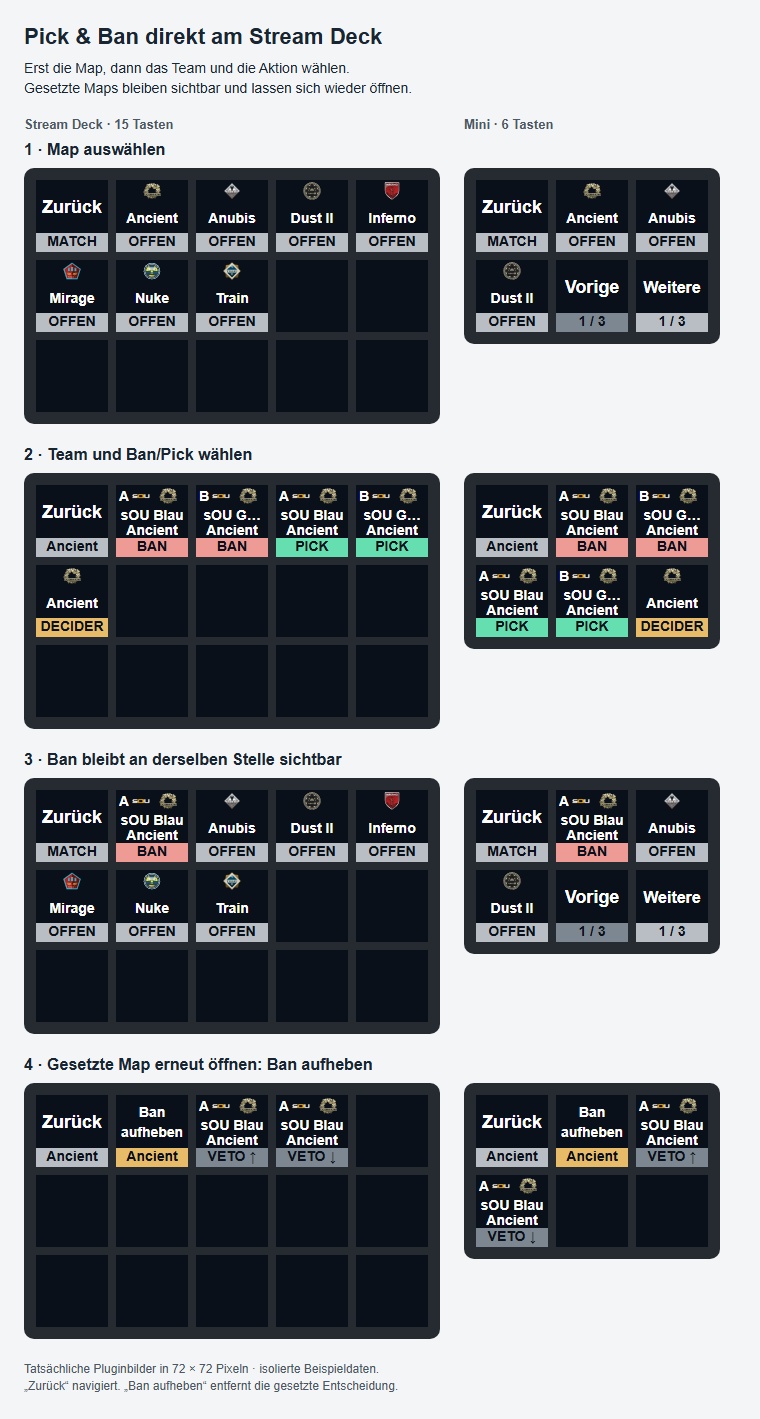
- Open Pick and Ban. The overview contains open and already decided maps with map name, existing logo and current status. With a pick or ban, the assigned team is also visible.
- Press the map to open your decisions. With an open map, you will see a separate BAN and PICK button for each team, as well as the neutral DECIDERS button. The team and map names as well as existing logos show what the respective button will change.
- Press the desired decision. It will be stored immediately. Then you return to the same page of the map overview; the map remains in its position and shows its new state.
- Choose the next map and the corresponding decision. Also already occupied maps remain accessible in the overview, so that you can check or correct them.
A DECIDERS does not have a decisive team. In BO1, the individual game map is chosen as the decider; team picks are locked. Further picks and deciders require free playgrounds; at most one decider is possible. Bans remain possible even with a full series of games. Unavailable decisions show BLOCKED.
sOU does not specify a tournament process: it does not automatically choose the next team, nor does it ban or pick the last free map. You explicitly decide on team and action at each step. Imported game maps without a clear decision remain recognizable as unexplained. Neither list position nor CT/T replace an actual team assignment.
Manage Match → Game Map Without Pick deliberately complements a game map with an unexplained decision, for example in the case of an incomplete takeover. Then select the open map. This assignment neither invents a pick nor a decisive team; in the map overview, the unexplained state remains visible.
Undo decisions and change the order
Open the occupied map under Pick and Ban. The correction button expressly names the existing decision, for example Undo ban, Undo pick or Undo decider. The mapname is on Back and in the case of immediate withdrawal also on the pick-up button. For an unexplained game map it is called Undo playing map. It removes this assignment and, if necessary, its place in the game series. After that, you will see the same page of the map overview again; the map remains in its position with a suitable pool membership and is open again. Other decisions are retained. Back, on the other hand, navigates to the previous page without any data change.
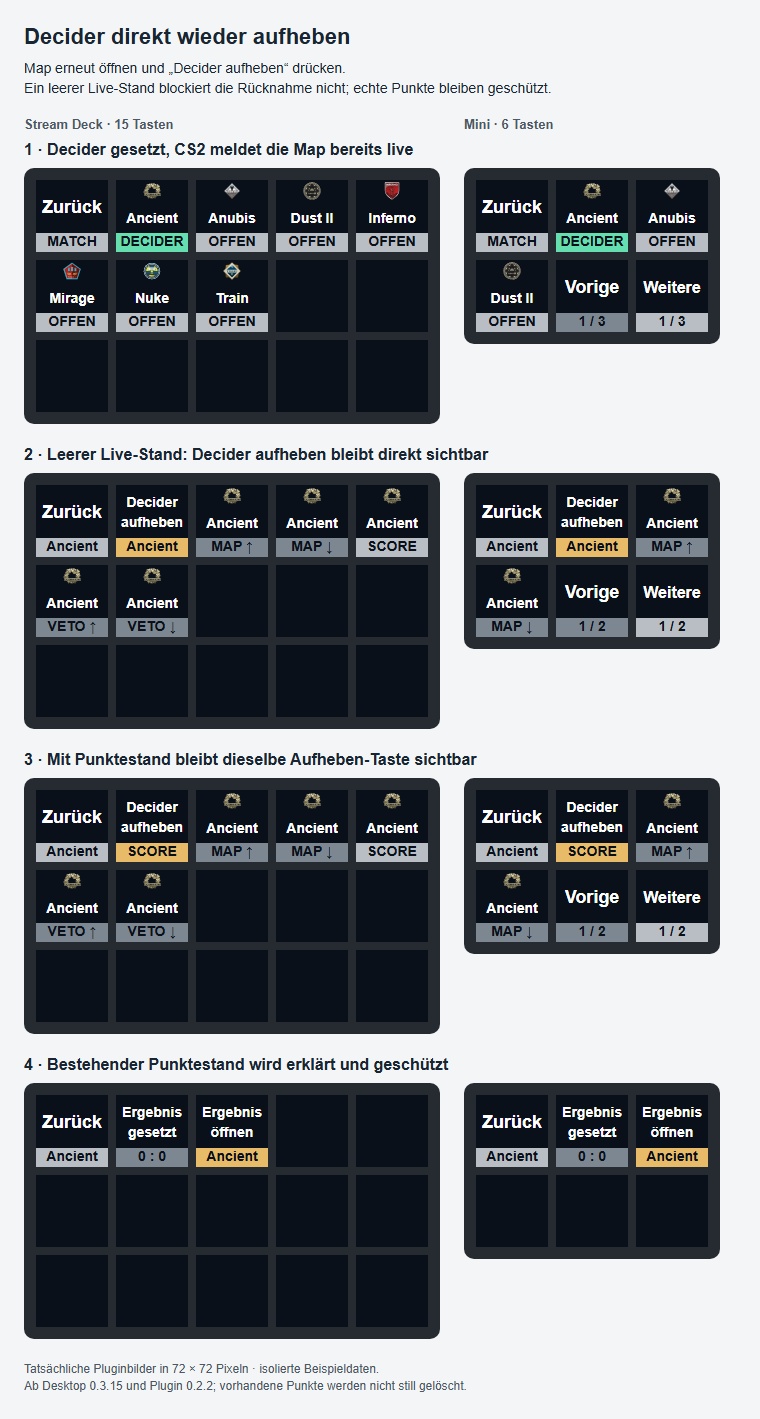
The pick-up button remains visible even if the map is already reported as Live. If none of the teams have already recorded round points, you can immediately withdraw a map with status Pending or Live. This also applies if current game data sets the status repeatedly to Live. The empty result note is removed together with this assignment.
If at least one round value is recorded, including 0, or the map has the status Finished, the result data remains protected. The pick-up button then shows SCORE below and opens the Result recorded explanation. There, select Open result, then Delete map result and confirm the displayed destination on your own query page. After that, return to the decision and press the pick-up button again. The correction does not tacitly delete any recorded points.
If the pickup button shows UPDATE for an empty live result, it opens Desktop Update with 0.3.15. In this case, update sOU to at least 0.3.15 and open the match control again. The plugin alone cannot unlock this correction in an older desktop version.
Veto earlier and Veto later change the decision order including bans. Map order, on the other hand, only shows the game maps; there Map earlier and Map later move the selected map within the series. The two orders are independent. The respective sliding keys remain blocked at their limits.
Team sides, format and map pool
Under Team sides, select Automatic sides, a team for CT or Swap CT and T. After the change, the side view remains open and shows the updated assignment. The display uses the sides actually known from sOU. An existing roster recognition continues to have priority; in the case of a recognized assignment, contradictory manual side keys are blocked. Check the Side recognition if the sides are already automatically fixed.
Under Manage match you will find Series format with Best of 1, 3, 5 or 7 as well as Choose map pool. You confirm a change on your own cover page. Existing decisions and results remain protected: A format that is too small or a pool that excludes used maps is rejected. Expressly correct the affected assignments before attempting the change again.
Scores, result status and series score
Open Results and the relevant game map. Select the team, adjust the prepared lap reading with −10, −1, +1 or +10 and then press the button to accept the displayed value. The number remains a draft on the deck until then; browsing and changing the number do not save it yet. Check the team and map before taking over. After saving, you return to the results view of this map.
On the map page, you can also set Pending, Live or Finished. A deal requires both scores and a clear winner. The valid order and an already decided series will continue to be examined. You have to set a completed score back to Live before you can empty it. Delete map result resets the selected map after your confirmation; Delete all results also requests its own confirmation.
For older matches without individual map results, Results instead shows the previous map wins of both teams. These can be corrected with the same number draft. After a query, Use map results changes to the recording per game map and replaces the previous separate series status. Check the displayed message before you confirm this change. Details of the result rules are available under Result status and series score.
Changing Match, Rights and Parallel Changes
Under Manage Match → Change Match, select an existing match entry from the current workspace and confirm activation on the deck. Deactivate match cancels the local selection after a confirmation. There you can also reach Format, map pool and the explicitly confirmed deletion of all results. You can continue to create new matches, teams or mappools via the corresponding sOU sides.
You can also control the active match selection and local team sides with reading rights. Changes to picks, bans, orders, format, mappool, and results require writing rights in the workspace. Locked changes appear as READ ONLY. An open desktop editor remains its own draft: After an external change, you check the reported conflict when you save it later, instead of overwriting older data unchecked.
All changes use the current match score. If the target changes during your selection, an outdated action will be rejected; reopen the selection and check the updated button. A workspace, sOU restart or active match change discards ongoing selections. After restarting the plugin, you close the still displayed match profile and reopen the entry via your original button. Unconfirmed actions are not made up after a reconnection.
Control HUD Panel Values and Actions
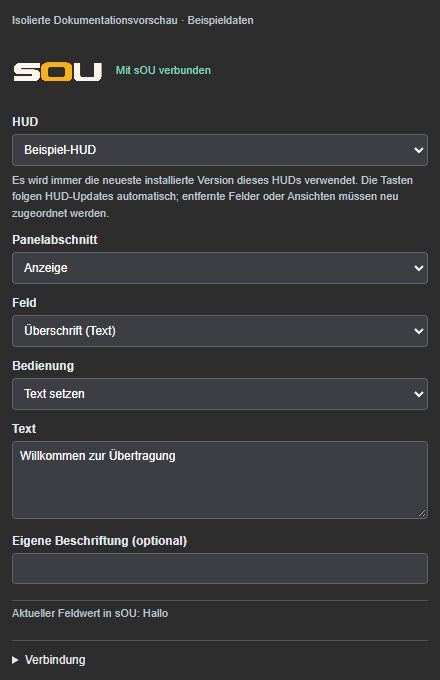
Place the action Control HUD panel on a button. In the key settings, select HUD, Panel section and Field one after another. Under Operation you select the behavior; under it you prepare the respective value if necessary. Only fields of the latest locally installed HUD version are available. The meaning of a field continues to be determined by the HUD author. With Hide switches in particular, note that Turn on can mean hiding. With Custom label (optional) you give the button its own name.
| Field type | Operation on the Stream Deck | Preparation and boundaries |
|---|---|---|
| Checkbox | Switch on, switch off or switch over. | The key shows the actual saved state, even after a change in sOU. |
| Text text | Set prepared text, empty or switch between texts. | Prepare the texts in the key settings; for text templates switch 1 to 64 enter templates with one template per line. Maximum 4096 characters per field. |
| Selection | Set an entry or switch to the next or previous one. | Use only the entries offered by HUD. Empty removes an optional selection. |
| Player | Assign a prepared player, take over the currently observed player or remove the assignment. | The reference must be clearly available in the current workspace. A live player without a suitable library allocation will not guess by his name. |
| Team | Assign a team or remove the assignment. | The teams of the current workspace are offered. |
| Match | Assign a match or remove the assignment. | This only sets the panel field. It does not activate another match in the cast. |
| Image | Set a library image or a prepared PNG/JPEG image; remove the assignment. | Select or prepare a file in the key settings; maximum 4 MB per image. Removing from the panel does not delete a shared media file. |
| Image list | Put or empty a prepared compilation. | Not more than 16 PNG/JPEG images with not more than 4 MB per image; the order is part of the composition. |
| Action | Trigger the offered panel button. | Immediately affects the currently connected outputs of the latest locally installed version; a fancy action will not be made up later. |
A field button only changes its configured field in the saved Cast state of the latest installed version. You do not need to click on Save and apply in the panel afterwards. All related outputs of this version in the current workspace will receive the new status. An older version that is still open does not receive values for another schema; reopen the desired current output. See Scope of Panel Values.
If a panel draft is open in parallel, the external change can trigger a memory conflict. Check the message in the editor and consciously load the current status before reapplying an older draft. Other unstored fields are not stored by a deck button.
Prepared text, images and assignments are among your stream deck button settings. Check this content before you export or share a profile. For automatically updated state images, use the keyboard images provided by the plugin; your own overwriting images can obscure this feedback.
Apply multiple panel values using a preset
A preset summarizes prepared field values of the same HUD, such as the main scene, a break title, and the visibility of individual areas. A keystroke takes over the contained fields together. All other fields keep their current status. The preset is an assignment of your key and not a jointly synchronized Workspace template.
- Place Panel preset on a button and select the entry under HUD.
- Select a field and prepare its desired value.
- Select Add field to preset.
- Add more fields. Remove entries that the button should not change from the preset list.
- Forgive the desired Label and check the complete list before trying the button.
A preset contains 1 to 128 different fields. Check the field values and assignments when setting up. If a contained field is invalid or no longer available in the current package, the preset is not partially applied. Immediate panel actions are not part of a value preset; create your own action keys for this.
Observer slots and fixed players
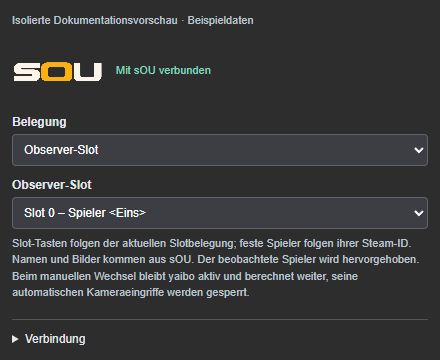
Place Observe player on a button. Under Assignment, select either Observer slot and a Slot from 0 to 9 or Fixed player, and under Player, select one of the current player identities. Slot 0 is its own valid slot. The button shows the actual occupancy from sOU and updates the name, image and state when that occupancy changes.
- Slot: The button follows the current slot assignment. After a reassignment, she can view and observe another player.
- Fixed player: The button follows the player’s identity, even if his slot changes. If the player does not exist in the current data or is not clearly assigned, the change remains blocked.
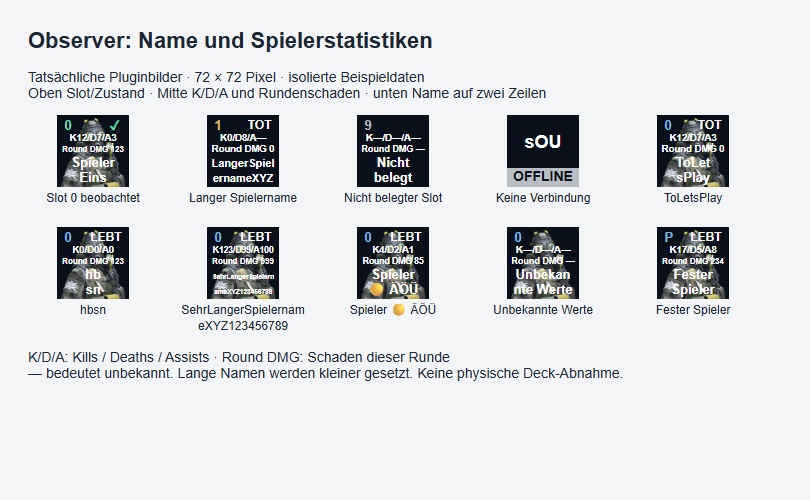
- Name and image: names come from the current data. A portrait appears only with a clear matching player assignment and an available picture; without a picture, the name display is preserved.
- Observed and alive/dead: The key identifies the actual player being watched and the known state of life. A missing value is not construed as death.
With Plugin 0.2.6 and the matching desktop version, the slot and observation/life state appear at the top, with match statistics in the format K10/D10/A10 (kills / deaths / assists) and Round DMG (damage this round) in the middle. The player portrait fills the key background proportionally. All text appears directly over it without covering text panels. The player name below has room for at most two lines. From Plugin 0.2.10, short names such as sofc or hbsn remain together. Longer aliases first use a smaller font; necessary breaks prefer word and CamelCase boundaries. Exceptionally long names may still be visibly shortened with …. Statistics come from current game data: 0 is a genuine zero; — means not supplied. Older desktop versions without these fields show unknown values. This also applies to fixed player keys.
When pressed, sOU checks the current occupancy and the control connection again. In the case of outdated data, a missing or ambiguous assignment or missing HLAE, no change of player takes place. An old label is not a commitment that the destination is still available.
A manual player change locks the automatic camera output of the yaibo when the yaibo is running. The calculation continues: yaibo is not allowed to change players and start camera paths. With Resume you release the output again without restarting the model. A previously blocked journey is not played subsequently.
Control yaibo and camera paths
Place Control yaibo on a button and select Start, Manual, Resume automatic control, Stop or Toggle manual / automatic control under Operation. The manual takeover allows the running automatic system to continue to calculate and blocks its camera output. Continue releases it again. Stop ends the Observer session; the next start requires the normal preparation again. Switching to another sOU page or stream deck profile does not end yaibo.
With Enable camera paths, select Warmup (warmup), Freeze-time, Bomb events (bomb) or Attack plays (execute) under Camera category. Under Operation, select Allow, Block or Toggle. The button shows the actual release. These actions allow categories; they do not start a specific journey at the touch of a button. A manual takeover is retained until you expressly release the camera output again. The technical requirements and exchange rules are under Observer by yaibo.
Open HUD views directly
Place Choose HUD view on a button and select a HUD and a view offered by its latest locally installed version, such as Live, Prematch, Setup or Pause. When pressed, sOU opens this HUD in the latest locally installed version with the selected view as a desktop overlay over CS2. An already opened standard HUD, another HUD or another view will be replaced. If the overlay is closed, it reopens. Start CS2 for this in borderless window mode and check the actual output in the game.
The new view initially loads invisibly. The previous HUD remains visible and continues to receive data until the new view is ready with its initial data, fonts and images. For preparation and loading together, a maximum of 30 seconds applies. An error or timeout receives the previous view and address; no unfinished output appears at the initial start. An empty initial state without running CS2 is allowed. Media requested later by new content or timer can continue to reload. What Is Part of Load Preparation.
After successful opening, the already connected outputs of the same HUD and the same version will also change if they were opened via the regular stable sOU HUD address. This can include browser tabs and several OBS browser sources. Direct fixed packet addresses do not participate in this change. Views that the package does not offer cannot be generated by its own designation.
A panel selection field such as Main output scene and an additional packet view are two different paths: the panel field affects the common configuration; an explicitly open additional view uses its own route. The view button does not create a OBS source and does not change a OBS scene. Before the cast, check all related outputs that are to receive the same change; see HUD Output: Views on the Stream Deck.
A HUD with LHM runtime does not offer this sOU view change. Use the panel actions and output paths actually supported by the adopted HUD. The plugin does not add any additional views to a foreign HUD.
The button gets the actually reported desktop overlay state from sOU and identifies the currently open view with ACTIVE. A failed opening appears as an error. Even an open overlay does not yet confirm a visible CS2 output or sending OBS scene: a minimized game, display mode and OBS sources still affect the visible output. Check them after the change.
Display connections and game status on keys
Place Connection status on a button and select Overall status, GSI, HLAE, HUD connections or yaibo readiness under Display. This allows you to see whether the local sOU connection and current game data are available and whether the required control is reachable. An active HLAE data source and the HLAE control connection required for camera actions are different requirements. A push of a button checks the condition again.
HUD status describes the outputs associated with sOU. It cannot confirm whether a OBS source is in the visible scene, is tailored correctly or is being sent. Keep checking that in OBS. Status buttons do not automatically start any failed services.
With Plugin 0.2.4 and the matching desktop version, the same status action offers more displays. Select them under Display in the key settings. UPDATE means the connected desktop lacks the extended status data. Existing status assignments are retained.
- HUD connections: Also shows the name of the HUD actually open as a native overlay. Without a native overlay, the name is shown when exactly one HUD has connected outputs. The count remains the reported connection state.
- Team: name and logo: Select Left or Right. The original logo fills the key background, fitted completely with its original aspect ratio, without cropping or distortion. Name and side appear directly over it without covering text panels. Team assignment follows the HUD arrangement based on observer slots, rather than a permanently fixed CT/T assignment. Recognised teams use workspace names and logos; ambiguous assignments do not receive a guessed logo.
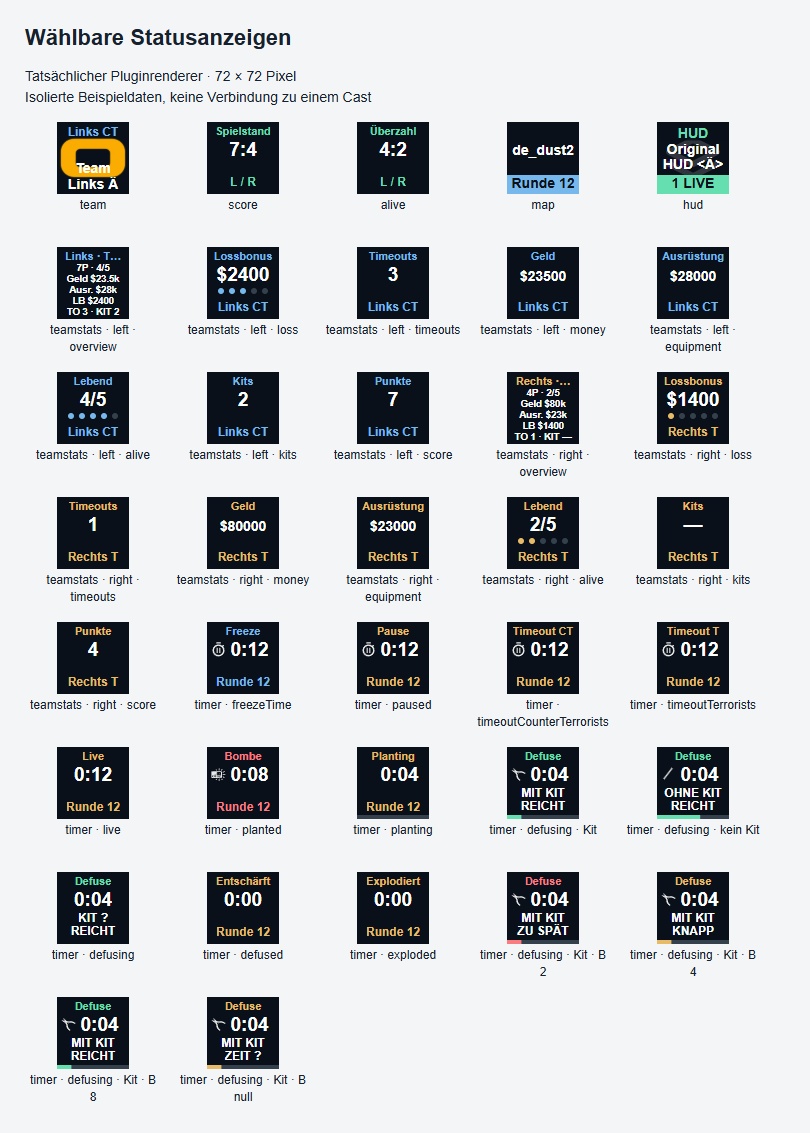
- Team status: Select the same team side, then under Team metric choose loss bonus, remaining timeouts, money, equipment value, players alive, kits held by living CT players, or score. The loss bonus shows its amount and five levels as dots. Compact overview combines all metrics: the first line shows score (P) and players alive/players supplied, followed by money, equipment, loss bonus (LB), timeouts (TO) and kits (KIT). The overview uses smaller text; create a separate metric key for larger values.
- Timer and game phase: Freeze, live, pause, team timeout, planting, bomb and defuse use appropriate labels, colours and existing original graphics. Planting and defuse also show progress bars. During defuse, the key shows the remaining action timer, WITH KIT, NO KIT or KIT ?, and a time prediction. ENOUGH and TOO LATE compare the defuse timer against the separate bomb time. CLOSE means a margin of at most 0.25 seconds and does not guarantee success. TIME ? means no independent bomb time is available, for example when connecting during an ongoing defuse.
- Score, Players alive and Map and round provide further individual displays. Score and players alive appear in L / R order.
Game metrics use only current GSI data. Values not supplied appear as —; missing money or equipment values for individual players are not shown as complete team totals. Stale data removes names, logos and timers from game displays. All status variants are displays only; pressing a key only checks the state again.
Error, reconnection and changes
The entire sOU app no longer responds to match control: Update the desktop to sOU 0.3.18 or later. Previous desktop versions could permanently block match changes and HUD queries at the same time; this could also affect closing and other desktop sites. For this correction, the Stream Deck plugin does not need an additional update. If sOU is already completely hanging, exit it via the Windows Task Manager if necessary and then restart it. Then check the saved match score before performing an action again: An unconfirmed action may already have been saved. See also Stream deck troubleshooting.
If there is a missing connection, open the Connection area in the key settings and select Check connection again. Automatic detection is the normal way. If you have a deliberately different local sOU profile, you can specify its connection file under Custom connection file (optional). Do not copy their contents and access keys to key settings or to exported profiles.
- sOU is not connected.
- Open the appropriate desktop version on the same computer and under the same Windows user. Check if the local service is ready. After an app restart, the plugin reconnects.
- HUD, field or selection is missing.
- Check workspace, installation and access as well as the fields of the latest locally installed version. Switch the button to an actually offered destination. The latest version is used automatically; a field removed in it is not replaced by a similarly named one.
- The Observer button does not show a player or a picture.
- Check current game data and slot occupancy. For library images and the transfer to a player field, a clear identification assignment is necessary. Complete correct Steam IDs and images among teams and players; the display name alone is not enough.
- The player change is not carried out.
- Check the current HLAE control connection and a suitable observer/demo session. When restarting HLAE, the game uses an older sOU control script. Finish CS2 and restart it from the current sOU version with HLAE to load the current script. Obsolete or conflicting data block the action. After remediation, deliberately press again.
- After manual change, yaibo does not take over again.
- The output remains intentionally blocked. Use Continue and control readiness. A camera category switch does not release the entire automatic.
- The HUD view does not appear above CS2 or the previous HUD remains standing.
- While the new view is invisibly prepared, the previous HUD remains visible. In the event of a charging error or after at most 30 seconds without charging readiness, it is retained. Check the error message and whether the desktop app and plugin are using the same current integration status. A view no longer offered in the latest locally installed HUD version will be rejected. Check the local service and the installed package, start CS2 in borderless window mode and press again when fixed. A closed or minimized CS2 hides the loaded overlay; a OBS browser source alone does not open a desktop overlay.
- Labels or conditions are difficult to recognize.
- Use the current automatically generated keyboard images. Remove a self-assigned image in Stream Deck or an additional Stream Deck title that covers the plugin ad. For your own labels, use short unique names and check them on the actual deck.
- After a reconnection, an overlay or a camera change is missing.
- Immediate actions and camera changes are not caught up. Check the current state and retrieve the desired action.
- The match bottom does not open or show only empty keys.
- Check a suitable current desktop and plugin version, the local service and a supported device. Upon first opening, confirm the profile installation in the stream deck software, if necessary. After a plugin restart, leave the match profile and reopen the original entry button. An unsupported device does not receive a stray key layout.
- A pick, ban or score is not accepted.
- Check write privileges, active match, current pool, free playgrounds, and existing result data. In the case of an intermediate change, reopen the subpage and select the updated destination again. An already recorded score protects the map; explicitly reset and confirm the result beforehand.
- Decider cancel is missing or the decision can not be taken back despite empty points.
- Use plugin from 0.2.2 and desktop from 0.3.15. Under Pick & Ban, you open the occupied map and press Delete Decider. A mere status runs without detected points does not block the correction then. For older plugin versions, the button could be replaced by this status. With the current plugin, it remains visible; actually recorded points, also 0:0, or a completed status lead to the declaration result set via SCORE and to the explicitly confirmed deletion of the result. See Withdrawal of decisions.
- The manual team sides are blocked.
- Actual roster recognition takes precedence over manual assignment. Check the reported page or use sides automatically. Lack of recognition is not guessed from team names or order.
Further test steps are available under Stream Deck in Troubleshooting. For an error report, specify sOU and plugin version, affected action and HUD version, and the last message. Do not share local connection files or access data.
German and English
The dynamic keys and key editor take over the language of the connected sOU desktop app. Your language choice will be synchronized with your user account. The action list in the Stream Deck program uses its own language setting. Own key captions, player/team names and captions from the selected HUD are retained.