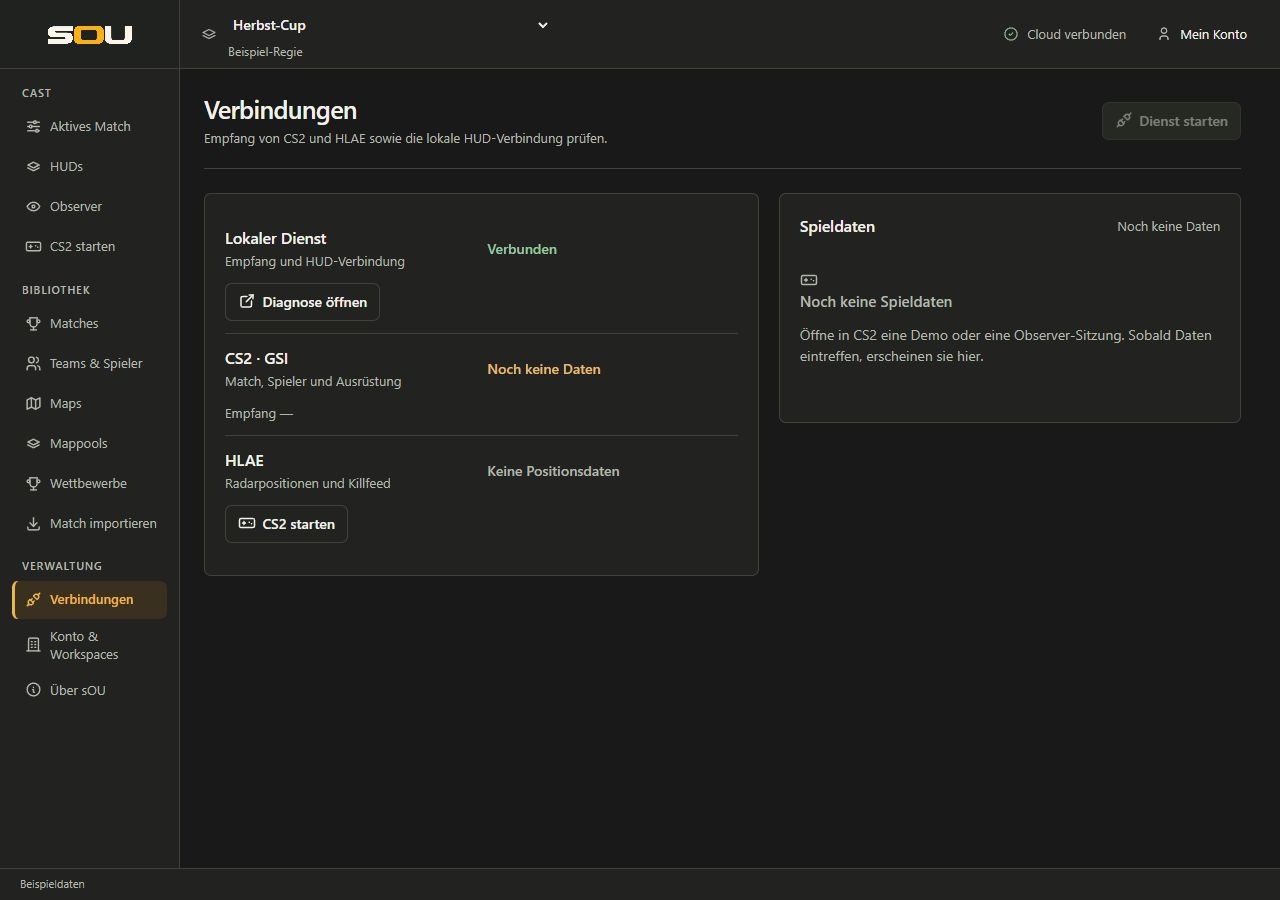
Under Management → Connections, you can tell if sOU is receiving current game data. The local service processes CS2 data and makes it available to the open HUDs. Cloud synchronization and receiving an ongoing game session are different processes: a message such as Cloud connected does not confirm a connection to CS2.
Where does each data source come from?
| Source | Task | Conditions |
|---|---|---|
| CS2 about GSI | Map, round, score, players, equipment, bomb and grenade data and other values provided by the game. | Installed sOU GSI configuration, ongoing local service and a matching game or observer session. |
| HLAE | Additional player positions and gaze directions for the radar as well as actual kill events. | CS2 with HLAE and loaded sOU-HLAE connection. |
| Your workspace | Managed teams, players, logos, active match, map series, pick/ban and well-maintained results. | A selected workspace and the corresponding library data. |
| HUD settings | Text, images, selection values and other options offered by the package. | A HUD with setting range and a stored stand. |
GSI remains the main source for the game. HLAE does not replace GSI or the library. Even with an existing HLAE connection, current GSI data must arrive so that the associated game session and player assignment are available.
Check connections before the cast
After logging in and selecting a workspace, sOU starts the local service automatically. The header shows Service starting …, thereafter Service ready. Click on this status to directly Connections open; that also goes with Old + 0. The service belongs to the running desktop app and ends with it. A ready service does not yet confirm incoming CS2 or HLAE data.
For Check service, open Connections and use Start again. Without a previous start, it is Start service. During a start-up or on-going service, this action is blocked. If the local port is occupied by another application or a second sOU instance, quit the other instance regularly and try again. sOU does not take on a third-party service. A failed automatic start will not be repeated continuously.
The three connection lines contain the actual service state, the CS2 reception and HLAE with the appropriate next actions. Under Game data you check the received session; in a narrow window you will find this area under the connection lines. The service can also run on an offline login; the cloud status remains independent of this.
- Sign up in sOU and choose the right workspace.
- Wait in the header on Service ready and open Connections over it. In case of a start error, select Start again there.
- Start CS2 via Launch CS2 with HLAE. The full setup is under Start CS2 for the first time.
- Open a demo or an observer session in CS2. Let the game run for a few seconds.
- Check CS2 · GSI and the displayed reception time. The values under Game data should fit the current session.
- Check HLAE. Position data received indicates that the additional radar source is present.
- Open a HUD output. In OBS, check that the appropriate source is displayed and that the map, score and player match the current session.
In the Cast → Active Match → HUD Output area, you will also find a compact connection status under Connections. Check connections opens the detailed page. Prepare output starts the local reception when the service is not yet running without automatically starting CS2.
Understand status indicators
| Display | Meaning | Next step |
|---|---|---|
| Local Service: Connected or Ready | The local sOU data path is available. | In addition, check the CS2 reception. |
| It is connected | The local connection will be established. | Wait for a short time; the condition remains, check messages and port occupation. |
| No data yet | There is no assumed state of play yet. | Set up GSI and open a demo or observer session. |
| Current or Current Data | The last GSI state is still fresh. | Check whether Map and observed player belong to the desired session. |
| Obsolete or data obsolete | No new GSI status has arrived for some time. | Check game, demo break and reception time. The last display is not proof of still current data. |
| Receiving interrupted | The GSI reception has been delayed longer. | Go through the steps under No GSI reception. |
| No position data | No fresh HLAE radar data is available. | Check HLAE and Script; GSI can continue to work independently. |
GSI data are considered obsolete after 15 seconds without new reception and interrupted after 45 seconds. If HLAE position data is missing longer than 750 milliseconds, the radar uses available GSI positions. Therefore, check the two status indicators separately: Even when the radar is moving, the rest of the game can be obsolete.
Understand the displayed game data
Map, CT : T score, Observed and HP show information from the received game state. An indent indicates that this value is not yet available. In the case of missing information, check the current game situation and the reception status.
The CT:T score describes the game sides. The teams of your match administration, on the other hand, are professional opponents. Their assignment is based on the Steam IDs and squads of the active match. A team doesn’t become Team A just because it’s on the left or playing CT. Therefore, pay attention to correct squads and a deliberately activated match; see Matches and side recognition.
Library changes can also update the HUD without a new GSI package, such as changing a team name or active match. As a result, the last state of play does not become new. Conversely, the mere display of received data does not automatically store any information as a library entry.
Player statistics and incomplete recording
Some HUD indicators are recorded from the GSI rounds fully observed during operation. This includes in particular average damage per round and the proportion of headshot kills. This capture starts with the current session; previous rounds are not loaded retrospectively from a full match database.
If sOU starts only in the middle of the match or relevant lap data is missing, a HUD can therefore mark the key figure as a partial score or not yet display a value. An unknown value is not equal to zero. Pay attention to the number of rounds recorded. If possible, start sOU before the start of the match and leave the app open for continuous recording; after a restart, the recording starts again.
CS2 can deliver coaches as players in certain environments. Maintain such people in the library with the intended coach marking so that they are hidden from the affected player views and counts. A mere dead character is not sufficient proof that it is a coach.
HLAE radar and death positions
HLAE delivers player positions and gaze directions up to 30 times per second. How fluid the radar is visible also depends on CS2, the selected HUD and your output. For jerking movements, check the HLAE status and compare the browser view with the OBS preview.
Players are assigned via their Steam ID. Without a clear assignment, a position may be missing. After a card change, a time jump in the demo or a change of the player character, the movement course is rebuilt.
For dead players, the last known radar position remains as a death mark. The last fresh HLAE position or, if this is missing, an available GSI position is used. If you do not enter the session until after the death of a player, his marking may therefore deviate from the actual place of death.
Killfeed from actual events
HLAE delivers the events for the killfeed. This includes attacker, victim, assistant, weapon and available features such as headshot, wallbang, flash assist, shot by smoke, blinded attacker or noscope. A drop in life points in GSI is not interpreted as a substitute for a kill event.
When a HUD is opened, the currently available kill list is displayed. It shows recent events and is reset when rounds or sessions change. During a disconnected HLAE connection, kills may be missing. Use a demo recording if you want to watch the full gameplay again later.
Local operation and cloud sync
GSI, HLAE and the current HUD output are processed on your computer. The cloud synchronizes management data and permissions; it does not sit between CS2 and the running HUD. Within the valid sOU offline authorization, you can continue to use existing data and installed, accessible HUDs.
New downloads, new registrations and the comparison of common changes require a connection again. Yaibo has its own online permission and is separate from it; see Online requirements of yaibo.
For browser and OBS outputs, sOU uses a local address, standard with 127.0.0.1:5085. 127.0.0.1 always indicates the computer on which the browser is running. The copied address is therefore not a ready-made solution for a second streaming PC. Do not publish the local service through a router port sharing.
Use diagnostics
Open diagnostics in the line: Local service opens the local diagnosis in the browser. The action is only available after service start. If you have a game state, you can use the area below connections and game data. Technical game data unfold and check the source, available GSI ranges and the structured values. This information helps in particular if a HUD does not show a value, although other values are already arriving. To close the area, you can choose its headline again or within the area Esc Press; the focus then returns to the headline.
First, compare the visible map, reception time and the observed player. Diagnostic data contains player and match information; share only the affected clippings in a support request and remove personal information that is not needed for the question. The Troubleshooting guides you through the further testing steps. If you develop your own HUD, you will find field descriptions under HUD API and data contracts.
Finishing a session cleanly
- Stop a running yaibo Observer.
- Close the desktop overlay and terminate unneeded browser or OBS HUD connections.
- Save your open library and HUD drafts.
- Close sOU regularly. The main window terminates the local data path; a single editor window does not.
A change of menu does not end the cast. A workspace change, on the other hand, is only possible if the current HUD outputs are closed. Also check invisible OBS browser sources; see Switch workspace.