External services can use the Workspace API with a key managed in your account to access saved data. Changes use the same synchronization, including revision checks, conflicts and safeguards during active output. Each key is bound to exactly one workspace and its owner's current permissions.
A workspace is the data area for your cast preparation. This includes teams, players, matches, competitions, maps, mappools and associated media. You can work alone in your personal workspace or share data in organizational workspaces. The header shows the name of the selected workspace. This includes Personal workspace or the name of the associated organization. If the organization name is not yet available, it says Organisation workspace.
Personal Workspace and Organizations
Upon registration, you will receive a personal workspace. It belongs to your account and cannot be shared with anyone else. An organization brings together members and common workspaces. In principle, an organization member receives reading rights for their workspaces; additional rights are granted depending on the task.
You can belong to multiple organizations and switch between their workspaces. A team name is not a connection between data areas: A team in Workspace A is not automatically the same saved entry as a team of the same name in Workspace B. Therefore, always check the workspace in the header before making any changes.
The organization administration is under Management → Account & Workspaces → Organizations. The Workspace tab, on the other hand, shows the comparison and the open changes of the currently selected data area. With My account in the header, you open your account area in a targeted manner; with the match status, you reach the workspace match in a targeted manner.
Within an open organization, you switch between Workspaces, Members and Settings. All organisations returns to the organization list; in the management of a single workspace, All workspaces leads to the list of that organization. Changing these views does not change the cast workspace selected above.
When you open an organization or its workspace management and go back to the lists, you get to the headline of the open area. With Tab From there you can reach the following tabs and actions. A regular update of the match status does not remove you from the field you are currently serving.
For keyboard operation you can reach the selected tab with Tab. The arrow keys ← and → open the neighboring tab of the same line; Home and End Open the first or the last one. With Tab You get to the content. Already entered names for a new organization or workspace are not discarded when switching to a different tab. Opening another organization closes the displayed creation form. Pre-check Create workspace Always the organization displayed.
Manage organizations in your browser
Open Organization management from Your account. The same tasks as in sOU are available: create organizations, manage members and roles, grant Publisher permission, transfer ownership, and manage organizational workspaces and their permissions. Leaving and deletion are also available; the same role and owner rules apply.
Web changes do not switch a running broadcast workspace or install HUDs. Choose the appropriate workspace in the app. If permissions have changed in the meantime, reload the current state and review your choices.
Roles and permissions
Roles within a Workspace
| Role | Typical tasks | Boundaries |
|---|---|---|
| Reader | View data, activate an existing match for your own cast, use allowed installed HUDs, and set local manual team sides. | Do not change common teams, matches, results or other library entries. A match import can be checked, but not saved. |
| Editor | Create and change common library data, take over match imports, maintain results and select the computer as the source of results. | Manage no workspace roles and no additional HUD subscriptions. |
| Manager | Like editors; additionally manage rights and HUD accesses of the workspace. | For publishing own HUDs on behalf of an organization, the Publish HUDs permission is additionally required. |
Roles within an organization
A Member works with the rights it has in the individual workspaces. Administrators manage the organization and receive the administrator role in its workspaces. Owner also owns these inherited rights and can also transfer ownership or delete the organization.
Inherited workspace rights of owners and administrators cannot be reduced in the workspace dropdown. For this, the underlying organisational role would have to be changed. The right Publish HUDs is additional and separate: an owner must also explicitly activate it if he wants to publish.
Creating an organization and a workspace
New personal and organizational workspaces begin with the mappool Prime Minister: Ancient, Anubis, Cache, Dust II, Inferno, Mirage and Nuke (Stand 18.10.2026). You can adjust this initial pool under Map pools. Existing workspaces or deliberately distant pools are not changed by this.
- Open Account & Workspaces → Organizations.
- Select Create organisation, enter a name with a maximum of 100 characters and confirm with Create organisation.
- Open the created organization via Open organisation.
- In the Workspaces tab, select the Create workspace action.
- Enter a workspace name with maximum 100 characters and select Create workspace.
- Select the new workspace in the header if you want to work in it.
With an account with a confirmed email address, you can create your own organization. For this you need an Internet connection and a valid sign-in. Further workspaces can be created by the owners and administrators of the organization.
Add members and grant rights
- Open the organization and there the tab Members.
- Select Add member.
- Enter the e-mail address of the desired member. The person must already have an sOU account with a confirmed email address.
- Confirm with Add member.
- Check the organizational role. Only grant administrator rights if the person is actually supposed to manage the entire organization.
- For more precise rights, open the Workspaces tab and the relevant workspace Manage workspace.
- Choose the role Reader, Editor or Manager for each member. The change applies to this workspace.
With Refresh permissions you reload the actual current workspace roles. A reference to inherited rights explains why a selection is not changeable. The overall action Refresh loads the administrative status of the page again.
Adding is not an invitation to any unregistered address. If it does not succeed, check the existing account, its e-mail confirmation and a possible block. A person cannot share their data solely by giving you their e-mail address; they must be a member of the appropriate common data area.
Granting permission to publish HUD
Owners and administrators will find the additional selection Publish HUDs from the members. It applies to publications on behalf of this organization and is separate from the workspace roles. The publisher permission of the owner cannot be changed by an administrator in its place.
Under Settings → Your permissions you can see your organizational role and the status of the HUD publication. As an owner or administrator, you can change your own permission with Activate HUD Publication or Deactivated. The actual publication then takes place under HUDs, not in the organization administration.
Changing the Workspace
- Consciously save or discard your open editing drafts.
- Quit the desktop overlay and all associated HUD outputs.
- Also close browser HUDs and the relevant OBS browser connections. An invisible source can still be active.
- Select the target workspace in the header.
- Check your name, match status, and library before you activate a match or start a HUD.
Open processing windows must be closed before the change. In the case of unstored changes, the normal query is rejected. The change is not replaced by just switching a navigation entry: all library pages still refer to the selected workspace.
If a workspace is no longer offered, check your sign-in and membership. A missing workspace is not automatically merged with a similarly named data range.
Which data is synchronized
| Data | Behaviour |
|---|---|
| Teams, Players and Coach Labels | Part of the shared workspace library, including names, assignments and images. |
| Matches, veto and map results | Shared data; automatic results also have a consciously chosen source. |
| Maps, map pools, Competitions, Seasons, Areas and Sponsors | Are synchronized together with the associated media and links. |
| Saved start configs and explicitly saved HUD panel templates | They are synchronized as workspace content. |
| Active match and manual CT/T assignment | Apply to your local cast; they don’t automatically switch to another machine’s cast. |
| Ongoing HUD panel values | Stay local for each Workspace, HUD and version. Only an explicitly stored workspace template is shared. |
| Portable CS2 start preferences including own start parameters and Observer control values | Get synchronized with your user account across your computers and workspaces; other organization members don’t get it. Computer paths and local access data are not included. |
| Ongoing GSI/HLAE game data | Stay in local live operation and are not uploaded as a workspace library. |
A freshly opened view can already show the new data status, while an existing private editor draft still contains your unstored input. Running observers and already loaded settings drafts do not automatically adopt rule changes made elsewhere. Reopen the relevant view or app if you want to consciously continue working with the updated settings.
Check automatic synchronization
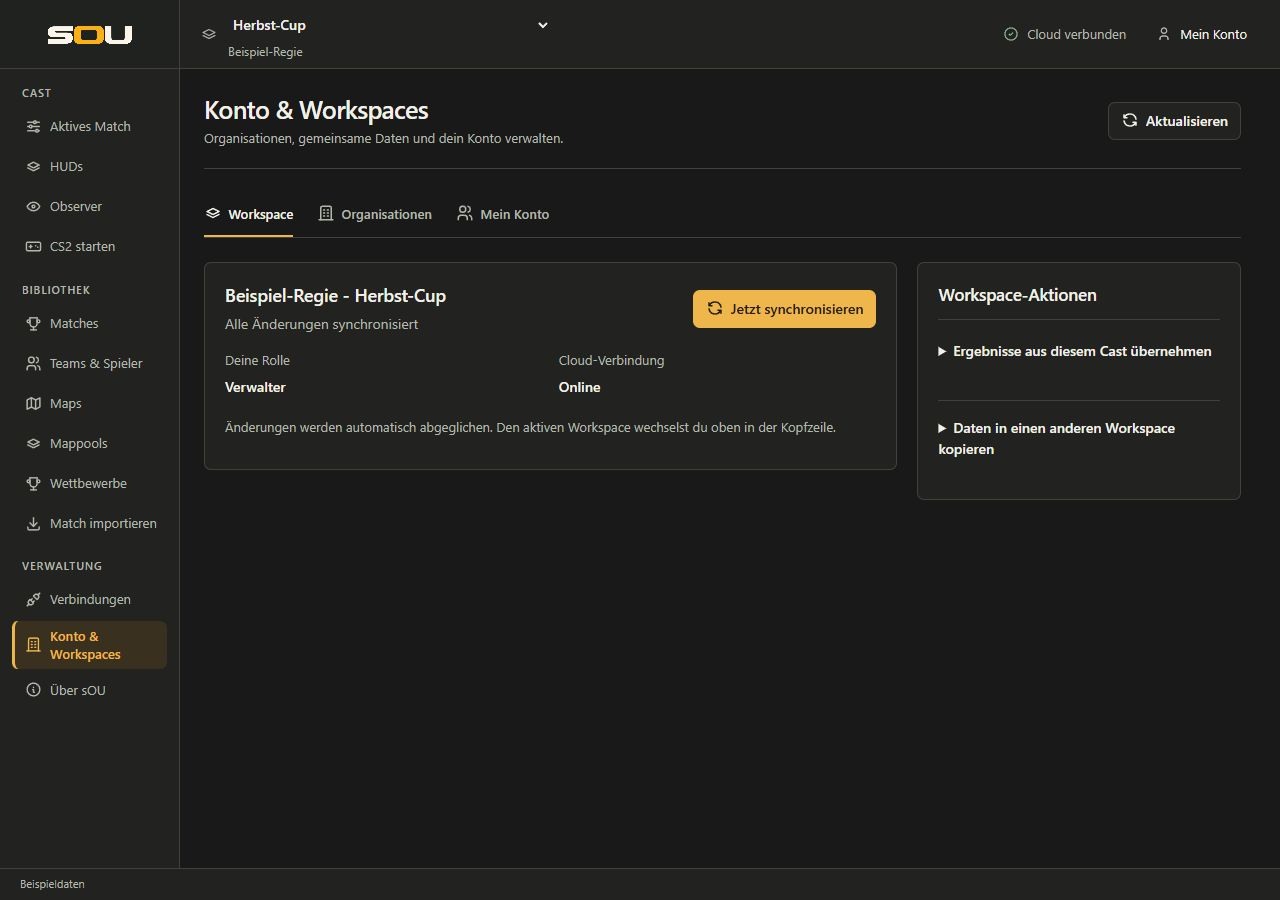
sOU automatically balances changes during use approximately every 15 seconds. Account & Workspaces → Workspace includes the current workspace and synchronization status. Below you can see Your role in the selected workspace and under Cloud connection, whether sOU is currently working online or offline. Sync now starts an additional adjustment. An online connection alone does not mean that all changes have been adopted or all conflicts have been resolved; additionally, note the synchronization status.
You can continue working during a match. For example, if you save more picks or bans while an earlier stand is being transferred, the newer local change will remain and will be considered in the subsequent synchronization. After an interrupted transmission, sOU checks the already arrived status before it continues to reconcile. An already transferred intermediate status alone does not trigger a conflict with your following changes.
Waiting takeovers, personal hiring conflicts and Review changes appear during synchronization. Under Workspace actions, you will find the foldable areas to the result source and to copy to another workspace. In narrow windows, you can reach these actions after the synchronization area by scrolling.
Without a cloud connection, locally available cast data remains available in valid offline operation. Changes that require an online administration are then not available. The rules for the saved sign-in can be found under Offline operation.
How images are compared to the cloud
In the event of a change, sOU only checks the images to which the entries to be transferred refer. Under Checking workspace images …, it is first determined which of these are already present in the selected workspace. Unchanged, existing images are not uploaded again. A pure change to picks, bans, results or texts therefore does not transfer the entire image collection again.
An identical image can be used within the same workspace for multiple teams, players, or other entries without retransmitting it for each entry. Decisive is the file content: If you choose another file with changed content, it receives its own image identifier and is transferred if necessary. Another workspace has its own image stock; the same file can still be missing there.
The Image 1 of ... is uploaded ... display only counts the actually missing files of this comparison. The inventory check alone is not yet an image upload and is carried out again in the case of later changes. If a required image is missing only on your computer, but is already present in the cloud, it does not have to be selected again for the transfer of the entry. If it is missing in both locations, sOU stops the transmission with an error message. Then select the image on the affected entry again and synchronize again. Notes for the examination can be found under Images in cloud synchronization.
Apply changes during a HUD output
Third-party cloud changes can wait as long as HUDs are connected or the desktop overlay is open. So you can choose the right time before common changes appear in the current cast. Your locally stored changes, on the other hand, apply immediately and can also be transferred to the cloud during output. For confirmation of your own transmission, you do not have to choose Apply to cast now.
- Open the Workspace tab when changes are announced for takeover.
- Check if the current time is right for your cast.
- Select Apply to cast now if you want to apply the waiting changes.
- Then check the active match and the actual HUD output.
Alternatively, changes can be adopted after the end of the output. A waiting takeover is to be distinguished from a conflict: a conflict requires a decision between different versions.
Resolve concurrent changes
When multiple computers change different fields, sOU can often merge these changes. If you change the same content or if a deletion collides with an edit, the app shows the affected entries and fields under Review changes.
- Read the name of the entry and the list of affected fields.
- Compare My version with Cloud version.
- Select Keep my version or Use cloud version.
- Then check the affected entry and the match status. Decide further conflicts individually.
An ordered list, such as the veto history, is treated as related content. Therefore, two different changes in the same order do not necessarily result in an automatic mixture of both lists.
A conflict appears even though you work alone
The display means that the local status and the cloud status deviate from the last jointly confirmed status. It does not prove that another person is currently working. Another computer with the same account or an earlier interrupted synchronization can also be involved. Own successfully transferred intermediate statuses are taken into account in the further comparison; continued local processing should not create a new conflict.
Existing conflicts are not automatically decided in favor of a version. For example, if My version contains the six-ban, decider and game map veto history you have completed, while Cloud version contains only the first ban, keep the desired full local status with Keep my version after checking. Nevertheless, compare names, team assignments, map order and results; a longer history alone does not confirm that the entire version is correct. In the case of an intended reset, the shorter stand may be desired.
After your decision, wait for the next synchronization or select Sync now. Then check the saved entry and status. If the same conflict appears again, secure the desired status and write down the app version, affected entry, fields displayed and your choice for an error report. Repeated switching between the two versions is not a reliable repair; further steps are available under Correction of synchronization errors.
Teams, players, matches and other library entries point to each other. Open conflicts in this library can therefore hold back their further takeover together. An independent start config or panel template can still be synchronized. Personal settings conflicts have their own actions: Keep local settings and Use cloud settings.
For personal settings, your selection only concerns the transferred CS2 start preferences and Observer control values. Computer paths and local access data remain on this computer. If you save newer settings during the synchronization, they will also remain and go into the next synchronization. If such a new input and a cloud value contradict each other, sOU still requires a conscious conflict decision. Open settings drafts and running observers do not automatically adopt changes made elsewhere.
Do not hastily delete local profile folders in the event of a conflict. This would make you lose the local stand to be checked. For backups and orderly restoration see Backups.
Choose a computer as the result source
If several computers accompany the same match, several different game data states should not provide unchecked automatic common results. Therefore, expressly select the computer whose automatic results should be adopted.
- Activate the correct match on the intended computer.
- Open Account & Workspaces → Workspace.
- Open the Use results from this cast area under Workspace actions.
- Select Use this computer as result source.
- Check the confirmation and then the result acceptance at the actual game.
The selection is per match and requires writing rights. After a change of source, as yet untransferred results of the previous source may appear as a conflict. Compare these results to the current match score before taking them. The choice of a source does not automatically merge different results.
Copy data to another workspace
- Select the source workspace and check its current data status.
- Open Account & Workspaces → Workspace.
- Open the Copy data to another workspace area under Workspace actions.
- Choose another workspace where you have write privileges.
- Select Copy data and media and note the feedback.
- Check the target stock after switching to the target workspace.
Before copying, the source workspace is synchronized. A failed synchronization or open synchronization conflicts must be resolved first. The copy remains independent of the origin. Subsequent changes in the source workspace are not permanently mirrored into the copy. Existing data remains in the target; conflicting existing identifiers lead to conflict and are not simply overwritten. The action does not have an assistant, in which you selectively rename individual teams or deviating identifiers.
HUD access in the workspace
Search for, subscribe to and install HUDs under HUDs. New workspace subscriptions or access requests require administrator rights. Sharing may apply to the active workspace or your personal workspace; your personal sharing will not automatically be shared with other organization members.
The selected HUD version also belongs to the respective workspace. If this version is missing on your computer, you need to install it first. An already running output remains on its loaded version. Further steps are available under Installing HUDs and HUD settings and templates.
End Membership and Remove Data Areas
Membership and ownership
Under Members → Further actions you can terminate a membership according to your role. As a normal member or administrator, you will also find the Leave organisation … action under Settings. This will make you lose access to the organization’s workspaces.
The owner can hand over the property to another existing member via Transfer ownership …. Check the recipient and the confirmation dialog closely. The previous owner then remains administrator. The ownership role is not changed by the usual selection of member/administrator.
Delete a Workspace
Under Manage Workspace → Remove Workspace, administrators can trigger deletion. All cloud data and HUD shares of this workspace will be removed. To delete the currently active workspace, you must first select another one. Check beforehand whether any data you still need is independently backed up or copied.
Delete an organization
The owner finds under Settings Remove Organization the action Delete organisation …. It affects all workspaces, releases and published HUD entries of this organization. This is much more comprehensive than removing a member or deleting a single workspace.
Frequently asked questions about cooperation
| Observation | Check |
|---|---|
| A colleague does not see my teams. | Do you belong to the same organization and have you actually chosen the same workspace? Is the synchronization completed? |
| Editing or importing is blocked. | Examine the workspace role. Reading rights allow view and cast usage, but not common changes. |
| The workspace change remains blocked. | Check overlay, browser HUDs, OBS browser sources and open editors. Hiding does not necessarily end a connection. |
| Cloud data does not appear immediately in the running HUD. | Check for waiting takeover or conflicts in the workspace tab. |
| A role cannot be changed. | Check inherited organizational rights and own administrator permission. |
| A copy is rejected. | Check write right in the target and references to already existing, deviating entries. |