This guide will take you from empty project to your first own HUD in sOU. You install the tools via NuGet, create a project, adjust the presentation and check your finished package in the running app. sOU provides edited game and panel data; your HUD uses it to create the output.
Blazor WebAssembly with C# and Razor components is recommended. The path via a web project with HTML, CSS and JavaScript is also fully supported and remains permanently supported. Both ways get the same public data and panel messages. You can also use a web framework like React as long as your build creates a locally executable web HUD.
Templates, client and package tool can be obtained via NuGet. The commands use the common packet level 0.2.0-preview.4.
Build your first HUD
- Preparing a development environment and Install templates and tools.
- Create the recommended Blazor-WASM project or Web project. The templates already contain the data and panel connection.
- Change a color or font size, package the project and install it under Import HUDs Package in sOU.
- Open the output from sOU and change and save the headline in the HUD panel. Without ongoing play, “waiting for game data” is the expected state; panel changes must still arrive.
- For live values, start the Setting up the GSI connection, CS2 and watch a game. Then gradually supplement your own Data displays.
For the first panel test, no running CS2 game is required. To test your installed HUD, you’ll need the sOU app, an account with a confirmed email address, and a selected workspace. The section on your own views and components explains how to extend your project. Existing LHM-/JT-HUDs can be used after Import instructions.
Which development path suits you?
| You want to... | Start here | These files you edit |
|---|---|---|
| C# and Razor components. | Blazor WebAssembly – recommended entry. | App.razor and wwwroot/hud.css. |
| Design with HTML and CSS and display data with JavaScript. | Web project – fully and permanently supported. No npm build is required for the template. | wwwroot/index.html, hud.css and hud.js. |
Both ways use hud.json for name, identifier and version, and wwwroot/panel.json for the control panels in sOU. Start with the existing template and change only heading, colors, and distances first. In this way, the already functioning data connection is maintained.
Preparing a development environment
You need a text editor, PowerShell and that. NET-10-SDK Check with dotnet --list-sdks if a version of 10.x is installed. Use both ways. NET for template installation and package tool; Blazor in addition to building. For installation and package recovery, nuget.org must be accessible. With your own web framework, you also need its build tools, such as Node.js and npm.
The four packages have different tasks: SOU.Hud.Templates provides the project templates, SOU.Hud.Tool the package tool, SOU.Hud.Sdk the C# client and SOU.Live.Contracts its data models. The packet links show the respective publication status. Use templates, tools, and C# dependencies from the same SDK state.
Neither npm nor React, Vue or TypeScript are required for the web template. The browser runs your JavaScript; the existing Microsoft SignalR client is delivered locally. Blazor-HUDs are published as WebAssembly and run in the browser. They are not extensions that run their own assemblies in the sOU host.
Setting up templates and tools
Create a new working directory for your HUDs and open PowerShell there. Execute the following orders in it. You install the templates and the package tool and create the output folder. Already installed HUDs in sOU will not be changed.
Install from a NuGet package source
The matching package pages on nuget.org: Templates, Package tool, C# client and Data contracts.
New-Item -ItemType Directory -Path ./ausgabe
dotnet new install SOU.Hud.Templates@0.2.0-preview.4
dotnet tool install SOU.Hud.Tool --version 0.2.0-preview.4 --tool-path ./werkzeuge
The commands use your set up NuGet package sources. Make sure nuget.org is activated and reachable. The tool is then under ./werkzeuge/sou-hud. Execute the other commands from the same working directory; your project folders are next to werkzeuge and ausgabe.
Check the installation
With dotnet new list sou-hud, the templates sou-hud-blazor and sou-hud-web must appear. With dotnet tool list --tool-path ./werkzeuge you control the installed package tool. Then create one of the following projects.
The 0.2.0-preview.4 version designates the NuGet packages. It is independent of the main protocol version 2 and the version of your own HUD.
Blazor WebAssembly: the recommended entry
After the Template installation you generate the C# project with your own identifier. With --hud-id, give a permanent separate packet identifier: start with a lower case, then only lower case, digits or hyphens, maximum 64 characters. Different HUDs need different identifiers; new versions of the same HUD retain their identifiers. The destination folder must not yet exist:
dotnet new sou-hud-blazor -n MeinBlazorHud --hud-id mein-blazor-hud -o ./mein-blazor-hudCustomize mein-blazor-hud/hud.json with your own ID, name and version. The following example uses the 1.0.0 version. Keep runtime: "blazor-wasm", apiVersion: 2 and entryPoint: "index.html". For the first visible change, open wwwroot/hud.css and change a text color there. In App.razor you will find the markup and the already connected live and panel display. Let their connection exist first. Then publish and package the HUD with the following commands. The destination folder and the output file must not yet exist on the first pass.
dotnet publish ./mein-blazor-hud/MeinBlazorHud.csproj -c Release -o ./ausgabe/mein-blazor-paket
./werkzeuge/sou-hud pack ./ausgabe/mein-blazor-paket ./ausgabe/mein-blazor-hud-1.0.0.souhud
./werkzeuge/sou-hud validate ./ausgabe/mein-blazor-hud-1.0.0.souhud
The publish folder already contains hud.json, LICENSE and the published wwwroot folder. You no longer need to copy the manifest manually. In particular, check whether panel.json, font files and images have been co-published. Provide the required license files. For the next build, use a new or empty publish folder and a new package file.
Now import ausgabe/mein-blazor-hud-1.0.0.souhud into sOU and open the output. Change the heading in the panel and save it. When the change arrives, you can add your own components. Further test steps are available under Check, import and update.
C# client and lifetime
The template already contains the complete component with live and panel connection. First, change the markup to App.razor or the CSS file and execute the above build commands. The following excerpt explains the client; it does not replace the complete component from the template.
var hud = new HudClient(httpClient, new Uri(packageAddress));
hud.ConnectionChanged += (channel, status) => {
    // In Blazor Änderungen über InvokeAsync in die Oberfläche übernehmen.
};

await foreach (var snapshot in hud.WatchAsync(cancellationToken))
{
    if (snapshot.Game is { } game)
    {
        int? health = game.ObservedPlayer?.Health;
        string? teamId = snapshot.ManagedMatch?.Ct.TeamId;
    }
}
Required namespaces are SOU.Hud.Sdk and SOU.Live.Contracts. WatchAsync and WatchPanelAsync are separate asynchronous streams: start both in parallel if your HUD needs both. An endless live stream, which you wait for completely first, does not start a subsequent panel stream. The template shows the parallel execution with Task.WhenAll.
Have the transferred HttpClient ready for the life of the HUD. The client class uses the local browser session; own access data is not necessary for this. In the case of DisposeAsync of the component, trigger the common cancellation token, wait for both tasks asynchronously and release the token source. Event handling shall not throw untreated errors. HudSdkJson.Default provides the generated JSON type information for WASM and trimming.
Web project: HTML, CSS and JavaScript
This path is fully supported and remains permanently supported. The NuGet template already provides the official JavaScript client, type definitions and SignalR locally. You can start directly with the template or use your own web framework. Its finished files and local dependencies must be in the wwwroot folder of the HUD package; a development server is not shipped.
Template and package identity
dotnet new sou-hud-web -n MeinWebHud --hud-id mein-web-hud -o ./mein-web-hudThe destination folder mein-web-hud must not yet exist. -n determines the display name. --hud-id is required and determines its own permanent packet identifier: start with a lower case, then only lower case, digits or hyphens, maximum 64 characters. Different HUDs need different identifiers; a new version of the same HUD retains its identifier.
Then check mein-web-hud/hud.json and change version to 1.0.0 for the following package example. Keep runtime: "web", apiVersion: 2 and entryPoint: "index.html". The JavaScript client is already under wwwroot/sdk. The package command can be found under Check, import and update.
Subscribe to data
The template already contains a complete HTML page and the following connection. You don’t need to rewrite it for your first try: change a color or font size in wwwroot/hud.css, create the package as under Check and import and open your output. The following examples then explain how you supplement your own data displays.
Load the included SignalR client in front of your module. The files must be in the package; absolute file paths or CDN addresses are not suitable for this.
<script src="sdk/vendor/signalr.min.js"></script>
<script type="module" src="hud.js"></script>
A small wwwroot/hud.js can start like this. The elements score, caption and connection must exist in your HTML file.
import { HudClient } from './sdk/sou-hud.js';

const hud = new HudClient();
const lifetime = new AbortController();
const text = (id, value) => {
  document.getElementById(id).textContent = value;
};

hud.watch(snapshot => {
  const game = snapshot.game;
  text('score', game
    ? `${game.ct?.score ?? '–'} : ${game.t?.score ?? '–'}`
    : 'Warte auf Spieldaten');
}, {
  signal: lifetime.signal,
  status: (channel, status) => {
    if (channel === 'live') text('connection', status);
  },
  error: error => console.error('HUD-Verbindung:', error)
});

hud.watchPanel(message => {
  if (message.state) {
    text('caption', message.state.values.display?.caption || 'Mein HUD');
  }
  if (message.action?.name === 'cue') {
    // Nur auf diese neue Aktion reagieren; nicht als Einstellung speichern.
  }
}, { signal: lifetime.signal });

window.addEventListener('pagehide', () => lifetime.abort(), { once: true });
textContent sets received texts as text. Do not use unchecked HTML insertion for team names, player names, and panel text. External content is data, not trusted markup.
JavaScript Client Contract
| Element | Meaning |
|---|---|
new HudClient(address?) | The default is the address of the loaded document. Expects the inner package address under /hud-packages/{id}/{version}/. |
identity.id, identity.version | Immutable packet identity from the address. |
watch(receive, options?) | Subscribes to full LiveSnapshot states. Returns a log-off function. |
watchPanel(receive, options?) | Subscribe to HudPanelMessage for exactly this ID and version. Returns its own log-out function. |
options.signal | Optional AbortSignal; terminates the respective subscription. |
options.status(channel, status) | Channel live or panel; connecting, connected, reconnecting or stopped condition. |
options.error(error) | Error handling; standard is console.error. Errors of your reception function also arrive here. |
media(path) | Unsolves a contract-delivered path /cast-media/… against the local host. Any URLs, path traversal, query strings and fragments are rejected. |
contracts.d.ts describes the data for editors. You can use the Search for full type reference or the Download the contract file; this file is not a complete SDK package. sou-hud.d.ts complements the client methods. The JavaScript client normalizes new enum names on unknown, provided that the contract in question has such a value. You don’t have to introduce a TypeScript project for this.
Add your first display
Extend the working project with an display and check it in the imported package. This is how you know which change is causing a problem.
- Mapname: Live reception reads
snapshot.Game?.Mapin C# orsnapshot.game?.mapin JavaScript. Bind the value to Razor markup or an HTML element withtextContent. If it is missing, show a waiting state. The Data overview will take you to more ads. - Heading from the panel: Change the existing
display.captionfield inwwwroot/panel.jsonand its representation in HUD. Read the value in C# withstate.Text("display", "caption"), on the web withmessage.state.values.display?.caption. The Step sequence for control panels explains definition, reception and presentation. - Own views and media: Only then supplement logos, player pictures or additional outputs. The Package reference explains files and manifest; the Metadata reference explains the assignment to your prepared teams.
Increase the version for each changed output, rebuild and import the package and open its new output. Check both existing and missing values. The following rules will help you to avoid displaying false game information.
Correctly representing states
A snapshot is a complete current data state. For a first display, game is sufficient; there you will find map and score, for example. For names and logos of your prepared teams, you also use managedMatch. Search for a specific field in Type reference; API instructions explains its origin and meaning.
- Before the first GSI package:
gameisnull. Nevertheless, a selectedmanagedMatchcan already deliver teams, series and start time. - Compound and Freshness:
connectedmeans accessible transport. Whether new CS2 data is available is stated insnapshot.freshness. - Missing data:
null, empty lists andunknowndistinguish. No death from missing HP, no 0:0 from missing score and no veto from an empty map list. - Pages: Use the finished team ID from
managedMatch.ctormanagedMatch.t. Screen page, player order and CT/T alone do not result in a permanent team identity. - Meetings: Changes
sessionId, reset its own session-bound animations and cache. A single stream contains complete states, no guaranteed seamless sequence of events. - Panel: state can be applied again. Treat one-time actions only upon arrival; after Reconnect, past actions do not come back.
- Media: Treat missing images with a suitable blank representation. Do not replace names, logos or photos of unknown teams and players as if they were real profile data.
Check, import and update
For the web project from this guide, you will generate a package with the following commands after your changes. The output file must not yet exist; use a new version in manifest and file name for further package statuses.
./werkzeuge/sou-hud pack ./mein-web-hud ./ausgabe/mein-web-hud-1.0.0.souhud
./werkzeuge/sou-hud validate ./ausgabe/mein-web-hud-1.0.0.souhud
pack creates and validates the archive. validate checks an existing archive against the installation requirements of sOU. With no arguments or invalid syntax, the tool returns exit code 2; for rejected packages it returns exit code 1, and for a successful validation it returns exit code 0. Blazor packaging is described in Blazor section.
Import a valid package under Import HUDs Package. Open its offered address or its OBS/Overlay output. A direct start of index.html via file:// has neither the parcel identity nor the local transport. Details of the user history are available under Installing HUDs and Issuing HUDs.
Before sharing, check at least the start without a game, a prepared match before GSI, missing team assignment, outdated data, page changes, host restart, panel changes, and reconnect. Also check the actual target resolution in OBS, transparency, long names and missing media. Synthetic data belongs exclusively in a separate development operation, never in an ongoing real cast.
Create a new version for each modified package. An already installed combination of ID and version is immutable. Current outputs remain at their loaded version; the stable address selects the version offered by the host the next time it is loaded. Version rules and Adoption of panel values explain the consequences for updates.
Expanding your HUD step by step
- Change Own design: HTML or Razor and CSS. Receive the existing IDs of the web template as long as
hud.jsuses them. Set packet identifier and first version inhud.json. - First own data display: In the existing reception code, read a field from the snapshot. For example,
snapshot.game?.mapin JavaScript orsnapshot?.Game?.Mapin Razor provides the map name. Without a map, show an empty text or a waiting state. - Adjust Control panels:
wwwroot/panel.jsonand apply the received values in the HUD. A field in the panel does not yet generate a representation in the HUD. The Complete panel example explains scheme, values and actions. - Images and other views: Put your own assets in a package; resolve media from sOU via
mediaorMedia. Declare additional outputs as Subviews in the Manifest. - Increase Try out the change: version in
hud.json, for example from1.0.0to1.0.1. Repackaging the web; re-publishing Blazor in a new publish folder and repackaging it. Use new names for publishorders and output files so that no old files get to the next level. Then import and reload the output.
The current output does not automatically change to the new version. With a seemingly unchanged display, check the installed version first and reload the output. Keep your source project folder: The finished .souhud file is for installation and sharing.
For a transparent playground, html, body and the root element of your application must remain transparent. Don’t enforce color-scheme: dark on the document root: With a different color scheme of the embedded frame, the browser can still draw an overlapping area. Dark display areas can be set directly on the individual HUD elements. Check the ready-installed package over a visible background and then in your CS2/OBS output; a transparent CSS color indication alone does not occupy the result.
If the first attempt does not work
| You see... | Check next |
|---|---|
dotnet is not found or version 10 is missing. | That . Install NET-10 SDK, reopen PowerShell and run dotnet --list-sdks. The desktop app alone does not install a development environment. |
| The tool or a sOU-NuGet package is not found. | Check the linked NuGet package pages and the specified version. With dotnet nuget list source, control the activated sources. Check the connection to nuget.org, Proxy and the specific restore message; then re-run the failed installation step. |
dotnet new reports a missing hud-id argument. | When creating, always specify --hud-id with its own valid identifier. -n only determines the name and does not replace the identifier. |
| A blank page or an error to the package address. | Import the package into sOU and open it from there. Do not double-click the local HTML file. In the browser’s developer tools, check the console and failed file calls; for Web, SignalR must load before hud.js. |
| “Wait for game data,” but panel changes work. | The HUD connection is already working. Check GSI reception under Connections and watch a game in CS2. Even a prepared match does not generate live game data. |
| Package or version will be rejected. | Run validate and resolve the specific message. Drop manifest next to wwwroot; increase an already installed version for modified content. Details: Package format. |
| A new panel field appears but does not change the output. | Compare Section ID and Field ID in panel.json with access to state.values. Save values and apply them to the presentation in the reception code; handle actions separately. |
Extend your project step by step
Start with one of the NuGet templates described above. Add a single display first, check its data connection, then build further components. Give your manifest its own stable identity, a name of your own and a new version for every changed package build.
Offer your own views
Alongside the main output, you can create additional views for different broadcast situations, such as a match preview, roster overview or results screen. You decide which views your HUD offers and which data they need. Register each additional view in the manifest. sOU then provides the corresponding output address; use that address in the respective OBS browser source.
All views of the same package version receive the same live and panel data. Each view decides which components are visible. Before the first GSI packet, you can already use available management data from managedMatch; live values stay empty or show a waiting state until data actually arrives. Define controls using the panel reference.
Check components against actual data
Check each component with available, missing and stale data, and after a match or side change. Team names, logos, rosters and competition details come from management metadata; scores and player values come from their dedicated live fields. The HUD API guide describes data sources and their limits.
A killfeed requires actual events from the HLAE connection; do not infer kills from changes in health. A radar requires matching map data and known positions. Your output must not replace missing geometry, images or statistics with invented values. Choose and license your project's design, artwork and map data yourself.
Resources, rights and trust model
The own components of the sOU SDK and the own templates are under the MIT licence. You can also use them for paid and closed HUDs. If SDK code is shared, its license and copyright notices must be retained; your own HUD source code does not have to be published by this license. Delivered third-party software retains its respective license terms.
Native HUDs obtain scripts, fonts and images from their package or via the intended local media paths. The host policy does not allow any external scripts or network connections. Note the licenses of your own dependencies and graphics; the SDK license grants no additional rights to third-party artwork or designs. License notices of the supplied SignalR client must be maintained.
Imported packages share a local origin. Package checking and separate panel addressing are not sandboxes between foreign scripts. Only use packages whose origin you trust. The SDK establishes the local HUD connection without access data in the packet. Account passwords, access tokens and other private access data belong neither in package files nor in browser addresses or HUD logs. The complete data model is available in the HUD API reference, control panels in the Panel reference.
As a creator, you can also upload new HUDs and immutable package versions using an organization-bound API key. Setup, uploading and review states are described in the Creator API guide.
Discord updates for your HUD
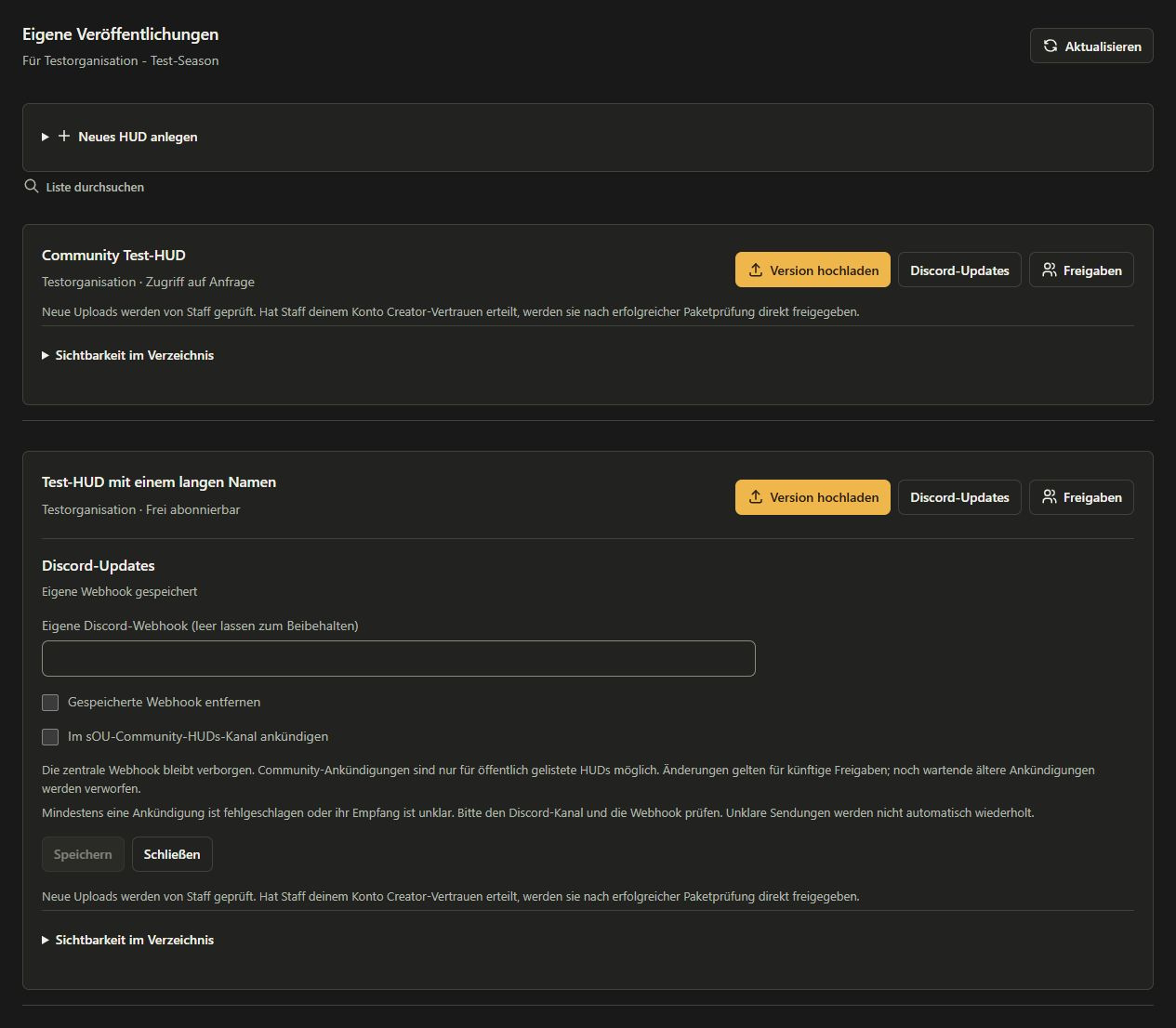
In the desktop app, open HUDs → Publish → Discord updates for the HUD you want to configure. All publishers can connect their HUDs to Discord directly here; visiting the website is not required. Add a custom Discord webhook per HUD or also enable “Announce in the sOU community HUDs channel”. The central community webhook stays hidden. Community announcements require a publicly listed HUD; private HUDs can use only their custom webhook.
New versions are announced only after successful approval. Pending or rejected uploads and historical versions are not announced retroactively. Messages contain the HUD name, version and patch notes from the optional releaseNotes manifest field. Longer notes appear in full across numbered messages. Destination changes apply to future approvals and discard older pending announcements. Leave the webhook field empty to keep the saved address; select “Remove saved webhook” to delete it. Saved addresses are encrypted and never displayed again.
If the central connection is missing, delivery waits for setup. Discord rate limits delay delivery until a later attempt. Uncertain receipt is not automatically retried; check the channel. The Discord settings in the app report failed and uncertain deliveries. If there is an editing conflict, refresh the view and check the current settings before saving again.