The desktop app is set up with a Windows installer. You can check and download updates in the app; you start the installation yourself. Your cast data is separate from the installed program files.
System requirements
- Windows x64: at least Windows 10, build 19041. The deployed installer sets up the 64-bit output.
- Administrator rights for the setup: sOU is installed for the computer. The later use is made with your normal Windows user account.
- Internet for first sign-in: Your email address must be confirmed. New downloads, match requests and cloud matches also require a connection.
- CS2 for real game data: The app can manage teams and matches without an ongoing game. Game states and the output above the game require a suitable CS2 session.
The installer contains the required runtime components. The setup also checks the Microsoft WebView2 Runtime and installs it as needed. You don’t have to download these components individually. Wait during setup until all installation steps are completed.
Download the installer
- Open Download sOU on www.getsou.app.
- Check the offered version, file size and existing version notes.
- Download the offered installer. The fixed link Download current installers leads to the currently published desktop edition.
- Wait until the download is complete before you open the file.
The installer download does not require a logged-in account. For the use of the app, the account requirements still apply. If a published output is not yet available, the download page does not offer an executable download. A missing download button cannot be fixed by re-registration.
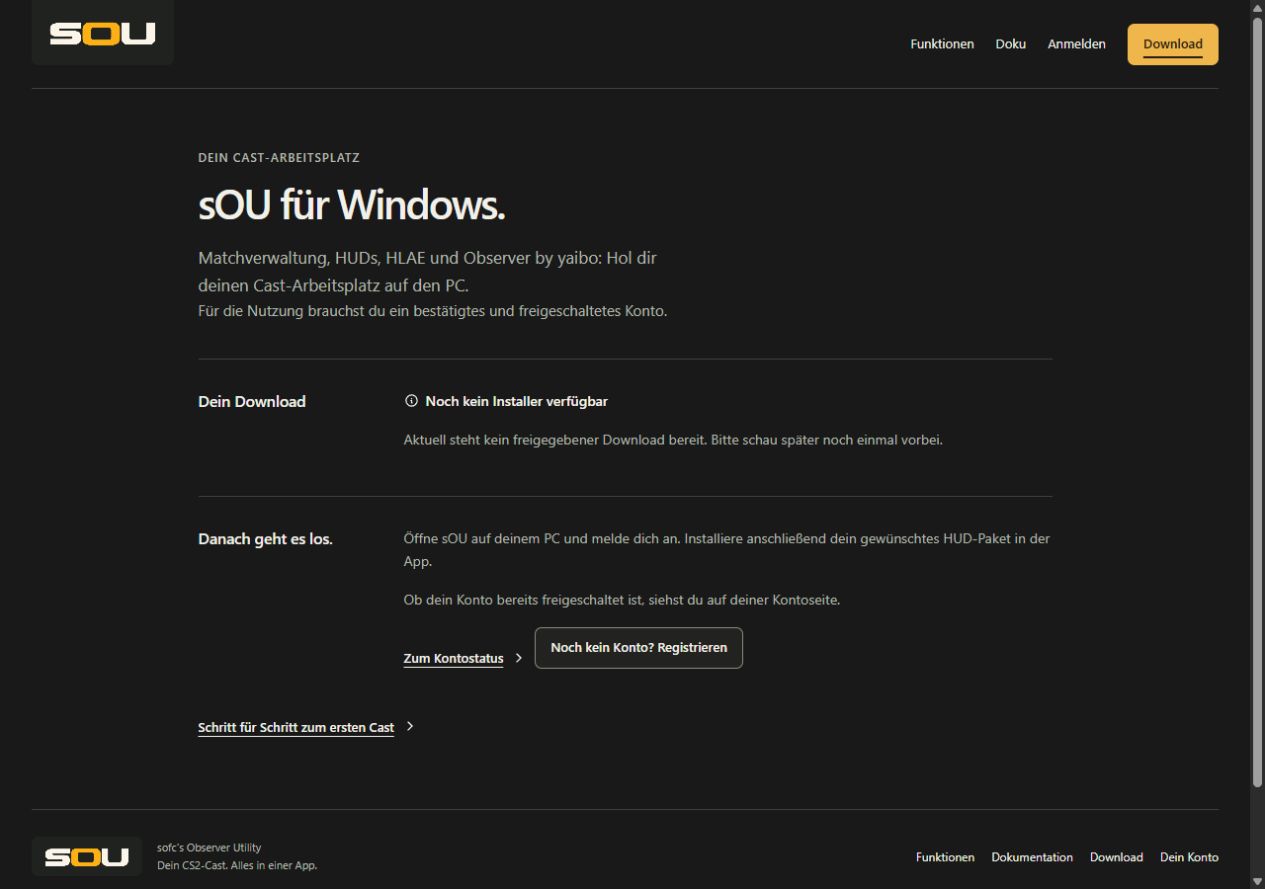
If necessary, keep the version notes for later classification of a change. A desktop version offered on the website and a HUD package are different downloads: The app does not automatically install HUD.
Install sOU
- Save open editing windows and schedule the installation after your cast. A running sOU app must be regularly terminated before exchanging the program files.
- Start the downloaded installer.
- Confirm the Windows request for changes to the computer if you want to perform the installation.
- Follow the setup. It sets up sOU under
C:\Program Files\sOUand creates a start menu entry. A desktop shortcut is optional. - If you want the setup to close your running app, explicitly activate sOU regular before installation. Without this choice, you close sOU yourself. Open draft questions can be answered in sOU.
- Have the setup of any missing runtime components completed.
- At the end, Start sOU after installation is preselected. Remove the tick if you want to start later. Then sign up.
The app does not have to be started as an administrator for everyday life. The setup also does not automatically start with elevated rights. Use the Windows user account under which you want to cast later so that login and local settings belong to this profile.
Typically, double-click the setup and then confirm the Windows rights query. Then sOU can start with the original normal user account after completion. If the setup has already been started from an elevated process or via Running as an administrator, this user context may be missing: The automatic start is then omitted and the setup calls the start menu path. During a silent installation, sOU does not start automatically afterwards.
When the setup reports a running app
The optional closing action only affects sOU from the target installation that belongs to your original Windows user in the same session. It requests normal closing and waits at most 45 seconds. Cancel the closing of a draft dialog, a missing response or an app that is still running will stop the installation. Other user sessions, other installations, and CS2, HLAE and OBS are not terminated by this option.
Installation and uninstallation check if sOU is still running. Sessions of other logged-in Windows users can also play a role. The setup does not necessarily end running casts.
- Switch to the current app and finish your output.
- Save or discard open drafts consciously.
- Close sOU normally. Wait until the window and related output are finished.
- Continue the setup. If it still blocks, check for more logged-in Windows sessions.
During an ongoing installation, the start of the app is blocked. Wait for the end of the setup before reopening sOU.
First sign-in and launch
In the start window under Get started with your account, select the action Sign in with browser. The login opens your browser; leave sOU open during this. After successful account and authorization check, your workspace will open. With Create account, you can register if you do not already have an account. Further information on e-mail confirmation and stored registration can be found under First time here or currently offline?.
A new account needs a confirmed email address. After that, you can sign in directly. The full steps and status messages are available under Account and sign-in. The Quick start then leads through the match and HUD preparation.
Check for updates
sOU automatically checks once the app starts whether a newer desktop version is available. The exam alone does not download a setup and does not interrupt a cast.
- Open Management → About sOU.
- Search the App updates area. It contains the information Installed version and Update status.
- Select Check for updates to check again.
- For an available update, read the version number and version notes under the heading Version ....
Before registering, you will find the same possibility in the foldable area Version & updates under the sign-in actions. Already its headline mentions the installed version or Update available. After unfolding, check status, version notes and actions are available. This allows you to update an outdated installation even if you haven’t opened the main view yet.
An ongoing check or download is displayed in a process message. The update buttons remain in place and are locked during the process. If there is an error, you can read the message, close it and restart the check or download. An unfinished or failed retrieval does not confirm that your version is current.
Download and install an update
- Schedule the installation after your ongoing cast. A started setup can only continue working when sOU is closed.
- Select Download update and open Setup.
- Track the download progress in the process message. If you want to cancel the download, select Cancel there.
- Wait for the review of the downloaded file. Only after successful testing does sOU open the setup.
- Save open drafts, finish spending, and close the app normally when setup prompts.
- Complete the installation with administrator rights. Let Start sOU after installation be selected on the closing page or start later yourself.
- Under About sOU, check the installed version and check your output before the next cast.
Before opening, sOU checks whether the download is complete and belongs to the offered version. If this check fails, the setup will not open. Repeat the download via the app or download page instead of using the file reported as incorrect.
The app does not perform an unsupervised restart. A download error or unreachable update source will not terminate your current local output. A current app version also does not replace installed HUD packages: You manage their versions separately under HUDs.
If an older app is using the previous website
Already installed app versions can still use the previous download address. A forwarding in the browser is not sufficient for their built-in update check. If the update check fails, load the current installer directly via www.getsou.app/get-sou, quit sOU regularly and run the setup as described above. Your local profiles will be maintained.
After switching to the new website and API addresses, the updated app will need to re-register with your existing account. A new registration is not required. The steps are under Account and sign-in.
What Happens to Your Data
Local settings and data are under %USERPROFILE%\.sou\local, separate from the program files. Account and workspace data are kept separate from each other. The installation does not remove these profiles. Team logos, player images and other acquired media belong to the respective data stocks.
An update therefore does not require a new manual setup of all teams and matches. Still, check the selected workspace after logging in: Another workspace or account can show a different library. This can be distinguished from a failed installation.
Shared data is synced across your workspace. Ongoing game dates and the selection of the active match are to be distinguished from this. What is compared and what remains local, explains Data in the Workspace.
Re-install or uninstall
Re-installation of the same version is possible. Installation of an older version over a newer one is blocked. A change back to an older status is therefore not a regular repair step of the setup.
To remove, you use the Windows app management or the installed uninstall entry. Finish sOU completely first. Uninstallation removes the program files, but not your local profiles. The WebView2 Runtime used jointly by Windows applications is also retained.
Uninstallation does not delete your sOU account and the cloud data of your workspaces. You remove organizations or workspaces exclusively via their expressly designated administrative actions, provided that you have the necessary rights.
Frequent installation and update issues
| Problem | Testing and solution |
|---|---|
| No download is offered. | Check the message on the download page. Without published desktop output, there is no current installer. |
| The setup requires administrator rights. | The installation is for the computer. Have them done through an authorized Windows account; daily use does not require these rights. |
| The setup recognizes a running app. | Regularly close all sOU windows; check additional Windows user sessions if necessary. |
| The update check fails. | Check Internet connection and try again later. Failure to respond does not automatically mean that your installed version is current. |
| The download has been cancelled or is incomplete. | Reload via app or download page. Do not proceed with a partially saved installer. |
| After installation, an empty library appears. | Check account and workspace. Under Account & Workspaces, view the synchronization status before re-creating data. |
| An older app does not show an update function. | Download the current installer from the website and install it manually after closing the app. |
Language of Setup and App
The setup offers German and English. Select the language of the desktop interface separately in sOU. After logging in, this selection will be synchronized with your user account. Changing the language does not restart the model or running HUD outputs and does not discard open editor drafts.