Teams and players provide the names, abbreviations, logos and squads for your matches. The Steam ID64 connects a stored player with the data from CS2. Good squad data therefore helps sOU not only in the captioning of the HUD, but also in the assignment of the opponents to CT and T.
Finding teams and players
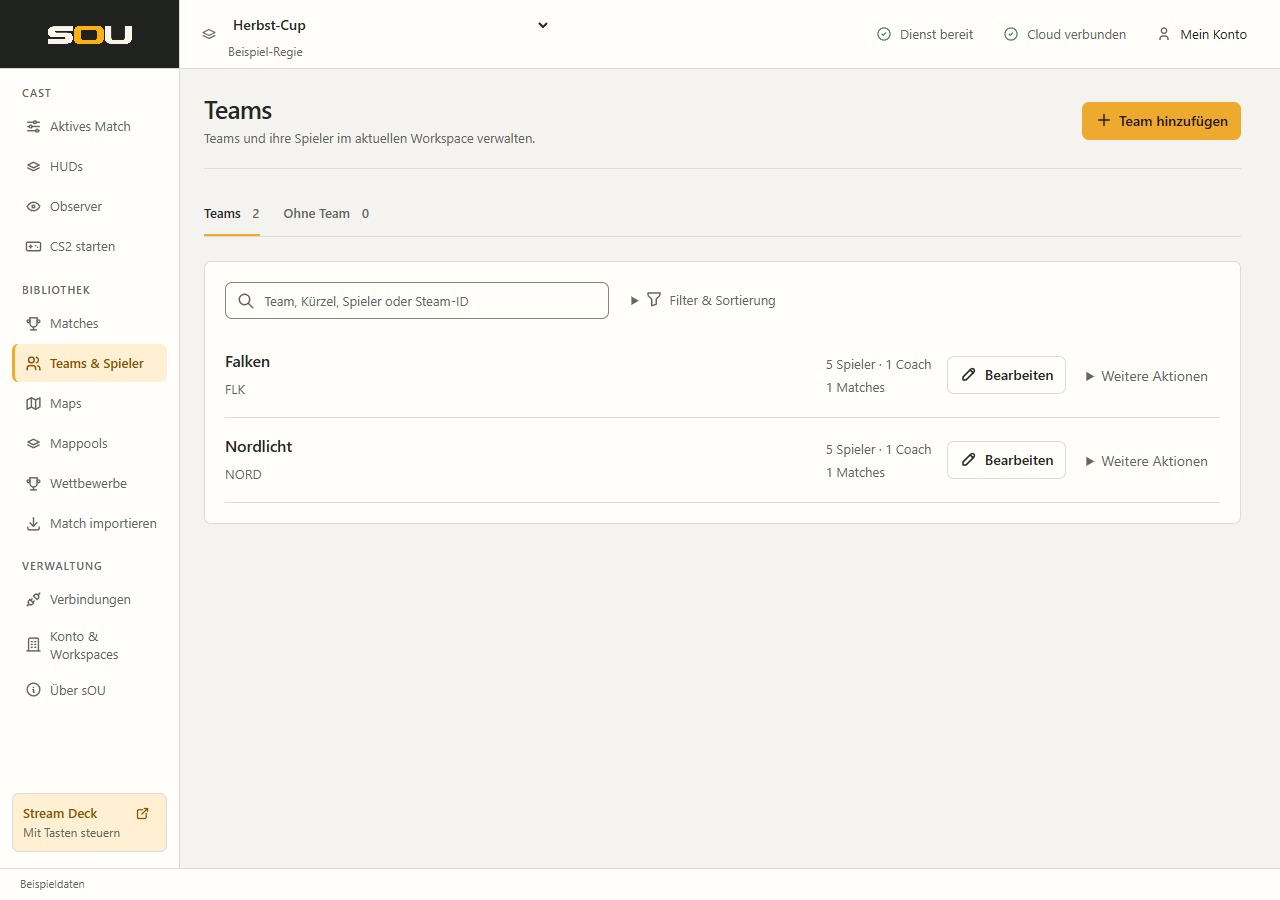
In the sidebar, select Teams & Players directly under the heading Library. The view has the Teams and No team tabs. The team list shows team name, if necessary a different abbreviation, the number of players and coaches and the number of matches in which the team is used as an opponent.
For existing teams, the search field is directly above the list. The search takes into account team name, abbreviations, player names and Steam IDs. With the filters With players, Without players and In active match, you narrow down the list. Sorting and changing sides do not change data. If you can’t find an entry, check filters and selected workspace in addition to the search.
With Tab You can reach the selected tab. ← and → alternate between Teams and No team; Home leads to the first and End for the last tab. With Tab Then you reach the selected area. The same operation applies in the team window for Team details and Roster. A change of tab does not save or discard any changes.
To change, you need writing rights in the workspace. With reading rights, you open teams via View, you can switch between players and check the stored data.
Creating a team
- Select Add team.
- Enter a name under Team details.
- If necessary, add an abbreviation and a team logo.
- Switch to Roster to complement players, or save the team without a squad first.
- Select Save and close.
| Field | Significance and requirements |
|---|---|
| Name of name | Mandatory field; up to 100 characters. This is the team name for selection, management and supportive HUD ads. |
| Abbreviation | Optional; up to 16 characters. Can be used by HUDs for compact team representations. |
| Team logo | Optional PNG or JPEG with a maximum of 4 MB. A transparent PNG is suitable for optional logos. |
The team name alone does not determine an external identity. A team already linked by import should therefore not be created again under a similar name alone if you want to use the same data set. The rules for reuse on import are under Existing teams and players.
Edit players and coaches in the roster
- Open the team via Edit.
- Change to the tab Roster.
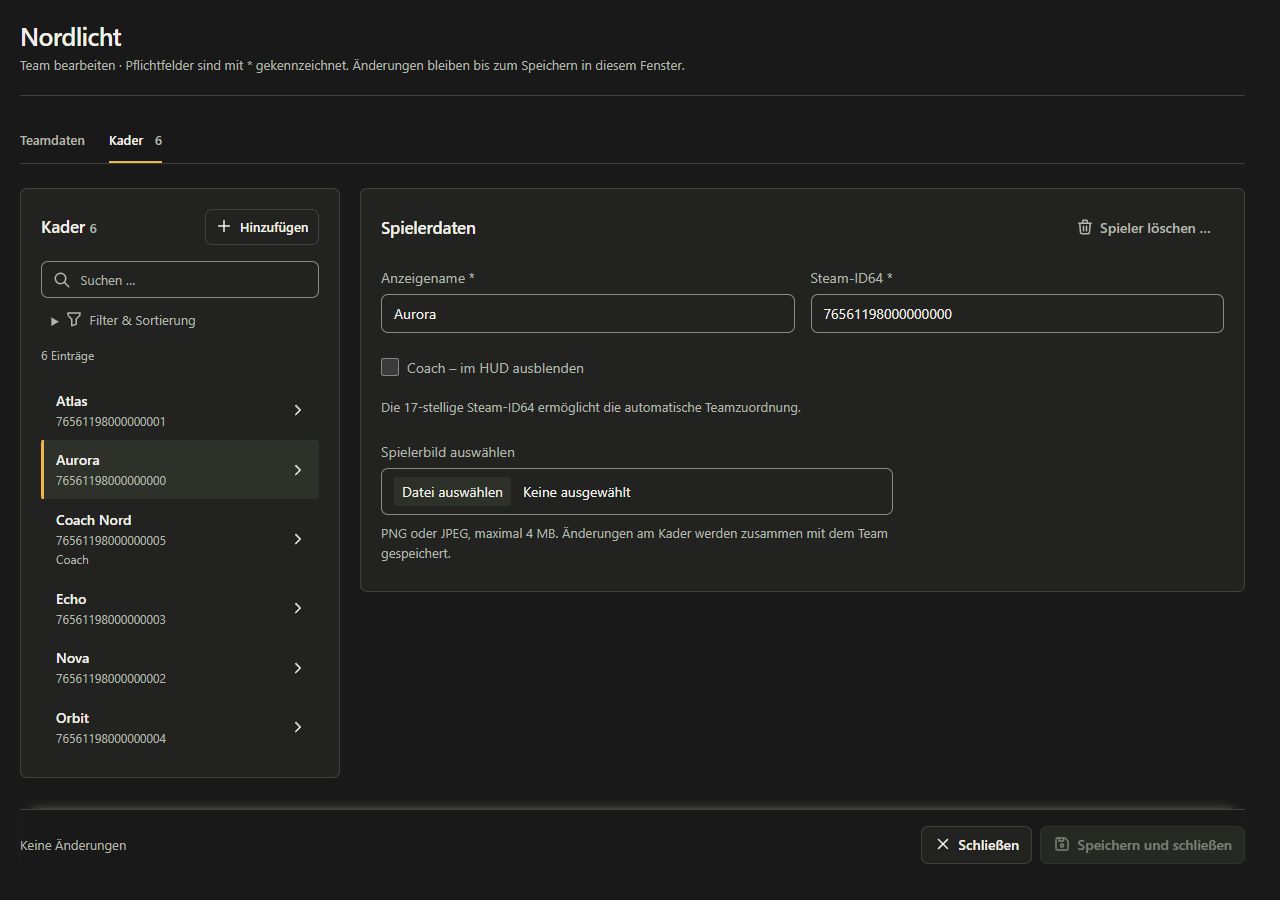
- Select an existing player or Add in the squad list. The selection leads to the Player details area; for a new player, the focus is directly in the Display name field.
- Enter display name and Steam ID64.
- Set the label Coach – hide in HUD for an actual coach.
- Complete a player picture if necessary.
- Edit more players or save the entire team with Save and close.
| Field | Significance and requirements |
|---|---|
| Display name | Mandatory field; up to 100 characters. Use the name that should appear in the HUD. It may deviate from the Steam profile name. |
| Steam ID64 | Mandatory field; a valid 17 digit numeric Steam ID64. A profile short name, profile address, or other Steam ID spelling is not a substitute. |
| Coach | Marks a saved coach. The entry remains in the squad, but is excluded from the player HUD assignment and automatic squad recognition. |
| Player image | Optional PNG or JPEG with a maximum of 4 MB. The actual use depends on the selected HUD. |
A Steam ID must only occur once in the entire workspace. If the same person already exists, you must not create them as a second independent player with the same Steam ID. Check the existing squad or No team. A Match import can reuse players based on this identity and show an actual squad change in the preview.
The squad list can be searched by name or Steam ID and filtered for players with image, without image or incomplete input. If there is a roster, the search field is directly available. Choose a player in the list to open his details in the Player details area; in narrow windows this is under the selection. When switching between players, your input will be preserved. Search, sorting, page change and tab change do not change the stored roster data.
Manage logos and player images
Select a file in the field in question. sOU checks format and size and then shows a preview. During the reading, the form is protected against further changes. If there is an error, notice the message and select a suitable PNG or JPEG file.
With Remove logo or Remove image, you solve the assignment in the draft. The change is only saved together with the team. A breaking off of the window does not assume a new image assignment or its removal.
sOU keeps its own copy of the selected images. After successful saving, you can move the original file without losing the assignment. Removing an image from a player or team does not remove it from other entries that use the same image.
Save drafts and handle concurrent changes
A team window includes a private draft for the team and its entire squad. The end line shows if there are any unstored changes. Only Save and close takes over the coherent status.
In the team window you can take the same action with Ctrl + S triggering. It saves the entire team draft and closes the window if successful. The abbreviation neither bypasses the checking of the fields nor write rights: In the case of invalid inputs, the draft remains open; in the case of a locked save action, nothing is taken over. An unchanged existing entry does not require re-storage.
- Close terminates an unchanged editor.
- Cancel or the closing of a changed window leads to the question whether you want to discard the draft.
- An invalid player prevents joint saving. In particular, check blank names, incomplete Steam IDs, and duplicate Steam IDs.
- If the same team or his squad has been changed elsewhere in the meantime, your older draft will not be written blindly about it. Close the window after checking your input and reopen the current status.
Changes to other, independent teams will not be replaced by your team draft. Shared team data is synchronized according to workspace synchronization. A conflict between several computers is decided under Workspaces.
Assign players without a team
Under No team you will find saved players who do not currently belong to any team. Such entries may remain, for example, after the removal of an unused team.
- Open Teams & Players Without Team.
- Search the player by name or Steam ID.
- Choose the target team next to the player in the selection.
- Check the takeover. The player then appears in the squad of this team and disappears from No team.
This direct assignment is stored immediately; it does not have a separate memory button. If there is no team yet, create one first. If the player has now been assigned by another edit, an outdated selection will not be taken over unchecked.
Remove team and delete players
Removing a team
Select Remove further actions team in the team list. The confirmation names the team and indicates that the players will be preserved. After successful removal, you will find it under No team.
The confirmation is valid for the displayed status. If the team is changed between opening the query and confirming, the distance cannot be taken over. Then check the current entry and reopen the confirmation if necessary. Cancel leaves the team unchanged.
A team that is still used as an opponent of a match is protected from removal. Check the relevant matches and their intended further use. Do not remove historical match assignments just to make an unthinking deletion action possible.
Delete a Player
- Open the team and choose the player in the squad.
- Select Delete player ….
- Read the confirmation with the player’s name.
- Confirm removal from the draft if you actually want to delete the player.
- Save the team to take over the deletion in the workspace.
Delete players is not an action for mere logging out of a team: when saving, the player is deleted from the workspace. Until then, the stored status is maintained. If you break off the entire draft editor, this remembered deletion will also be discarded.
Automatic team assignment to CT and T
The sides CT and T change in the game; Team A and Team B, on the other hand, are the fixed opponents of the match. sOU therefore compares the current player data with the squads of exactly these two active match teams.
- For each game page, unique Steam ID hits are counted for both opponents.
- A single clear hit can already suffice. The higher number of hits within the same page decides.
- The same number of hits for both opponents on the same side remains unresolved.
- If the same team wins on both sides, the contradictory assignment remains open.
- If one side is clearly recognized and there is no squad match on the other side, sOU can derive the other match opponent there.
- Unknown players are not against votes. Equal hit numbers on different sides are not a tie between the opponents.
Example: Two players from Team A on CT and two players from Team B on T give a clear assignment of both sides. Two players of A and two of B together on CT, on the other hand, give a tie on this side.
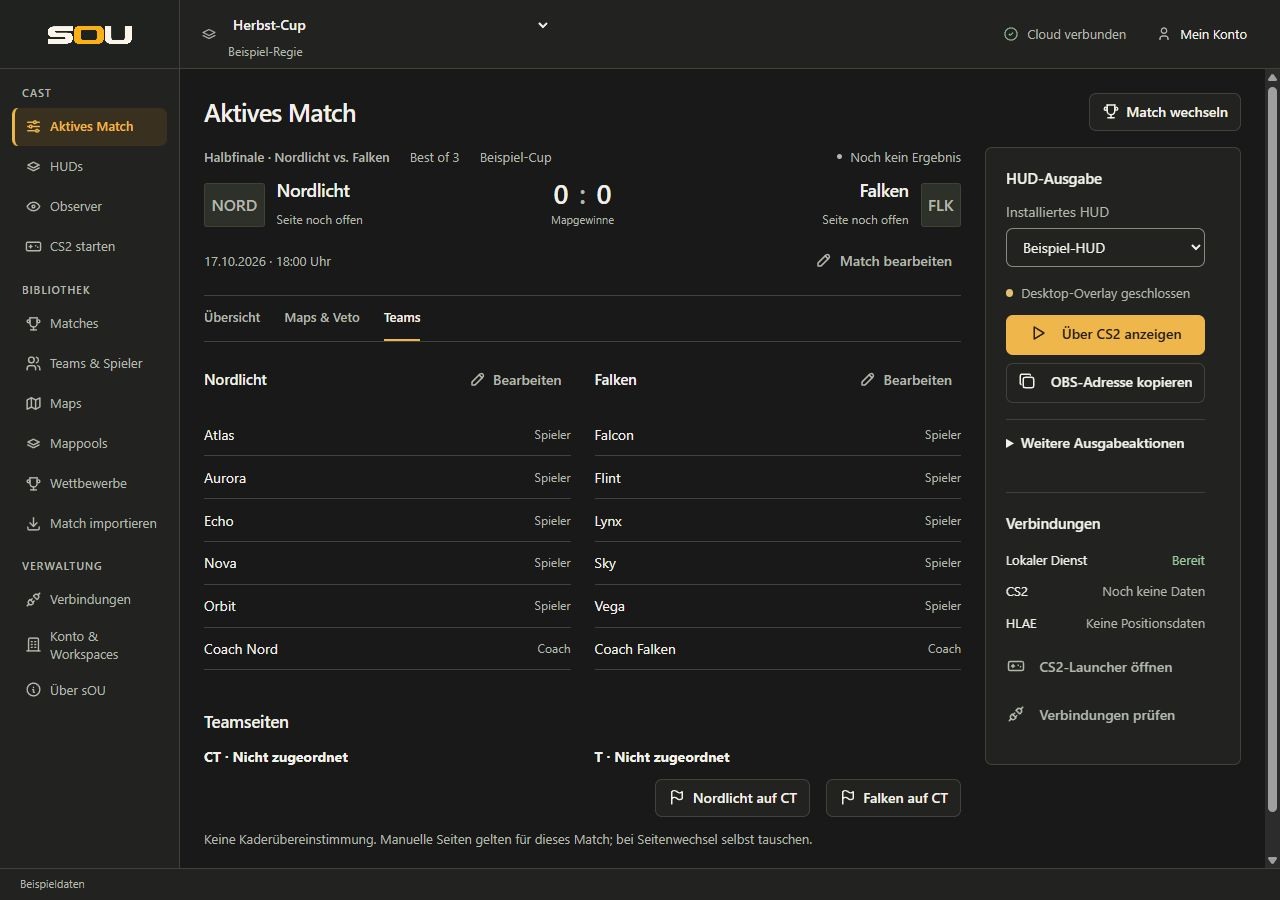
Under Cast → Active Match → Teams and on the opponents in the match head, you can tell whether a page is automatically recognized, derived from the opponent, set manually or still open. The Overview also shows both squads with their sides; Side recognition opens the Teams tab from there. Page assignment is also important for automatic map results: sOU is not allowed to attribute round points to a team based on the screen position alone.
Manual sides as a fallback
If there is no squad match on both sides, you can set one of the teams to CT under Active Match → Teams → Team Sides. The other opponent gets T. With Swap sides you change this manual assignment, with Clear manual assignment you remove it.
A manual assignment applies locally to this match and is also possible with reading rights. When changing sides, you have to adjust them yourself. Automatic recognition takes priority as soon as suitable roster data is available. If the same number of players of both opponents are found on the same side or the recognized sides contradict each other, correct the squad first; a manual assignment does not solve this conflict.
Common team and roster problems
| Problem | Check |
|---|---|
| The Steam ID is rejected. | Use valid Steam ID64 with 17 digits; no profile address, no name and no other ID spelling. |
| A Steam ID already exists. | Workspace-wide search for the player, including No team. Do not force a duplicate entry. |
| A coach looks like a player. | Check coach marking in the stored roster and use of the correct workspace. |
| Team assignment remains open. | Check active match, opponents, Steam IDs, actual game data and possible conflicting squads. |
| A logo or image is missing in the HUD. | Save image assignment and check if the selected HUD uses this image in the expected location. |
| A team cannot be removed. | Check whether it was still used by a match or changed in the meantime. |