In sOU, map master data, mappool, veto, game order and results are separate data. The map management describes a map. The pool determines which maps a match has to choose from. Only picks, a decider or explicitly adopted game maps determine the series. Results belong exclusively to these game maps.
You can open a prepared active match with the plugin from version 0.2.2 and desktop from 0.3.15 also Lead on the Stream Deck by Pick & Ban: Map, then select BAN or PICK of the appropriate team or DECIDER. The common map overview shows open and already decided maps and remains on the same page after a change. Used maps offer an explicitly named correction such as cancel ban or cancel decider; back only navigates. The match subpages also offer both orders, team sides and results. The plugin does not automatically select the next team or a remaining map.
On the Stream Deck, the pick-up button remains visible even on a running map. A mere status Pending or Live without round points does not block withdrawal from these versions. Recorded values, including 0 and incomplete intervals, as well as the status Finished remain protected: the button shows SCORE, declared after pressing Result recorded and leads to explicitly confirmed deletion via Open result. Only then you cancel the assignment. See Taking back decisions on deck.
Create and edit maps
- In the sidebar, select Maps directly under the heading Library.
- Search by display name or CS2 identifier before creating another map.
- Select Add map or Edit for an existing map.
- Enter display name and exact CS2 identifier.
- If necessary, add your own logo and background.
- Select Save and close.
The search field Map or CS2 identifier is directly above a filled map list. In the map window you will find display name and identifier under Map details; Map logo and Background each have their own selection and preview. With read rights, View opens the existing map with locked inputs.
| Field | Meaning |
|---|---|
| Display name | Readable name, such as Mirage; mandatory field with a maximum of 100 characters. |
| CS2 identifier | Exact technical map identifier, such as de_mirage; mandatory field with a maximum of 128 characters and unique within the workspace. |
| Map logo | Optional own PNG or JPEG up to 4 MB. |
| Background | Separate optional PNG or JPEG up to 4 MB; a landscape format is suitable for this area. |
The CS2 identifier may contain lower case, digit, underscore, hyphen and slash. It shall begin with lower case, numeral or underscore; double slashes shall not be allowed. Use the value actually used by CS2. A suitable display name alone is not sufficient for automatic map assignment.
Own maps are possible. For known map identifiers, sOU can display supplied graphics. Renaming the display name does not change the identifier and its assignment.
Custom and default artwork
Logo and background have separate file selections and previews. The new assignment remains in the editor draft until it is saved. She does not abort. With Use default logo or Use default background, you remove your own assignment for a known map. For a separate map without a standard graphic, the corresponding action is called Remove logo or Remove background.
A missing image does not prevent the use of the map. Own images appear in the map management and veto selection. Whether the selected HUD takes over these images or uses its own map graphics depends on its functions.
Check usage and remove maps
The map list shows the number of mappools with this map and the number of matches in which it occurs as a game map or veto decision. The filters Used in matches and Unassigned refer to match use. A map without match use can still be in a mappool.
Remove further actions Map requires confirmation. Maps in mappools or matches are protected from deletion. Check existing uses instead of only deducing the filter Unassigned for erasability.
If the map is changed after opening the confirmation, the newer status will not be deleted via this old query. Check the current map and request removal again if necessary. Cancel passes the entry.
Manage map pools
A new personal or organizational workspace already includes the mappool Prime Minister with Ancient, Anubis, Cache, Dust II, Inferno, Mirage and Nuke (Premier Season 5, Stand 18.10.2026). You can edit, rename or remove it just like any other pool, as long as no match use prevents the change. Existing workspaces and their pools are not switched to this selection; a deleted Premierpool is not recreated every time it is launched. With a later CS2 maprotation, your prepared pools will remain unchanged until you adjust them yourself.
A mappool is a named selection of existing maps. A map can belong to several pools; a pool can be used for several matches. A match chooses exactly one pool. The pool itself does not set a pick/ban order.
- Open Library map pools and select Add map pool or Edit for an existing pool.
- Under Map pool, enter a name with a maximum of 100 characters.
- Under Choose maps, mark the desired maps with the checkboxes.
- Use the directly available search field and, if necessary, the filters Selected or Not selected. A selection is also preserved if the map in question is not visible by search or page change.
- Check the number of selected maps displayed and save the pool.
- Select this pool in the match editor or in the direct match details of the active match.
The pool list shows the number of maps and matches, as well as the names of the maps included. The search field Map pool or included map is directly above the list for existing pools. It takes into account pool names as well as included map names and identifiers. With Used in matches, Not used and Without maps you narrow down the list.
In the pool window, the number Maps selected refers to the entire draft, even if the search shows only a part. With reading rights, you open a pool via View. Search, filters, sorting and page changes remain usable there; name and map checkboxes are blocked. The search does not change the pool selection or the stored data.
An empty pool can be stored, but does not offer maps for a new veto. Therefore, if Maps & Veto remains empty, add to the pool or choose a filled pool.
Map and pool windows initially retain changes as a private draft. Save and close or Ctrl + S assumes the valid overall status and closes the window if successful. The abbreviation uses the same storage action and remains ineffective in the case of missing write rights or during an ongoing read-in process. Invalid information or interim changes to the same entry leave the draft open for examination. When you cancel a modified draft, you confirm the rejection; the stored data is preserved.
Changing a used pool
If you remove a map from a pool, existing decisions of his matches must not become invalid. A pool change on the match will also be rejected if its game maps or bans are not in the new pool. sOU does not tacitly remove these decisions or associated results.
Before a change, check the intended series. If decisions are actually to be corrected, explicitly withdraw them. A map with a result requires an explicitly reset result beforehand. An already used pool cannot be deleted; however, removing an unused pool does not delete its map master data.
To remove a pool, select Remove further actions map pool and confirm the above entry. A pool changed after opening the query will not be deleted based on the outdated confirmation. In this case, check the current status before starting the action again.
Older matches without a pool remain recognizable. Before new pick/ban selections, you need to set a pool. No supposedly suitable pool is automatically selected.
Record picks, bans and the decider
You will find Pick and Ban in the match editor and under Active Match Maps & Veto. In the editor, changes belong to the private draft. In the active match, valid decisions are stored immediately.
- Check both match opponents, BO format and selected pool.
- Search the map in the visible grid.
- Choose the matching Pick or Banana button for the really crucial team.
- For a decision map, select Deciders. A decider has no team assignment.
- Control the decision, team and, if necessary, game number on the map.
- Make further decisions in accordance with the actual veto.
There is no global team code. The clicked button contains the decisive team. Already selected maps remain visible and show their state. sOU does not enforce a full tournament veto scheme and does not automatically switch between teams.
| Decision | Effects | Boundaries |
|---|---|---|
| Pick | Assigns the map to a match team and complements it as a game map. | Not available in BO1; requires a free playground and a valid match team. |
| Banana | Captures the excluded map and the crucial team. | Does not produce a playground or a result. Bans are also possible with a fully occupied game series. |
| Deciders | Complements a game map without a decisive team. | At most one decider per match and only with a free playground. |
A map cannot be used twice as a decision or game map. The number of game maps must not exceed the BO format. In BO1, the individual game map is chosen as the decider; team picks are locked there.
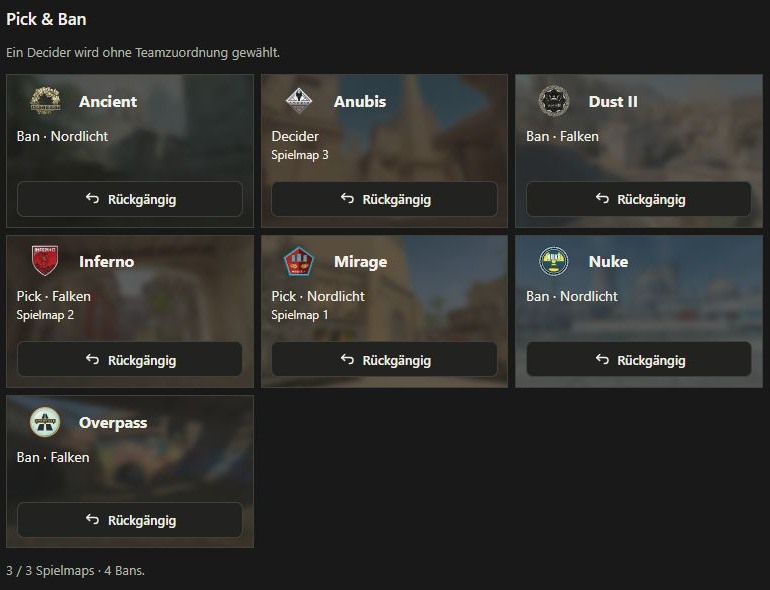
Order of play and veto history
Under Play order are only the maps that are to be played. With the arrows you move a map sooner or later in the series. Bans do not appear here.
The foldable Veto progression, on the other hand, contains the decisions in their decision order, including bans. His own arrows only change this course. Both orders are independent: an early-banned map does not need a game number, and the order of decisions does not have to correspond to the later order of play.
Correcting a decision
- Select Undo on the map or Undo in the veto history.
- If the map already has a result, explicitly reset it first.
- Reassign the map available again with the right team and decision type.
- Then check both orders.
A withdrawal removes the decision and, if necessary, the place in the game series. Already existing assignments outside a meanwhile changed pool selection remain visible for examination. After taking back, you can only choose such a map again if it is in the available pool.
For older or imported game maps, the pick/ban allocation can be Unresolved. The map can still belong to the game series. Complement a decision only if it is actually known to you. From the position of a map, no decisive team can be derived.
Result status and series score
| Status | Meaning | Influence on the series |
|---|---|---|
| Pending | Not yet an ongoing or completed result. The map has no round points. | No map wins. |
| Live | The map has started or is currently being recorded. Points may still be incomplete. | No map win, even if a team is already leading. |
| Completed | Both round points are present and unequal; the winner is clear. | A map win for the team with the higher points. |
The round points belong to the fixed match teams A and B, not the changing CT/T sides. The series status is calculated from completed maps. A map win is required for BO1, two for BO3, three for BO5 and four for BO7.
Negative points are invalid. A completed result requires two values and must not be a tie. There is no rigid round number limit that would exclude valid overtime results. At the same time, at most one map may be on Live. After the decisive series victory, no subsequent map must contain a played result.
Record results manually
Directly in the active match
- Open Active Match Maps & Veto Map Results.
- Check the map and the two team names on the points fields.
- Select Live and enter the round points. The first point input for an open map also sets it to Live.
- Select Completed as soon as both final, unequal scores are available.
- Check the calculated series status in the overview.
Any valid change is stored directly. Closing is locked as long as points are missing or equal. Invalid inputs are rejected with a message; check the stored status that is displayed again.
In the match editor
In the separate match window, the Map results are next to or under the veto, depending on the window width. Select a suitable status and enter points; open maps have blocked points fields there. You can put together several result changes in the draft first. Only Save and close takes over the valid overall status.
This is helpful if several related corrections are necessary. Nevertheless, all rules must be met before saving. A result for a ban or a non-series map is not possible.
Automatic results from CS2
sOU can take the status and turn points of an actual map played from the local CS2 data. For this purpose, the following conditions must be met:
- The right match is active.
- The exact CS2 map identifier is part of a game map of this match. Mere pool membership or a ban is not enough.
- For round points, the game sides can be clearly assigned to the match opponents.
- The game state provides the necessary data. Warmup or a foreign map do not produce invented results.
- For jointly adopted automatic results, the correct computer is selected as the result source.
The game state Live can set the map to Live. If a clear team assignment is missing, however, no team points will be scored. At the end of the game, the map is only completed if both points are known, unequal and clearly assigned to the opponents.
A missing end packet is not replaced by the later change to another map. Therefore, after the end, check whether the result is complete. For incomplete data, you can correct it manually.
Lower automatic points are not written over higher stored intermediates as a possible demo rebound or restart. An already completed result remains protected until a conscious manual correction or reset. The rules against several running maps and results after a series victory also apply to automatic takeovers.
You set the result source under Account & Workspaces. The game connection itself explains Live data.
Correct or Reset a Result
If you want to correct a completed status and an intermediate step would otherwise be invalid, select Live first, correct the points and then complete the map again. Note that this temporarily eliminates their map profit. Meanwhile, another map must not run as well. For multiple related changes, the private match editor may be more suitable.
- For complete emptying, select Reset result.
- In the active match, sOU shows the confirmation with mapname and impact.
- Confirm only if both round points are removed and the map is set to Pending again.
- Check the series status. A previous map profit is eliminated.
If the result changes during the open confirmation, the new status is not deleted with an old confirmation. Check the updated result and restart the reset if necessary.
In the match editor, Reset result first changes the private draft; the transfer only follows when saving. Reset does not pause the running game connection. If matching game data continues to arrive, the automatic recording can become active again. Before a repetition, therefore, also check which game or demo session is currently running.
Older matches without single map results
An older match can only contain a manually set series status. sOU preserves this without inventing suitable individual mapscores. The overview indicates that no individual map results are recorded.
With Use map results you convert to the calculation from individual maps. In the active match, an existing series stand expressly confirms that it will be replaced. Until you enter completed individual maps, the recalculated status is 0:0. In the match editor, the changeover belongs to the draft and is saved with it.
Deliberately transfer known results. An old status of 1:0, for example, does not yet say which map was won with which round points. sOU cannot reconstruct these details.
Typical errors and their cause
| Observation | Explanation or next step |
|---|---|
| Pick is deactivated at BO1. | The individual game map is chosen as a decider; bans can still be assigned to a team. |
| No further pick or decider possible. | All BO playgrounds are occupied or a decider already exists. Examination of existing decisions. |
| A map cannot be taken back. | It has results data. Explicitly reset them first. |
| The pool change fails. | Existing game maps or bans are outside the target pool. |
| A completed tie is rejected. | A map conclusion needs a clear winner. Check final status; an intermediate status remains running. |
| The next map cannot run. | A previous map may still be running, or the series has already been decided. |
| CS2 does not update points. | Check active match, exact map identifier, game status, team assignment and result source. |
| A demo rebound does not reset the result. | Higher and completed results are protected. An intended new capture requires your explicit correction. |