With competitions you assign matches to a league, a tournament series or a single cup. Optionally, you add a season and any nested areas such as region, division, phase, group or round. The classification is per match; a team can therefore perform in different competitions and in different areas over the course of a season.
Competition, season and area
| Definitions | Utilisation | Duty? |
|---|---|---|
| Competition | Common name of a league, tournament series or a cup. Here are also logo and sponsors. | Only necessary if you want to give the match a competition assignment. |
| Season / edition | A concrete run of a recurring competition. | Optional. A single cup does not require an artificial season. |
| Section | A subdivision with name and type, for example group A or playoffs. Regions can contain further regions. | Optional; you can also assign matches directly to a competition or a season. |
| Match day/round | A supplementary free text on the individual match, such as match day 3 or semi-final. | Optional; does not automatically replace a structured area. |
There is no mandatory order of region, division and phase. Just create the structure you need for your actual matches. The administration does not automatically generate pairings, tables, tournament trees or ascent and descent decisions.
Navigating through Competition Administration
In the sidebar, select Competitions directly under the heading Library. The overview shows the created competitions with match number. The entire entry line opens the competition. Above the title, a clickable path to the higher levels then appears.
- Structure shows the direct subdivisions of the level just opened.
- Matches shows the assigned matches including the matches from sub-areas.
- With the path you switch to a parent area, to the season, to the competition or back to the overview.
- Edit or View and More actions refer to the currently opened entry.
Search, filter, sorting and page change refer to the respective visible list. In the overview, you can filter competitions with or without matches; in the structure, among other things, seasons, areas or entries with matches. In the match tab, Directly assigned narrows the list to exactly the current level.
For existing entries, the search field is directly above the list: Search competitions in the overview, Season, section or type under structure and Match, team or assignment under Matches. An unsuccessful search can also be based on an active filter. Opening a layer over its row or path leads the keyboard focus to the headline of the new view.
With Tab Reach the active tab Structure or Matches. ← and → Change the tab, Home Choose the first and End the last one. With Tab Continue on to the chosen area. The tab change does not change competition data and does not activate a match.
Creating a competition
- Select Add competition in the competition overview.
- Enter a name with a maximum of 100 characters.
- Choose a competition logo if necessary.
- Where appropriate, supplement sponsors.
- Select Save and close.
- Open the contest in the list to manage its structure or matches.
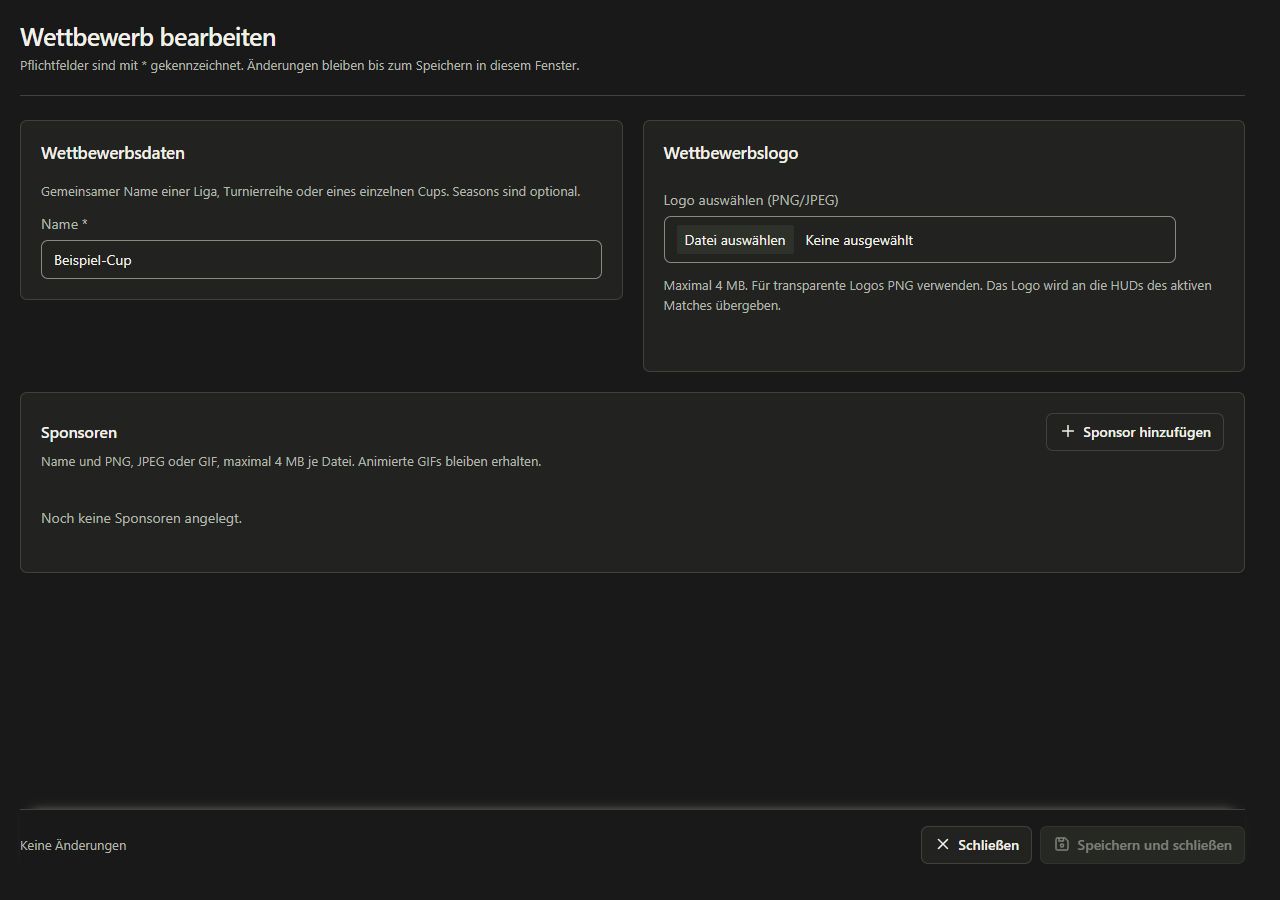
In the competition window, the name is under Competition data. Next to or below you will find the Competition logo; the Sponsors follow as their own area. For a season or area, names and associated selections are shared under Name and hierarchy.
A competition name may not be created again in the workspace as the same name. Ceiling or additional outer spaces do not make it a separate name. For a new edition of the same series, you usually use a season within the existing competition.
Using a competition logo
Under Competition logo, select a PNG or JPEG with a maximum of 4 MB. For transparency, PNG is suitable. The preview shows the file read in; Remove logo solves the assignment in the draft.
The logo is part of the competition. Seasons and areas use this competition via their match assignment, instead of requiring their own logos. Whether the logo appears in the played HUD and where it lies determines the HUD in question.
Adding Sponsors
- Open the competition with Edit.
- Under Sponsors, select the Add sponsor action.
- Enter a name with a maximum of 100 characters.
- Select the associated image file. PNG, JPEG and GIF are supported up to 4 MB per file.
- Add more sponsors or remove an unneeded entry with Remove.
- Save the competition.
A sponsor requires both a name and a valid image file. An accidentally added empty entry must be added or removed before saving. Animated GIFs remain animated files; whether and how they appear in a particular HUD view depends on that view.
For existing sponsors, the search field in the list is directly visible. Search, sorting and page change are also available in the View with reading rights; the inputs then remain blocked. Searching does not change the draft. Names, images and distances are stored together with the competition. The sponsor administration does not specify a universal image rotation or position for each HUD.
Create a season or edition
- Open the competition.
- Stay in Structure and select Add season.
- Check the pre-contest.
- Under Name of the Season / Edition, enter a name with a maximum of 100 characters.
- Save and then open the season in the structure.
The season name must be unique within the competition. A season of the same name in another competition series, on the other hand, is a different context. A season can contain matches directly or be divided by areas.
For a one-time cup, you can skip this step. Create areas and matches directly under the competition. In the later match assignment, Season / edition remains correspondingly empty.
Create divisions and subdivisions
- Open the competition, the season or the area under which the new subdivision should be created.
- Select Add section or Add subsection.
- Check out competition, optional season and parent area.
- Select the Type.
- Enter a unique name in the current context.
- Save the entry.
| Field | Utilisation |
|---|---|
| Competition | Mandatory allocation of the area. |
| Season / edition | Optional; no season for areas directly in a single tournament or cup. |
| Parent section | Optional parent area within the same competition and the same season. Empty means directly under competition or season. |
| Type | Region, game class / division, phase, group, round or other area. |
| Name of name | Mandatory field with a maximum of 100 characters. Must be clear under this overarching assignment. |
Similar groups in different phases are possible. However, an area must neither contain itself nor create a circle in the hierarchy. Seasons and parent areas of different competitions cannot be linked.
Choose a structure suitable for your data
As a general example, you can first create a region within a season, including a division and separate areas for group stage and playoffs. Another event may require groups with their own league stage and playoffs. Both structures can be imaged by suitable subregions.
This classification describes your existing matches. It does not carry out any rules of a particular organizer. If the group division changes over the course of the season, create the new phase or group as a new structure instead of re-interpreting an already used old area.
Assign matches to a competition
Create a match from the open area
- Open the desired level of competition.
- Change to the tab Matches.
- Select Add match.
- Check the pre-assigned assignment in the new draft match.
- Complete opponents, mappool and other match details and save the match.
Assign an existing match
- Open the match with Edit.
- Choose the competition under Competition assignment.
- Choose a season if it applies to the match.
- If necessary, select the area. The path shown helps with the same names on different levels.
- Optionally complete Match day/round with a maximum of 100 characters.
- Save the Draft Match.
An incomplete but correct classification is allowed: you can only choose the competition or competition and season. sOU does not complement a supposedly current season or group. Without competition, the dependent data will remain empty.
The same selection is available in the active match and in a new match import. In the active match, it is stored directly; in the match editor it belongs to the draft; when imported, it is only taken over together with the confirmed import.
Change an assignment
If you change the competition, the season, area and match day/round will be reset. Then select the appropriate information again in the new context. If you only change the season, the previous area will be emptied.
The change applies to this match. Previous matches of the same team retain their own assignment. A new match import or a pure map update does not replace your existing competition assignment with an external name.
Find and activate matches
The match tab of a competition level includes sub-areas. So you will find all the matches in the competition, in a season their matches and in a group only their branch. With Directly assigned you exclude lower matches.
The lines show opponents, format, series status and complete assignment. Use in HUD activates the entry for your local cast; Deactivate removes the active selection. These actions also remain available with reading rights. Edit opens the usual match editor with write privileges; View opens the stored match details with locked inputs with read privileges.
The general match list also searches the competition assignment and offers corresponding filters. A match without classification remains available there, even if it does not appear in a competitive view.
Storage, rights and protection of existing structures
Competitions, seasons, areas, logos and sponsors belong to the selected workspace. Changes require writing rights. Editing windows use private drafts and only take over data with Save and close. Parallel changes to the same entry are not overwritten by an older status.
With reading rights, you can browse the structure and its matches and open the currently open competition, season or area via View in your own window. The stored information and images are visible; modifications, storage and removal are blocked.
Released in the processing windows Ctrl + S the same action as Save and close Off. If successful, the entire entry is saved and the window is closed. In the event of a lack of mandatory information or a conflict, your draft will remain open. During an image import, without writing rights or otherwise blocked storage, nothing is taken over. Cancel or the closing of a changed window asks before the rejection of the draft.
A season with existing content cannot simply be moved to another competition. An area that contains matches itself or via sub-areas is protected against changes in its type and position. Name corrections are still possible. For a new division, you create new areas and arrange the suitable new matches there.
Under More actions you can remove the open competition, the season or the area. The confirmation indicates assigned matches and sub-areas. As long as such uses exist, the deletion is rejected. Remove or rearrange them only if that is technically intended.
Competition Data in HUDs and Imports
In the active match, competition, season, range path, optional round, logo and sponsor supporting HUDs are available. This information can already be used before the first CS2 game data. The specific visible presentation determines the HUD; the creation of a sponsor does not enforce a specific insertion in each package.
An import can display an external competition name. No local league or group structure will come out of this. For a new import, select the correct existing classification explicitly. Further details: Match import and HUD panels.
Frequent questions
| Question | Answer |
|---|---|
| Does Every Cup Need a Season? | No. Areas and matches can be assigned directly to the competition. |
| Why is there an area missing in the match selection? | Competition and season must fit the area. Check these selections first. |
| Why do I see more matches than directly assigned? | The match tab also includes sub-areas. Use the filter Directly assigned. |
| Why can't a group be moved? | Already used structures protect the assignment of existing matches. Create a new area for a new division. |
| Why can't I save the sponsor? | Name and valid local PNG/JPEG/GIF file are required; maximum 4 MB per image. |
| Does sOU create a game plan from this? | The competition administration arranges matches. Pairings, tables and tournament progress are not automatically calculated. |