A HUD must be installed on your computer before you can open it in OBS, in the browser or via CS2. sOU offers two ways: import a package from a file or install a shared version from the online directory. No HUD is set up unasked as a standard package.
Discover HUDs on the website
Search the public HUD marketplace by HUD, author or organization and filter freely subscribable offers or those requiring approval. Only listed, non-private HUDs with an approved package version appear. Details show the description, author, latest approved version, links, preview, gallery and demo when supplied. Select an available content language; missing details fall back to English.
Open in sOU opens this exact HUD in the app directory. You need a version of sOU with HUD-link support. If necessary, sign in and choose your workspace there; the HUD request waits for those steps. Subscription and installation start only after your choice. A Windows download link is provided alongside it. After website sign-in, you can also subscribe or request access directly for a workspace you manage. Approved access then makes the HUD available to install in sOU.
Before installation
- Open the workspace where you want to use the HUD.
- For the online directory, you need Internet and access to the HUD in question.
- For file import, you need a complete package from a trusted source. A source code folder or any ZIP is not automatically an installable HUD.
- Plan a version change before the cast. The installation alone does not replace an already running output.
HUDs can contain their own program code. Only install packages from a trusted source. sOU checks the package structure and the supported HUD interface when importing. Test a new HUD before the cast with the views and functions you need.
The areas under HUDs
In the sidebar, select HUDs directly under the heading Cast. From the active match, HUD Output → Other Outputs → Managing HUDs also leads to this page.
| Section | What you find there |
|---|---|
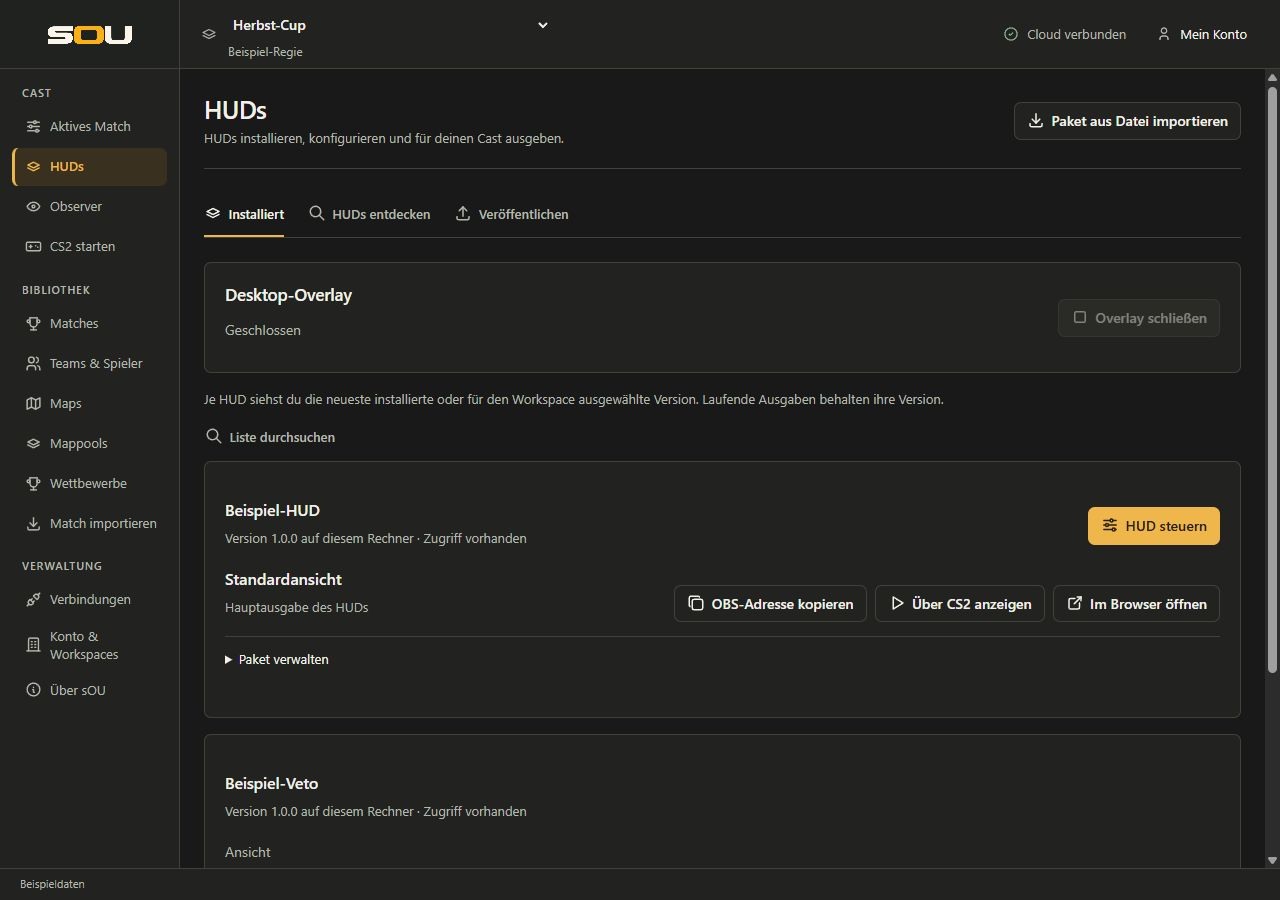
| Installed | The locally available HUDs, their version and access status, output actions and, if applicable, settings. |
| Discover HUDs | The online directory, subscriptions, releases and available versions. |
| Publish | Own publications, if your organization has the necessary rights. |
With the keyboard you first reach the active area over Tab. ← and → alternate between areas; Home and End open the first or last area. With Tab Then you get to its contents. During an installation or an ongoing online operation, the area switches may be temporarily blocked.
The list shows each HUD name once with its current installed version. Subscriptions and workspace access apply to the HUD itself. There is no additional version selection for workspaces. Update HUD only appears when a newer approved version is available for an accessible HUD from the directory. A highlighted notice at the top of the page also lists affected HUDs, their installed and new versions, and direct update buttons. Updates are only offered after a successful online check.
If the creator provides an optional infoUrl in hud.json, More information opens their website in the browser, for example for instructions, release notes or support.
Above the installed packages, Desktop overlay shows whether the shared desktop output is open. With Close overlay, you end this output. Browser and OBS outputs remain open.
For a HUD with additional views, dial View: Default view or one of the names offered by the package first. The accompanying actions Copy OBS URL, Show over CS2 and Open in browser use this selection. A package without additional views shows directly Default view. The selection alone does not open or change output. Further steps are available under Standard view and additional views.
Choose a suitable HUD
Check the available views, settings, supported sOU version and access requirements on the HUD detail page or in the creator’s instructions. The installed package version determines its features. For a shared production, agree on the intended version before the cast.
The shared sOU steps for configuring text, images and actions are described under HUD panels. Instructions for an individual HUD belong to its creator.
Importing a package from a file
- Open HUDs.
- Select Import package from file.
- Select the
.souhudor supported.zipfile supplied by the HUD provider. - Wait until reading, testing and installation are complete. For large files, you can see the progress; as long as a cancellation is possible, Cancel is available.
- Under Installed, check the name, version and access status.
- Open the HUD first via Open in browser or set it up via Control HUD if the package brings a settings area.
The import supports native sOU web packages and certain LHM-/JT-compatible ZIPs. For older packages, additional limits apply; see LHM and JT packages. Not every function of a foreign manager becomes available through the import.
An already installed combination of HUD identifier and version is not quietly overwritten. Receive the existing version and get a package with a new version number upon corrected release. Replacing files directly in the installed package folder is not a regular update path.
Install a HUD from the directory
My available HUDs collects subscribed HUDs and direct access grants. Uninstalled entries appear first with Install. Discover more HUDs shows other offers, Access requested shows pending requests, and All HUDs shows the complete list. Search and filters remain available. A website link focuses the list on the chosen HUD; Show all HUDs clears that focus. Denied requests or revoked access are not pending requests; you can request access again while the offer remains public.
- Open HUDs are discovering HUDs. Check For ... so you work in the right workspace.
- Search for the HUD. With filters, you can, among other things, restrict entries with existing access or freely subscribed HUDs.
- If there is no access yet, a workspace administrator will need Subscribe or Request access, depending on the publication.
- Wait for a required release to the creator. Not approved · contact the creator means that a mere repetition of the download does not replace a release.
- If access is available, select Install directly. sOU automatically determines the latest released package of this HUD.
- Wait for download and package checking. Then you will find the HUD under Installed. A separate version selection or release of each new version is not required for you.
A download will not already become an installation by its beginning. In the event of a cancellation or a failed check, an incomplete package remains unusable. If an announced total quantity is missing, the display can show received bytes instead of a percentage value.
Manage HUDs as a creator in your browser
HUD Creator management offers the same publishing tasks as the app: create HUDs, edit names and access, maintain translations and media, upload package versions and inspect review status, download original packages, change directory visibility, handle requests, grant or revoke direct workspace access, and configure Discord updates. Explicit Publisher permission for the organization is required. Package versions remain immutable; existing review and creator-trust rules still apply.
Save text drafts before changing language or page. Media uploads are saved independently. Access can be granted directly to a workspace code without a prior request. The Creator API supports these requests and grants too.
The editor groups Profile and text and Media. Expand Publishing and access when you need package versions, grants, Discord, name or visibility settings. Optional legal text and links are grouped in the text form.
Description, author and media
Under HUDs → Publish, add a description, author, optional terms of use and license, author URL, imprint URL and privacy URL when creating a HUD or later through Details and media. These details belong to the directory entry and are stored separately from its package. Changing them does not require a new package version.
Description, terms of use and license support Markdown, each with a limit of 8,000 characters. Format them in the visual editor or switch to Markdown source. Pasted HTML is not executed; manage images through Media instead of external Markdown images. Terms and license are text fields, not additional URL fields.
You can maintain each detail in multiple languages. Start with English (en); every field populated in another language must also have English content. Select content languages using flag buttons with a language tag; a globe and tag appear when no matching flag is available. In the Creator and app editors, use + to enter additional language tags such as de, fr or pt-BR. The directory uses content matching the app language and falls back to English. Links must be complete HTTP or HTTPS addresses.
In an empty translation, the original English text appears only as a labeled placeholder. It is not saved as your own translation. Enter only your own text; empty fields continue to display their English source publicly. Each field can fall back to English independently. Use Edit English (en) to open the original version.
| Media per language | Requirements |
|---|---|
| Preview | One high-resolution image of the HUD in use, at least 1920 × 900 pixels, at most 5 MB. |
| Gallery | Multiple images, each at least 1920 × 900 pixels and at most 10 MB. |
| Demo | One optional MP4 video, at most 50 MB. |
Upload images as PNG, JPEG or WebP. 1 MB equals 1,000,000 bytes. Upload English media of each kind before adding another language. Preview and demo files can be replaced; gallery images can be added and removed individually. Use recordings you own or have permission to share.
If your translation has no preview, gallery or demo, its preview shows the English files of that media type. An original preview can therefore appear alongside an English gallery. English fallback media are labeled and have no delete action in another language's Creator view; the English edit link opens their originals. If there is no English source yet, add that media type under en first.
On the website, enlarging an image opens a viewer over the current page. Use Previous/Next to browse related images and switch between Original size and Fit. Close the viewer or press Escape to return to the page. Article links and videos keep their usual behavior.
All new details are optional for now. Description, author, preview and at least three gallery images are planned to become required; the demo remains optional. Existing HUDs and new entries are currently accepted without these details. English is required whenever corresponding content is supplied in another language. After an editing conflict, reload the current details and review your changes.
Access, subscriptions and direct releases
A subscription belongs to the workspace and permanently refers to the HUD. HUDs from your personal workspace can also be available to you in other workspaces. New shared packages do not require a new subscription; when you update the local HUD, you determine under Installed.
| Task | Required possibility |
|---|---|
| Install an accessible HUD and use it for your own cast | Valid HUD access; a pure reader role does not fundamentally exclude local use. |
| Subscribe to or request access to a workspace | Workspace management. |
| Update an installed HUD | Valid access to the HUD; no common version selection is required. |
| Publish your own HUDs | An organization with publisher permission and the appropriate organizational role. |
For a private publication, open the Receive direct access section under Discover HUDs. Give the Workspace code displayed there to the HUD creator. After it is released, you update the directory. Share the workspace code, no login files or access data.
General roles and the management of your organization explains Workspaces and organizations.
Using the HUD for the workspace
Workspace and personal subscription give access to the HUD. Previously saved version selections no longer bind the HUD to an old package status. The installation automatically uses the latest shared package; an update is not installed in the background in the middle of the cast.
Every computer involved requires a local installation. Open under HUDs are Installed on the HUD Update HUD so that all computers use the same current state. Then compare the displayed version number and check the output.
Updates during and before a cast
Open HUDs → Installed. Once a newer approved version has been detected, choose Update HUD on the package or in the notice at the top of the page. Current or newer local versions show no update button. Online checks run when opening the page and during subsequent cloud syncs, at most once per minute. In the directory, you can also use Check version for installed HUDs. Before downloading, sOU checks the latest approved package again. A failed download, checksum mismatch or cancelled import preserves the previous installation. For a HUD imported exclusively from a file, import the new file from the same provider.
The new package will be the only current installed stand of this HUD. An already open output and an open panel draft remain at their stand until the conscious reload. Old package files required for this purpose are temporarily preserved and are removed after the end of their use. In the event of a missing closing signal, the cleaning takes place at the next service start; then reloaded browser or OBS pages open the current output again as soon as the local connection can be reached again. For external sources, keep the stable address obtained with Copy OBS URL.
Check the HUD settings after an update. Compatible saved settings can be adopted on the first access to the new version. New fields, changed field types or removed selection values may require re-selection. Details and limits describe Settings when changing the version.
A useful process is: Install package, check settings, open test output, then change the live output at the planned time. The preview in the browser is another output and does not replace the control of the actual OBS scene.
What happens when access is withdrawn?
After confirmed access withdrawal, new outputs of the relevant HUD are blocked. Output that is already ongoing will initially be retained. Package files are only removed if no other valid access and no protected running output are prevented.
A re-imported archive does not restore a revoked release. Check the active workspace and contact the HUD creator if necessary. For a planned change to another HUD, you should check its installation and release beforehand.
Remove an installed HUD
- Finish the associated browser and OBS outputs.
- Open under Installed at HUD Manage package.
- Select Delete HUD and read the confirmation.
- Confirm only if the HUD including old package files still in use can be removed.
An associated desktop overlay will close when removed. The browser and OBS addresses are then no longer available. Panel settings and media are retained. Local deletion is neither the removal of a publication from the online directory nor the automatic termination of a subscription.
Typical installation problems
- No released version: access to the HUD and a released, released package version are two different requirements.
- Package structure or entry is missing: Use the finished package of the author. Unpacking and reassembling individual files does not reliably fix an invalid package build.
- Version already available: Use a new package version or the existing installation. An identical version name is not an update channel.
- Online directory not available: Check Internet and sign-in. Already installed accessible HUDs are still available under Installed.
- Not driving an “HUD”: The package may not contain any settings. This alone is not an installation error.
Further: HUD output, HUD settings, Package format for authors and Troubleshooting HUDs.