With Importation of the Library Match, you can load match and squad data from FACEIT or DACHCS and store it in your selected workspace. The process consists of three steps: load match, set takeover, check and import. A call alone does not create a match.
Conditions and scope
- You are logged in with a sOU account with a confirmed email address.
- For a new call, there is an Internet connection to the sOU online service and the required sources.
- You know the FACEIT Match ID or Room URL or the numeric DACHCS Match ID.
- For a new stored import, a suitable mappool is available in the workspace.
- For final storage, you need editing or administrator rights in the workspace.
Readers are also allowed to load data and preview it. To save in the shared library, you need writing rights. For the import, your confirmed sOU account is sufficient; a separate FACEIT API key is not required.
Already imported matches, rosters and stored images remain available in valid offline operation. Only new requests or updates need the connection. The import is not a permanent live coupling: saved data does not change simply because the provider later changes his page.
Choose the appropriate source
| Source | Entry | Data source |
|---|---|---|
| FACEIT | FACEIT match ID or matching room URL. | Match, opponents, existing player information, optional additional team members, delivered map picks and scheduled launch. |
| DACHCS | Numerical DACHCS Match ID. | Teams, names, logos and lineups from DACHCS; additional match details such as format, delivered map list and planned start from the linked FACEIT match. |
With DACHCS, opponents must clearly match the linked FACEIT teams. Missing or conflicting assignments are not replaced by a presumed order. The order of the two opponents is also not a CT/T assignment.
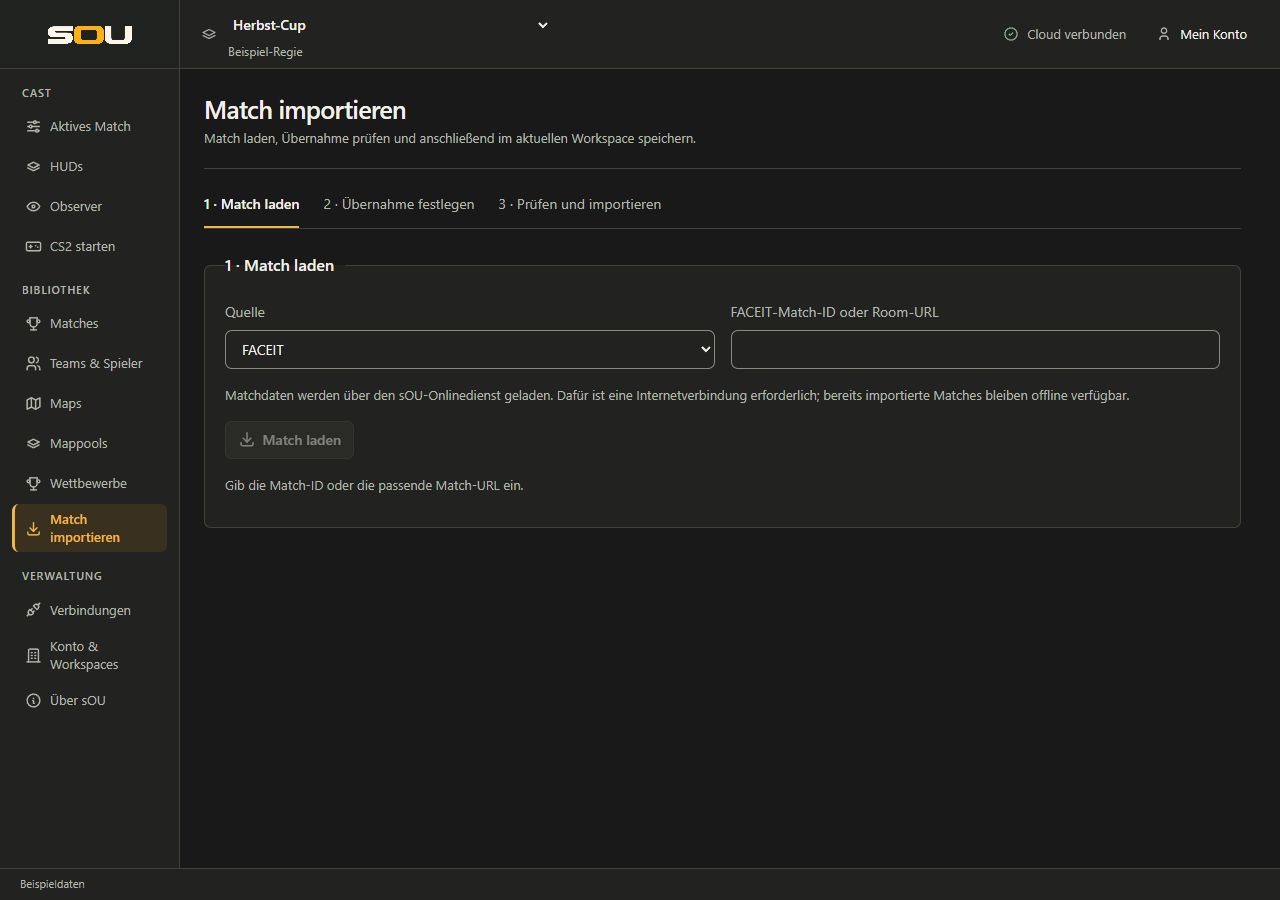
1. Load the match
- Check the workspace in the header.
- Open Import match.
- Choose Source FACEIT or DACHCS.
- Enter the appropriate identifier or the room URL at FACEIT.
- Select Load match.
- Note the indicated work step. After the match data, sOU also tries to load optional team and player pictures.
- Check the loaded opponents and the information offered.
The process can be terminated. A cancellation during the actual match call does not take over any administrative data. If the match data is already loaded and only images are still open, the loaded data can still be imported without these additional images after a picture cancellation.
If you change the source or identifier, the loaded preview that is no longer suitable is discarded. Reload the new data. Thus, an old preview cannot be accidentally adopted for a match ID entered differently in the meantime.
2. Choose what to import
After loading, the keyboard focus jumps to the headline of this step. With Tab you reach the offered takeover options. Source and identifier remain accessible beforehand; a change there still discards the previous preview.
Map pool and format for a new match
- Select the existing local mappool.
- Check the offered format. It supports BO1, BO3, BO5 and BO7.
- If the source does not provide a supported format, select it yourself.
BO2 is not automatically re-interpreted to BO3. An unsupported or missing format remains unresolved until you have made a suitable decision. If a suitable pool does not yet exist, create it under Map pools.
Apply maps supplied by the source
The section shows the maps actually delivered in their order. The Use supplied maps as play order option is initially turned off.
- Activate them only if you want to take the displayed list for this match.
- Each map taken over must be present in the selected local mappool.
- If a pick list is missing, it will remain empty. A general pool known by the provider is not advised as a played series.
- Pick teams, bans, deciders and results are not generated from the position of a map alone.
You can import the match without map adoption and then record the actual decisions locally. An import without a map list has therefore not automatically failed.
Override existing player names and pictures
The Overwrite existing player names and images option decides whether delivered names and successfully loaded images of already known players are replaced. Without this selection, existing local names and images are preserved; missing images can be supplemented.
If no new image has been successfully loaded, an existing image will not be replaced by void. Existing coach markings are retained and can be explicitly changed later in the preview. The override option does not apply to a blanket replacement of all local team, match or competition settings.
Checking the competition and dates
For a new match, the normal Competition assignment is ready. Choose Competition, Season, Area, and Optional Matchday if required. A competition name provided by the provider is displayed, but not automatically equated with a local league structure.
A delivered scheduled match start will be included in the import. The preview shows the resulting appointment in local time with UTC distance. The actual start of the game does not automatically replace the planned start. If an appointment is missing in a new match, it remains open.
3. Check the preview
After Continue to import preview or Refresh preview, the focus reaches the new preview. The search in the squad list is directly available for existing players. Search by name or Steam ID; the coach selection remains assigned to the respective entry.
- Select Continue to import preview.
- Check matchname, format, number of players and coaches, date and competition assignment.
- Read the notes on new or reused teams, squad changes and omitted information.
- In Rosters after import, check the players, Steam IDs and team assignments.
- Mark actual coaches via the associated checkbox.
- If you change takeover options, re-create or update the preview.
The squad list can contain additional members of a FACEIT team who do not necessarily participate in the specific match. A source does not automatically reliably label these people as a coach. Therefore, check the roles yourself. Entries marked as coach are saved, but exempted from player HUD output and roster recognition.
Search, sorting and pagination help with large squads. The flippage does not yet take over any data. The preview describes the intended status after the import; only the final import action writes it.
Save the import and use the match
- If the preview is correct, select Import match and rosters.
- Wait for the success story. In the event of an error, not only a few teams and a half-finished match are saved.
- Then open Library of Matches and select the imported entry.
- Check its Match preview and add missing veto details via Edit if necessary.
- In the preview, select Open for cast if this match should be your active cast. This activates the match and opens its cast view.
The import does not automatically activate the match. A previous active match selection is retained. This is also important if you are already preparing the next encounter during an ongoing cast.
If an affected team, player, mappool or match assignment has been changed since the preview, sOU requests a new preview. Check them before you save them again. Changes to other, independent entries are retained.
How existing teams and players are treated
- Teams: External team identifiers identify already imported teams. Same names alone do not lead to merging.
- Local team details: Existing names, abbreviations and images are preserved; missing images can be supplemented.
- Players: The Steam-ID64 is the common identity. An existing player is reused; squad changes appear in the preview.
- Unsupplied members of the roster: They are not deleted solely by their absence in the new response.
- Invalid Steam IDs: Affected players can be omitted with notice. Duplicate Steam IDs within conflicting source data are not quietly adopted as independent players.
- New Matches: Start without invented round results. The later automatic CS2 capture can work after activation.
Check name doublings in the preview. Two teams with the same name and different external identities can actually be different data sets. Conversely, a slightly different spelling may not replace a player’s Steam ID check.
Re-importing a match
sOU recognizes already existing matches based on their stored FACEIT or DACHCS identifier. The same FACEIT match does not become a new match by then loading it via the associated DACHCS path.
When the stock is recognized, the site explains that the re-importation complements the roster. The new pool/format/map selections are then not offered as in a new plant. Match settings, maps, veto, results and competition allocation are retained. An actually newly delivered scheduled start time can be updated; if it is missing, the stored appointment remains.
- Reload the existing match.
- Decide consciously about overwriting existing player names and player pictures.
- Preview and check supplemented players, squad changes, and coach labels.
- Take over the import only after this examination.
For a pure update of the game maps, on the other hand, use the match update. It does not require a complete roster and image import.
Update maps and format of a linked match
With preview in the match list
- Open Matches and find the entry with stored FACEIT link.
- Select Refresh.
- Check the new game order displayed, the BO format and the resulting match start.
- Select Apply play order or Discard.
The process can be terminated. Until the takeover, the stored match stand remains unchanged. Rosters and pictures are not imported new in this way.
Directly in the active match
- Open Active Match Maps & Veto.
- Unlock Use map list from FACEIT.
- Check that you are using the correct active match.
- Select Refresh map list.
This action takes over a valid delivered game order immediately. It does not have an additional Take button. Without a stored FACEIT link, it is locked; import the match first via the regular expiration.
What remains protected during an update
The update checks match and opponent identity, pool membership, format, results and existing decisions. An empty answer does not erase your existing planning. A map with a result is not removed; a banned map does not silently become a game map. Existing expressly assigned picks, deciders and bans will not be replaced by suspected information.
If there is a contradiction, compare the displayed game order with your saved decisions and correct them if necessary. New game maps with unknown pick team remain unexplained. Results are not supplemented by this update.
Optional images, waiting times and cancellations
Team and player images are optional. sOU tries to adopt supported PNG/JPEG files up to 4 MB. Unreachable, too large or inappropriate images generate clues; successful match data can still be imported.
All optional image retrieval is limited to 20 seconds. If this time is reached, the match data can be transferred without further pictures. If you deliberately break off during the picture phase, the already loaded match information is preserved for a possible preview. Check the actual feedback instead of treating a missing image download as a loss of the entire match.
A workspace change discards an already loaded preview. Reload the data in the desired workspace before importing it.
Retrieval limits and missing source data
Up to ten match calls per minute are possible per account. If a call limit is reported, wait before the next attempt. For loaded or slow-responding sources, the retrieval may take longer.
Additional squads are limited to 40 unique player profiles per call. An overrun is reported instead of creating an incomplete roster unnoticed. Responses and waiting times are also limited; a provider who does not provide a timely or usable response can therefore not be imported.
Only the actually supported CS2/CSGO match data is imported. Missing map picks, unclear opponent identities or an unsupported format are not advised. You can use a manually prepared match if the source does not provide the necessary information.
Typical import problems
| Problem | Next meaningful step |
|---|---|
| The source or identifier is rejected. | Check FACEIT ID/Room URL or numeric DACHCS match ID and selected source. |
| No mappool can be selected. | In the current workspace, first create a pool with the required local maps. |
| A delivered map is not in the pool. | Check the exact map identifier and pool content or import it without taking over the map and then plan consciously. |
| The source provides BO2. | Select a supported actual matching format explicitly; sOU does not automatically convert it. |
| The preview works, importing remains blocked. | Check workspace permissions. Readers are allowed to watch previews, but not save them. |
| Images are missing. | Read notes on accessibility, format, size and time limit. Images can be added later in team management. |
| The import service is not available. | Continue working with the already stored data or create the match manually. Try retrieving it later and pass on the displayed message to support in the event of persistent problems. |
| The takeover announces interim changes. | Check the current library status and create a new preview. |
| After the import, the old active match still appears. | Select the new match under Library of Matches and select Open for cast explicitly in its preview. |
| New maps cannot be updated. | Check pool, existing bans/picks, stored results and FACEIT link; conflicting planning is protected. |