If there is an issue, check which part is affected first: account and cloud synchronization, CS2/GSI, HLAE, the HUD installed, OBS, or yaibo. A working connection in one area does not automatically confirm the others. This guide leads from the most common visible symptoms to the appropriate examination.
In the case of a running cast, first maintain the functioning output. Re-login, packet change, or reinstall is not required for every problem. Make a note of the specific error message and the last steps before you change settings.
The first checks
- Workspace and Match: Is the correct workspace selected above and the right match active under Active Match?
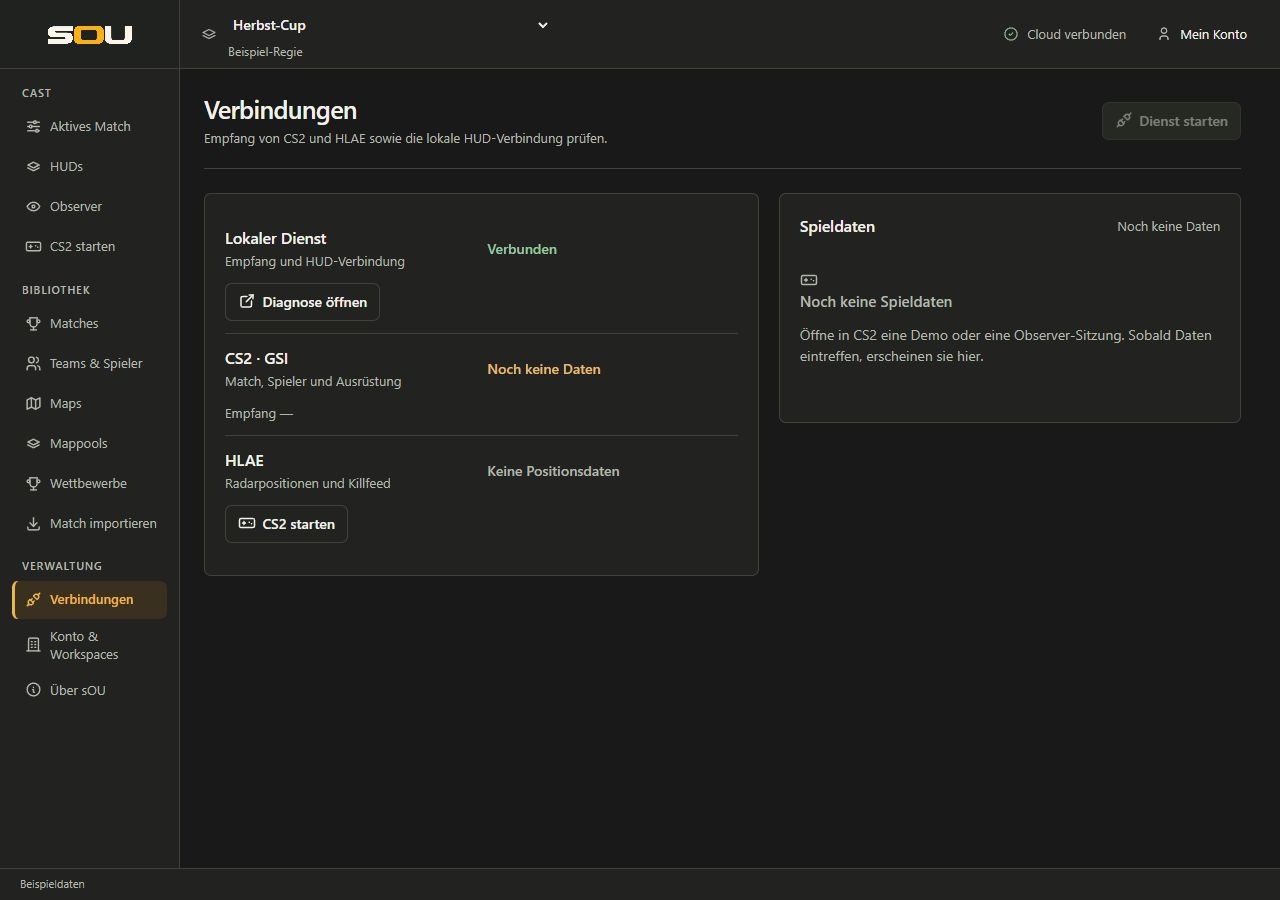
- Local service: Shows Connections at Local Service?
- Game data: Shows CS2 · GSI Current and does the reception time move during an ongoing game session?
- HUD: Is the desired package with the version used in the workspace actually installed?
- Output: Does OBS use the copied address or is the correct desktop overlay open?
- Additional functions: If radar, killfeed or automatic camera are affected, check HLAE and yaibo additionally.
| Symptom | Read more |
|---|---|
| Sign-in or offline start fails | Account and access |
| Local service does not start | Local connection |
| No or outdated game values | Testing GSI |
| Radar, killfeed or camera connection missing | Check HLAE |
| Wrong teams, sides or results | Checking match data |
| HUD cannot be installed or opened | Packages and rights |
| OBS remains blank, black or shows duplicate elements | OBS output |
| Panel change does not appear | HUD settings |
| Synchronization or workspace change is blocked | Workspace and Synchronization |
| Automatic camera operation does not start | Observer by yaibo |
Sign-in, account status and offline use
To use sOU, you need an account with a confirmed email address that is not blocked. After confirmation, you can sign in directly. Check the displayed account status on the website and in the desktop app.
- Email not yet confirmed: Use the current confirmation link and complete the confirmation on the website. Also check the spam folder.
- Older indication of pending activation: Update sOU and restart online sign-in. Previously waiting accounts can also sign in once their email address is confirmed. An account suspension remains unaffected.
- Browser login completed, desktop waiting: Return to the app and note the login status there. An account logged in to the browser is not automatically a completed desktop login.
- Offline start is rejected: Offline use must have been previously enabled by a successful online sign-in and is limited in time. Restore the internet connection and log in again.
- Account suspended or not authorized: Clarify the displayed status with the responsible persons responsible. The HUD or GSI facility does not fix an account suspension.
The regular offline period is up to 28 days after the successful authorization check and is checked at the start of the app. Online management and yaibo have their own connection requirements. Details about sign-in and password are available under Account.
The local service does not start
- The local service starts automatically after sign-in and workspace selection. For Check service, click on the status in the header and use Start again under Connections. For a service that has not yet started, the action is called Start service. If the local port is busy, check whether a second sOU instance is running and terminate it regularly. An ongoing service by itself does not confirm CS2 or HLAE data.
- Wait for the end of the preparation and read the complete error message.
- Check if a second sOU instance is already running under the same user. Regularly close an unneeded instance after its outputs and drafts have been completed.
- For a message about a busy address or port, check which other program uses the address. The standard port is 5085.
- If a file error occurs, check the specified profile path, free space, and the write privileges of your Windows user.
- Try starting again after eliminating the cause.
The local address is usually http://127.0.0.1:5085/. A router release does not help here. Also do not delete connection.json as a precautionary measure: As a result, existing local connections and generated configurations can no longer fit together. If profile data is corrupted, secure the current folder first.
CS2 does not start as expected
- No installation found
- Open CS2, use Search, and select the actual Steam installation you are using for multiple hits. If necessary, enter the full CS2 game folder. Don’t just select the executable file or any parent Steam folder.
- CS2 is already running
- Complete the existing game regularly before using CS2 with HLAE. sOU does not automatically terminate an ongoing gaming session.
- The start button is locked
- Check whether a preparation is ongoing or a start config with unsaved changes is open. Deliberately save or discard these Config changes.
- Config no longer available
- The saved selection refers to a no longer existing config. Select an existing Config or No additional Config and save the startup options.
- Download or setup fails
- Check Internet, free storage and the specific file message. An existing HLAE installation may be reusable if the update fails; note the actual fallback message. When first set up, a valid package must become available.
The full setup including display mode and start configs is available under CS2 and HLAE.
GSI: no data, stale data or interrupted reception
- Under Connections, check if the local service is Connected.
- Under Launch CS2, check the actual CS2 folder.
- Open Advanced setup and use Set up GSI.
- After that, restart CS2 regularly so that the game installation safely reloads the configuration. Use for full setup Launch CS2 with HLAE.
- Open a demo or an observer session. An open main menu is not a complete test of player data.
- Again check map, score, watched players and reception time under Connections.
Stale means that the last received state is no longer considered current. Receiving interrupted follows for longer missing data. A paused demo, a game change or the end of CS2 can explain this. An existing old score is not proof of current reception.
If only individual fields are missing, check the desired value under Technical game data. If it is also missing there, sOU currently has no value. For example, a missing value does not automatically mean zero points, zero money or a dead player. If the value is already there, control the selected HUD view and its settings. The background is under Live data.
HLAE: Radar, killfeed or camera connection missing
GSI and HLAE are separate sources. Current GSI data can already provide players, equipment and score, while HLAE additions are still missing.
- First, check the GSI reception. Without a suitable game session, further classification is more difficult.
- Use the full start Launch CS2 with HLAE. Only Set up GSI does not start HLAE and does not generate the complete script connection alone.
- Check if you have changed the sOU profile or the local port since the game starts. A script file already loaded in the game can then no longer fit the current service.
- Open a suitable observer/demo session and check Connections with HLAE.
- During an external game start, check the steps under Start CS2 from another program.
Position data received refers to the radar supplement. Yaibo also needs its HLAE control connection; check the display on the Observer page. Conversely, an empty killfeed immediately after the start is normal, as long as no corresponding event has been received.
For the killfeed, the kill event must arrive via HLAE. After a restart, the list does not show a complete history of previous kills. It can also be reset during demo jumps or session changes. Let the demo run a piece and check if a new kill appears in the HUD.
Incorrect teams, sides or results
Team identity and CT/T sides
- Under Active match, check the chosen match and its two teams.
- Open Teams within the active match and control the actual squads.
- Check Steam IDs, duplicate assignments, and the Coach flag in the library, if applicable.
- Compare the players currently delivered in the game with these squads.
- Clarify conflicting assignments in the data before treating a page ad as binding.
sOU assigns the game sides based on the Steam IDs in the squads of the active match. The position left or right in the HUD says nothing about the team membership. If a page remains unclear, check missing or duplicate Steam IDs first. Under Automatic Team Assignment you will find the recognition rules and the handling of conflicting assignments.
Map and series results
- Differentiate the current CT : T score from the Team A/B results of a saved map and the series wins.
- Check if the map played belongs to the series of the active match and there is a clear team assignment.
- Under Account & Workspaces → Workspace → Take Results from This Cast, Use this computer as result source explicitly specifies which computer delivers automatic results. Writing rights are required for this.
- Already completed results and higher intermediate values are protected against certain replay backsteps. Rewinding a demo therefore does not reset all results without asking.
- For technical corrections, check the saved map results in the match. A pure HUD color or text change does not correct a result data set.
The operation of the series, page assignment and pick/ban decisions can be found under Matches.
HUD installation, versions and access rights
- The HUD is missing from the selection list.
- Check HUDs → Installed. An entry in the online directory or a subscription is not yet a local package installation. Import the file or install a shared version from the directory.
- An earlier workspace version is still displayed.
- Update sOU. Subscriptions and releases now refer to the HUD itself; earlier version bindings are no longer used. Under HUDs → Installed → Update HUD, you install the latest shared package. A missing HUD access remains independent of this.
- This package version already exists.
- A published version is not overwritten by another file with the same identifier. Use the existing package or a correctly re-versioned publication.
- Import or testing fails.
- Use the full, unchanged archive of the provider. Check format, package content and the specific error message. Any ZIP with a website is not automatically a valid sOU-HUD.
- Access is missing or has been withdrawn.
- Check the current workspace and creator sharing. New outputs can be blocked while existing outputs are maintained. Renaming or re-copying the package files does not establish permission.
- An old output shows the old version.
- A running output remains tied to its loaded files. Deliberately reload the source after updating the HUD and checking its settings. Permanently use the stable HUD address obtained with OBS address copy. After a service restart, a reopened output reloads the current status as soon as the service is reachable again.
A package taken over from a foreign HUD system may have further compatibility limits. See Installation and access routes and LHM/JT packages.
OBS remains empty or shows a black image
For a browser source
- Copy the address in sOU again with Copy OBS URL and compare it with the URL field of the source.
- Check if OBS is running on the same computer as the local sOU service.
127.0.0.1always indicates the computer on which the address is called. - Check source visibility, position in the source list, size and trim. The intended size of the documented HUDs is 1920 × 1080.
- Check the same address with Open in browser. If it works there, investigate the OBS source and its properties.
- Check current game data. Some live HUDs remain empty before the first game state; other views require an active match or a certain phase.
- Reload the OBS source after an intended packet change.
A transparent fullscreen view can be correctly empty outside of its intended phases. Choose the intended HUD view and follow the instructions from its creator for game phases and required data.
When recording the desktop overlay
- Open the overlay in sOU and select the OBS sOU · CS2 HUD window.
- Select as the recording method expressly Windows 10 (1903 and later).
- Check if CS2 is visible and not minimized and runs in borderless window mode.
- Check a short local shot, including transparency.
The automatic selection of a BitBlt recording can generate a black image in this window. If you place the same HUD as a browser source over a recording with an already visible overlay, elements appear double. Choose a conscious source combination. The complete instructions are available under HUD output.
Desktop overlay is missing or does not fit
- Use Borderless window for CS2. Exclusive full screen is not a promised output path.
- Check if you have just selected another HUD or actually clicked Show over CS2 or Switch overlay.
- With the same selection, Reload overlay can consciously reopen the output.
- A minimized or closed CS2 window hides the display, but does not automatically terminate the loaded overlay instance.
- After a monitor, resolution or scaling change, check the actual alignment. The overlay surface follows the play area.
- For a workspace change, use Close overlay explicitly; the mere minimization of CS2 is not enough.
A transparent, click-permeable overlay cannot be operated like a normal form. Its settings can be reached via the panel in sOU.
When changing, the previous HUD remains visible: The new view loads invisibly while the previous output continues. Preparation and loading may take a maximum of 30 seconds together. If the loading fails or this deadline expires, the previous HUD and address are preserved; a first start does not show an unfinished output. Check the completion message, the local service, and the installed package, and trigger the change again after it has been fixed. A delivered empty initial state is permitted and does not require a running CS2. Loading preparation also explains why images requested later can still be reloaded.
Panel values, images or actions do not work
- Compare HUD name, package version, and workspace between panel and output.
- Check if Unsaved changes is displayed. Use Save and apply.
- If you only used Save as template, the local output is intentionally still unchanged. Load template initially only loads into the draft.
- Check if the field is visible in the current view and game phase. Depending on the HUD, competition data may replace manually configured panel labels.
- For images, use PNG or JPEG within the specified 4 MB limit. A multiple image field accepts at most 16 images.
- For No longer available, select a valid team, player, match or package selection.
An immediate action is not made up without a connected output. A message about sent actions confirms the recipients, not necessarily the visible effect. In the event of a memory conflict, first secure the desired inputs and then consciously load the current status. Details and specific package fields are available under HUD panels.
Workspace changes, permissions and synchronization
Workspace change is prevented
Close all current HUD outputs before switching: desktop overlay, regular browser tabs, and OBS browser sources. A hidden OBS source can be further connected. Minimizing CS2 also does not end the overlay. Also, save required editor drafts before switching the data area.
Editing or managing is blocked
Check your role in the current workspace. Readers can use existing cast data and accessible local outputs, but cannot arbitrarily modify common library data, templates, or results sources. Organizational rights and a HUD publisher authorization are separate rights. Ask a responsible person for the actual required release; do not accidentally choose another workspace just because of a button available there.
Cloud changes or conflicts waiting
A conflict can also occur when working alone: Different local and cloud versions are decisive, not the number of people currently registered. Also check if an older stand is open on another computer with the same account. Own already transferred changes are taken into account in the further comparison; a still running HUD should not prevent their confirmation.
- Open Account & Workspaces → Workspace or the match via the status action.
- Read the affected entry and the fields mentioned. Completely compare My version and Cloud version for a match, in particular pick/ban, game maps and results.
- Decide for each conflict consciously between Keep my version and Use cloud version. If the local version contains the intended full veto history and the cloud contains only an earlier intermediate status, keep the local version after verification. Do not choose a single page for all conflicts.
- If cloud changes are waiting for the current cast, check the appropriate time and only then use Apply to cast now.
- In case of a conflict of personal options, choose between Keep local settings and Use cloud settings. Note that a takeover can wait during related outputs.
- Wait for the next automatic match, usually after about 15 seconds, or select Sync now. Check the saved content and match status.
You can continue working during a transfer: Newly saved local changes are retained and are taken into account in the following comparison. A message about waiting third-party changes is therefore to be distinguished from the transmission of your own changes. The active match and the local manual CT/T assignment are not switched to a foreign cast by the match.
Merely changing sides or updating is not a conscious solution to conflicts. Existing conflicts still demand your choice. If the same conflict appears again afterwards, first back up the desired status and record the app version, affected entry, conflict fields displayed, your selection and a running HUD output for the error report. Do not delete match files or profile folders and do not repeatedly switch between versions on an experimental basis. The complete processes and a concrete veto example are under Conflicts at work alone; for security see Backups.
Images are uploaded again during sync or are missing
Checking workspace images … means that sOU checks the existing picture stock. No image files are uploaded. Only missing files will then receive the Image 1 of ... is uploaded ... display. Already existing unchanged images should not be transferred again in the same workspace even after a text change or further picks and bans.
- Check whether an upload message actually appears or only the inventory check is running.
- Check the selected workspace. After a change or a copy to another workspace, images can initially be missing there and transferred once.
- If you have re-saved, cropped or converted an image to another format, it is considered a new image because of the changed file content. An unchanged display name alone does not mean that it is the same file.
- If sOU reports that a required workspace image is missing locally and in the cloud, open the affected entry, select the desired image file again and save it. Then start Sync now. sOU will not transfer the entry until its required images are present in the target workspace.
- For a connection or login error, check the cloud status and your login first. A failed inventory check is not a confirmation that images were missing or successfully transferred.
If the same unchanged images are uploaded repeatedly in the same workspace after successful synchronization, write down the app version, workspace, time, the exact status message, and your immediate previous change for an error report. Do not delete profile folders or pictures for alleged cleanup. Image matching statement describes reuse and upload counting; for backup see Backups.
Yaibo does not start or control
- Check for Observers the three displays Yaibo account, CS2 / HLAE and Game data.
- If the account is missing, confirm the current browser login. The sOU application does not replace it.
- If CS2/HLAE is missing, set up the full game start via Launch CS2.
- If there is no current game data, open a demo or observer session and check GSI.
- If Manual control is active, use Resume with the desired automatic system.
- After changed stored change rules, stop and start the Observer. Camera path switches, on the other hand, act directly.
- If the authorization or network error has expired, check the Internet and account. Temporary offline use of sOU is not an offline release for yaibo.
Under Diagnostics are condition and reason. Also check if another automatic camera control is active at the same time. More about start, manual takeover and the individual rules is available under Observer by yaibo.
Stream Deck: missing connection, assignment or action
sOU no longer reacts and cannot be concluded: If this happens during match control on the Stream Deck, update to sOU 0.3.18 or later. Previous desktop versions could block simultaneous match changes and HUD queries. This is a standstill of the entire app and is different from a still loading HUD view. If necessary, terminate the completely blocked sOU in the Windows Task Manager and restart it. Then check the saved match score, especially picks, bans, pages, and results, before repeating an unconfirmed action. An unconfirmed action may already be stored. An additional plugin or HUD update is not required for this desktop fix.
- Check if the installed sOU desktop version and the Stream Deck plugin support and match. Launch both programs under the same Windows user on the same computer.
- Prepare the local output in sOU. Check the local service and the current HLAE control connection as well as current game data when changing players.
- Check the action selected in the button, the current workspace, and HUD, section, and field panels. Stream Deck always uses the latest locally installed HUD version, even on older stored keystrokes. A distant field is not replaced by a similarly named field.
- In the case of missing players, check the current slot occupancy including slot 0. In the case of missing portraits or a blocked transfer to the player field, check the unique Steam ID assignment and the stored image.
- After a manual player change, yaibos camera output remains locked while the calculation continues. Use the desired automatic Continue and check the readiness.
- A HUD view button first prepares the latest locally installed version of the selected HUD and its view invisibly. The current HUD remains visible until ready for loading. In the event of an error or after at most 30 seconds without loading readiness, the previous output is retained. Check the error message of the button, the common integration status of the desktop and plugin, and the views offered in the latest version. Also check borderless window mode and a visible, non-minimised CS2 window. After correction, press the button again.
- For hard-to-read buttons, remove your own overriding images or additional stream deck titles and use the current plugin images. Choose short labels of your own and control the display on the actual deck.
- After loss of connection, camera changes and immediate panel actions are not made up. Check the current state and press the desired button again.
In case of panel storage conflicts, consciously load the current status in the editor. In the event of unexpected views changes, check all associated outputs of the same HUD version: Regular stable HUD addresses are shared with the selected view. The full Stream deck manual explains setup, field types, presets, status keys, and match subpages. Do not share local connection files or access data in error reports.
For the Match operation described here including all corrections, you need at least plugin 0.2.2 with desktop from 0.3.15 and a supported mini, Stream Deck with 15 buttons, XL, + or Neo. Confirm a first-time profile installation in the Stream Deck software, if applicable. After a plugin restart, close the old match profile and open the entry again. Under Pick and Ban, you first select the map, then BAN or PICK of the desired team or DECIDER. A busy map provides a fix like Undo ban; Back navigates without data change. Leaf keys only appear on multipage lists. For outdated selections, reopen the updated page; READ ONLY lacks write privileges. Local match selection and team sides are also possible with reading rights. A recognized roster assignment takes precedence over manual sides.
Removing Decider is missing: plugin 0.2.1 could replace the pickup button with Open result, although only the status Live and no round points were stored yet. Update the plugin and desktop to the above versions. Then open the decider map again under Pick and Ban. Undo decider remains visible and can immediately withdraw an open or running map without points. A desktop update notice at this point means that the running sOU version does not yet support this correction.
In the case of actually stored points, also 0:0 or only a recorded team value, as well as in the case of Finished, the withdrawal remains protected. The pick-up button shows SCORE below and leads to the Result recorded explanation. Select Open result → Delete map result, confirm the named map and then return to the pick-up button. The complete corrective manual explains the steps.
The additional green confirmation check after a successful action is switched off from plugin 0.2.0. Check the updated key state. Error messages and the tick for the actually observed player remain.
File, profile and update problems
For an unreadable library, configuration, or image file, secure %USERPROFILE%\.sou\local first before replacing or removing files. Record the affected path and the error message. Media and its data references belong together; a single recovered JSON file does not automatically restore all images. See Data backup and recovery.
Under About sOU → App Updates you will find the installed version and Update HUD. Before sign-in, the same area can be reached as Version & updates. With an available update, Download update and open Setup starts the conscious download and installation path.
- A failed download is not yet an installed update. Wait for the specific message and try again after fixing network or storage problems.
- If an integrity or signature verification fails, do not use an unchecked file as a replacement.
- Before resuming in the setup, finish your cast and close sOU regularly. The setup requires administrator rights.
- If a program file or runtime component is missing, load the full installer via Download sOU and run the installation again. Do not reload individual DLL files from external download portals.
Prepare a helpful error report
If the cause remains unclear, reproducible information helps more than an uncommented complete profile folder. Collector:
- Installed sOU version from About sOU or Version & Updates.
- HUD name, HUD ID and exact package version, as well as affected view.
- The expected effect and the actual observed effect.
- The last steps in their order and whether the problem is reliably repeatable.
- The exact error message and the approximate time.
- GSI Fresh, Reception Time and HLAE/yaibo status, as far as they are part of the problem.
- For OBS: source type, recording method, source size and whether the same HUD address works in the normal browser.
- For layout issues: window size, screen resolution, and Windows scaling, and a matching screenshot.
Before sharing, remove login codes, private URLs or connection information, and unneeded personal data. Do not share account files, complete raw payloads with authentication, or the generated HLAE connection file. If more extensive diagnostic data is required, first clarify the specific section and a suitable private transmission path.