You can open an installed HUD as a browser source in OBS, as a transparent desktop overlay via CS2, or in a normal browser. The outputs use the same local game state. You decide separately what you want to see above the game and what appears in the show.
Prepare output
- Open the right workspace and activate the desired match. Team names, squad and map series are checked under Matches.
- Install an accessible HUD. The installation uses the latest shared package; see HUD access in the workspace.
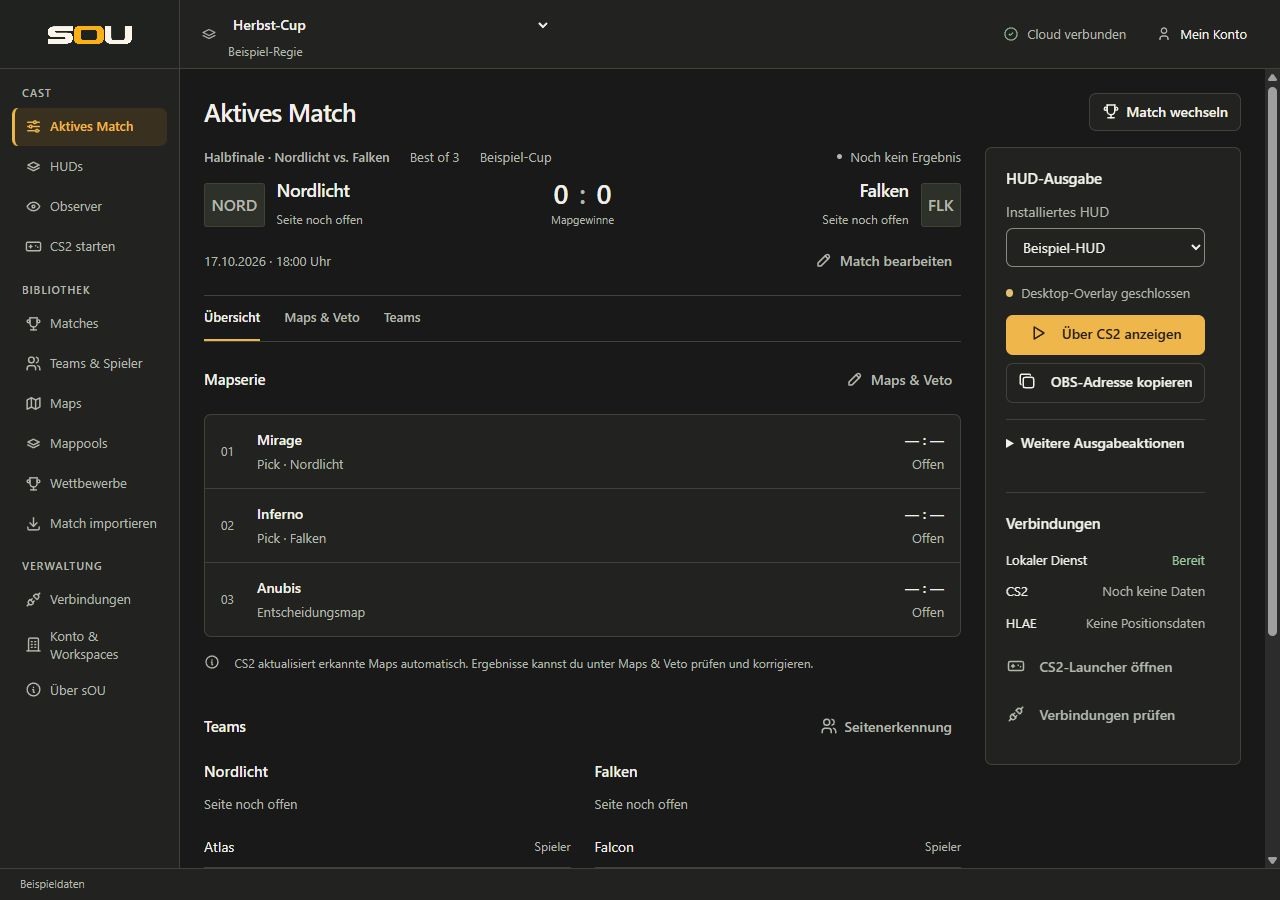
- Open Cast → Active Match and the HUD output area. In narrow windows, it lies below the content of the match; Go to HUD output leads directly there.
- If the local service has not yet started, select Prepare output.
- Under Installed HUD, select the desired package. If there are multiple views, select View.
- Check the connection instructions and the More output actions version before you open the output.
The main promotions Show over CS2 or Reload overlay or Switch overlay as well as Copy OBS URL are directly under the HUD selection. Close overlay can also be reached there when the overlay is running. Open More output actions for Open in browser, Configure HUD, Manage HUDs and the package version. Configure HUD appears only if the selected package contains a panel. The unfolding alone does not start or end any output.
Alternatively, you will find the output actions under Cast → HUDs → Installed directly on the package. For a package with additional views, select View first and then the desired output action. The setting button there is Control HUD; in the active match it is called Further spending actions → Stop HUD.
The three output paths
| Action | Results | Important |
|---|---|---|
| Copy OBS URL | Copies the local HUD address. | Does not automatically create and activate a OBS source. |
| Show over CS2 | Opens a transparent desktop overlay over the game. | There is a common desktop overlay output; a new selection replaces it. |
| Further output actions → Open in the browser | Opens the selected view in the standard browser. | Good for review; the browser tab is its own running output. |
Selecting a package or view does not yet switch an open overlay. Then choose the appropriate action. In the Active Match HUD Release area, the button distinguishes between Reload overlay and Switch overlay when an overlay is already open.
The status line distinguishes Desktop overlay closed, This view is open in the overlay and Another overlay is open. It only describes the desktop output. Whether OBS receives remains independent of this. Under Connections, you also check whether the local service is ready, CS2 provides up-to-date data and HLAE sends position data. Check connections leads to the detailed connection page, Open CS2 launcher to the game equipment.
Set up OBS with a browser source
- In sOU, select the desired HUD and, if necessary, its view.
- Click on Copy OBS URL.
- Open the desired scene in OBS.
- Add a Browser source or open the properties of an existing HUD browser source.
- Insert the copied address into the URL field.
- For the intended full HD output, use Width 1920 and Height 1080 first. Note different specifications of the respective HUD author.
- Place the browser source in the OBS source list about the game recording.
- Adjust the source to the broadcast surface and check text, transparency, and alignment in the OBS preview.
- Let current game data arrive and control that map, teams and players fit the desired session.
The browser source shows the HUD; it does not replace recording of the game. If you record the entire screen view with an already visible desktop HUD and add the same browser source, the HUD may appear duplicate.
Why the address is used on the same computer
The copied address usually starts with http://127.0.0.1:5085/. It refers to the local sOU service. OBS must reach this service on the same computer. On a second computer, 127.0.0.1 points to that second computer and therefore not to your sOU computer.
Don’t just change the address to a public IP and don’t share the port in the router. The local output is not a published Internet stream. A multi-computer setup requires a separately planned transmission path outside this local browser source.
What sOU knows about OBS
HUD address copied only confirms the copying process. sOU cannot confirm whether the OBS source is visible, is in the correct scene, has the desired resolution or is actually sent. Check the OBS preview and, if necessary, a short local test shot.
Show the HUD directly over CS2
- Start CS2 in rimless window mode. You can prepare this under Start CS2 → Display mode.
- In sOU, select your HUD and the desired view.
- Click on Show over CS2.
- Change to the game and check the actual position and size of the output.
- Use Close overlay if you want to end desktop output.
The overlay follows the visible CS2 window and passes mouse actions to the underlying game. It also remains visible in the background with CS2 and can therefore continue to be above the game area when switching to other programs. If CS2 is minimized or closed, the overlay display is hidden; its browser instance remains loaded.
The window is titled sOU · CS2 HUD and has its own taskbar entry. Windows can group it with other sOU windows. The output in the exclusive full screen is not promised. Changes to the monitor, resolution or scaling should be checked on your system before the broadcast.
Switch overlay or reload
Starting with sOU 0.3.17, the current HUD will be retained during the prepared change or reload until the new view is ready for charging. Update an older desktop version to use this process. This does not require an update of the Stream Deck plugin, the HUD package or the HUD SDK.
If the same view is already open, Active Match HUD Release offers the Reload overlay action. If another view or package is open, Switch overlay appears. Both actions initially prepare the selected view invisibly. Meanwhile, the previous HUD remains visible and continues to receive data. Only when the new view is ready, the display changes; then the previous browser instance is released. Under HUDs are Installed, Show over CS2 performs the same task for the view selected on the package. There you will find Close overlay above the package list.
- Select the desired HUD and, if necessary, its view.
- Select Switch overlay or Reload overlay and wait for the final message. Don’t close the previous overlay on your own.
- After the change, check the new display over CS2 and, if necessary, in your OBS window recording.
The sOU · CS2 HUD window remains in place during a successful change or reload. A OBS window shot can therefore remain on the same target window. The recording method and the visible preview are still checked like Described below.
Waiting for the new view to be ready
From sOU 0.3.17, only 30 seconds is available for preparation and loading together. sOU awaits the first page structure, the initially requested data, loaded fonts as well as already integrated images and CSS backgrounds. Embedded pages of the same origin are also taken into account. For a sOU live connection, the first game state and the first panel values are included; for a HUD with LHM runtime, the first state updates are included. The new output will only be visible after this preparation.
You do not have to start an ongoing CS2 session: A delivered empty or separate initial state is also valid. It shows the empty state provided by the HUD. The preparation is not waiting for players, a match or an active game.
If the opening or load preparation fails, a required start file cannot be loaded or the 30 seconds are exceeded, the change is reported as an error. The previous HUD and its address will be preserved. If an overlay has not yet been opened, no unfinished view is displayed. Check the reported cause, the local service, and the installed package, and then restart the switch.
A completed charge attempt with missing image can indicate the replacement or empty state provided by the HUD. The preparation does not invent missing pictures or game data. Embedded pages of other origins cannot be tested for their inner contents and can therefore fail the preparation.
After the first presentation, the HUD remains a running live edition. Subsequent game and panel changes, animations and images requested later by timers or new content can continue to change the presentation. The preparation is therefore not a promise that any HUD will never reload anything after the change.
An open browser or a OBS browser source is not closed. You manage these outputs in their respective program. If you need multiple views in OBS at the same time, set up separate browser sources.
The desktop overlay as OBS window capture
In addition to the browser source, the open overlay window can be selected in OBS:
- Open the overlay and leave CS2 visible, not minimized.
- Add a Window receiving means in OBS.
- Select sOU · CS2 HUD as the target window.
- Expressly set the recording method to Windows 10 (1903 and later) or Windows Graphics Capture.
- Check the preview for a correct image and the desired transparency.
Automatic can choose an unsuitable older recording path for this window and provide a black image. If only this source remains black, check the recording method first before reinstalling HUDs or profiles. When changing or reloading within the open overlay, the target window is retained. After Close overlay and a later opening, on the other hand, a new window is created; then check the source allocation. The browser source remains available as an independent output channel.
Standard view and additional views
What views exist determines the package. In addition to the Default view, a HUD can offer its own match or pick/ban view, for example. A missing entry cannot be generated by any change to the URL.
- Open Cast → HUDs → Installed and find the desired package.
- Under View, select the desired output. If there are no additional views, Default view is displayed directly.
- Use Copy OBS URL, Show over CS2 or Open in browser. All three actions refer to the view of this package just chosen.
- For another OBS source, select the next view, copy its address and set it up as your own browser source.
Changing the selection does not change an output that is already open. If a new package version removes the previously selected additional view, the selection again uses Default view. Therefore, after a version change, check the offered views before you open the next output.
Select the correct view for each OBS source and copy their address. Standard view and additional views of the same package version basically use their common settings. A change of settings can therefore affect several views that are open simultaneously; see Scope of HUD settings.
Switch views with a stream deck button
With the sOU stream deck plugin you can prepare a HUD with a offered view on one button. When pressed, sOU automatically uses the latest locally installed version of this HUD and opens the view as a desktop overlay over CS2. In the plugin, you do not select a version; an older button assignment or a different workspace selection does not change this behavior. This does not download a new online version. An already open HUD or other overlay will be replaced; a closed overlay will be opened. For this purpose, the same requirements apply as for Show over CS2, in particular the borderless window mode. A pure selection in the sOU interface, on the other hand, still does not open an output.
Also on the Stream Deck, the previous HUD remains visible until the new view has completed the Loading preparation. Only then sOU reports the new view as open. In the event of an error or after at most 30 seconds without being ready for charging, the previous view and address are retained.
After successful opening, the already connected outputs of this HUD and the same loaded version also change if they were opened via the regular stable sOU HUD address. This can affect several OBS/browser outputs at once. Direct fixed package addresses and older versions that are still open do not participate in this change of view. A package that is no longer available, a remote view or a native opening error is reported; fix the cause and then press again.
The button does not change a OBS scene and does not create a source. Therefore, before the cast, check which related outputs should receive the same change of view. HUDs with LHM runtime do not offer this sOU view change. Changing a panel selection field like Main output scene is separate from this: such a field changes the common panel stand, while an explicitly chosen additional view uses its own route.
Versions and active outputs
The copied OBS address remains the same for a package update. When reopened or reloaded, it uses the current locally installed stand of this HUD. Subscriptions and workspace shares refer to the HUD; there is no longer a version selection. An already open output keeps its loaded files until reloading.
Stream deck, panel opens and regular new outputs use the same current installed stand. Older outputs that are still open do not receive panel actions for another version scheme. Old package files are only preserved as long as current outputs or editors require them. A browser or OBS can survive sOU: After a service restart, the output reloads the current status via the stable HUD address as soon as the connection is reachable again.
After a HUD update, you reload or reopen the affected output. Check settings and pictures beforehand. For planned updates, the expiration is under HUD updates.
Switch workspace and close outputs
A workspace change is locked as long as HUDs or the desktop overlay are still connected. This prevents a running output from suddenly receiving data from another workspace.
- Close the desktop overlay in sOU.
- Close the relevant HUD browser tabs.
- Terminate the HUD browser connections in OBS. A hidden source can still remain loaded; use the OBS option to shut down the source if invisible and change the scene accordingly.
- Then change the workspace to sOU and treat open draft editors in the queries displayed.
- Check active match, HUD version, and settings in the new workspace before reopening the outputs.
Upon regular termination of sOU, the local service also ends. OBS cannot then further update the local HUD page. Closing a single team, match or HUD editor window does not terminate the local service.
If an output does not appear as expected
- Release action blocked: Check HUD access and local installation. A lack of sharing cannot be avoided by copying an old address.
- Browser page not reachable: Check the local service and whether OBS or browser are running on the same computer.
- HUD present, but without current players: Check GSI, current session and roster allocation under Live data.
- Overlay invisible: Check that CS2 is visible and open in the appropriate window mode.
- After the change, the previous HUD remains visible: During the preparation, this is intended. In case of an error message or after expiration of 30 seconds, the previous output is retained. Check service, package, and loading errors and consciously repeat the change; see Ready for loading.
- Black OBS window image: Use the Windows Graphics Capture method described above.
- Wrong settings after update: Open the settings of the actual loaded version and apply the desired state.
Further systematic steps can be found under Troubleshooting.